Tag Archives: Efficiency

Folding on Laptops: Can Moble GPUs Compute?

Folding on the Gigabyte AERO 16 Part 1: Initial Setup and Test Plan

Hey everyone. I have an exciting update….I got a new (to me) computer! This time, it’s a “productivity laptop”, which is to say it’s a sleek, aluminum machine with a heavy-duty CPU and GPU inside. Here it is:
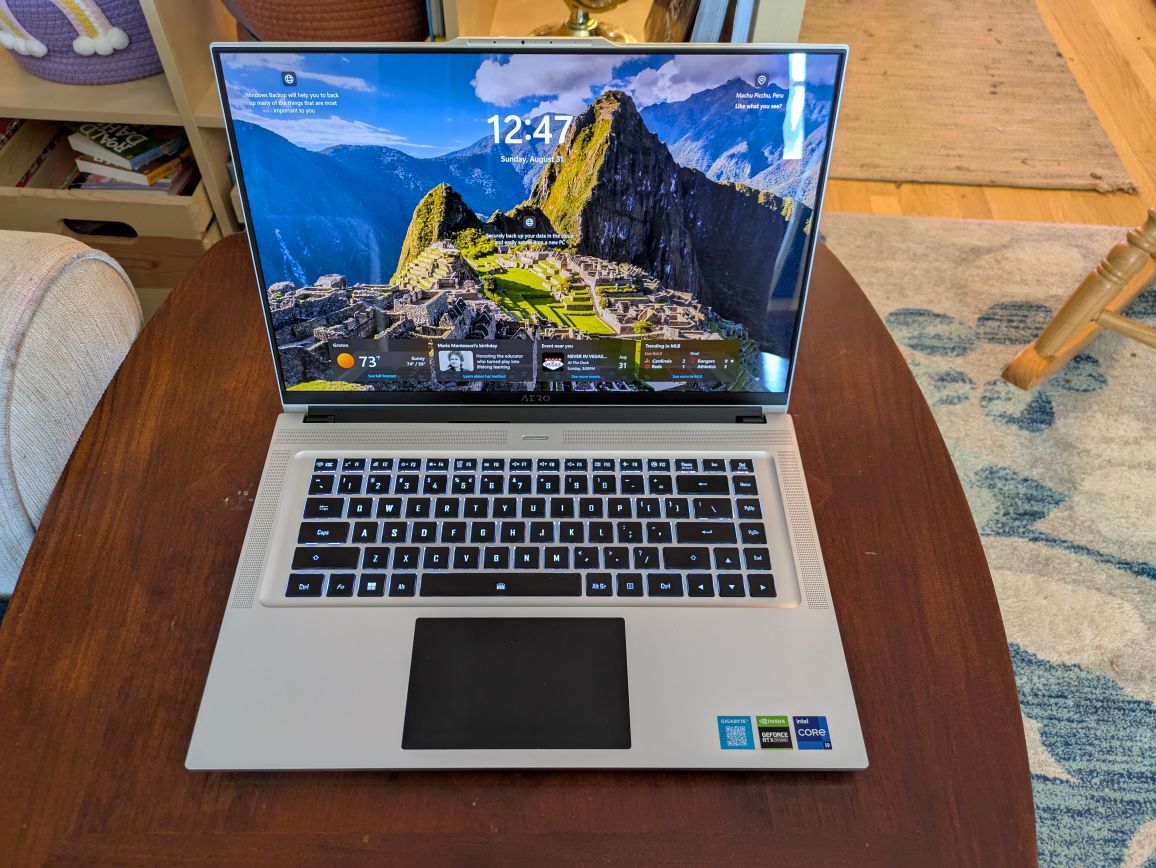
Gigabyte Aero 16 YE5

Mechanical Design Influences Efficiency

The purpose of this article series is to find out just how well laptops do for scientific compute workloads in Folding@Home, the distributed computing project aimed at disease research. Specifically, I’m testing out the hypothesis that laptop hardware and tuning is inherently more energy efficient. The laptop form factor demands that the hardware inside produce less heat than an ATX desktop form factor, because the laptop’s mass and available cooling airflow is significantly less than that of a desktop. By design, a laptop should be more efficient than a desktop. Without being optimized for efficiency, laptops would suffer from extreme heat, poor battery life, reduced battery health, and lack of sales (no one wants to buy a machine that burns your legs and doesn’t last).

This Gigabyte Aero 16 is from 2022, so it’s about two generations behind the bleeding edge, but still relevant. This was a high-end laptop when it was released, and it had the price tag to prove it (MSRP of $4800 as configured). For those of you who have been following along, you know that I tend to review and benchmark slightly older hardware, because it can be obtained at a much more reasonable used price ($1300 on eBay in this case). The performance tuning and optimizations are largely the same, so for the purposes of demonstrating Folding@Home on a laptop, I expect these results to be just as relevant as if I were using a brand new machine.

Here are the specs

Gigabyte Aero 16 YE5 (2022) Specs

CPU: Intel Core I9 12900H, 14 cores (6 Performance, 8 Efficient), 20 threads

Memory: 32 GB DDR5 4800 MHz

GPU0: NVidia RTX 3080 TI, 16GB

GPU1: Intel Integrated Iris Xe

Storate: 2 x 1 TB NVME SSD

Display: Samsung 4K OLED HDR 60Hz

What is a Productivity Laptop, Anyway?

Gigabyte markets the Aero series of laptops as prosumer “Productivity Laptops”, although the specifications would suggest these machines can game very well. I found that to be true (I’m playing Clair Obscur: Expedition 33 with max settings with almost no lag). The difference between productivity laptops such as the Aero and gaming laptops like the Asus Rog Strix is in the chassis design, the aesthetics, and the power profiles. Gaming laptops have that flashy RGB lighting, deeper chassis allowing for more cooling, higher power limits, and faster displays (60 Hz is considered pretty slow for a gaming monitor by today’s standards). The Gigabyte Aero 16 YE5, by comparison, is sleek, relatively thin (despite the big GPU), and sports a gorgeous but sluggish 4K display that content creators drool over thanks to its color accuracy.

One thing that caught my eye about the Aero 16 is the thrifty 105 watt built in GPU power limit for the beastly Nvidia RTX 3080 Ti. This is a monster of a mobile GPU, and most manufacturers who stick this in a laptop are targeting the top-tier gaming market. The typical TDP of the 3080 Ti (mobile) is between 115 and 150 watts, with some laptop manufacturers pushing it to 175 watts and more. This is a far cry from the desktop card’s 350 watt power dissipation, but it’s still a ton of power that must be dissipated as heat that would challenge most laptops.

In the case of Gigabyte, the 105 watt power limit (hardcoded in the vbios) means this laptop is not going to win the ultimate FPS contests with the likes of pure gaming machines. However, that isn’t the point. This machine was designed for content creators who want to be able to load high-poly models for beautiful rendering, or perhaps digital artists who’d like to cram Stable Diffusion 3.5 or Flux models entirely into the video card’s 16 GB of onboard memory.

If you’ve been following along on this blog, you know that for distributed computing projects such as Folding@Home, the maximum efficiency (most science done per watt of power) is typically achieved by down-clocking and/or undervolting the hardware to reduce the power consumption while preserving the majority of performance. Thus, it’s my hope that this specific laptop will set an energy efficiency record on this blog. If it does, it won’t be because of raw performance, but rather its carefully considered design for efficiency.

Nvidia 3080 Ti (mobile) GPU: Not quite the same thing as a 3080

Before continuing, it’s important to note that Nvidia’s mobile implementation of the 3080 Ti is not at all the same thing as a desktop 3080 Ti. For detailed specs, you can read about the card here: https://www.techpowerup.com/gpu-specs/geforce-rtx-3080-ti-mobile.c3840

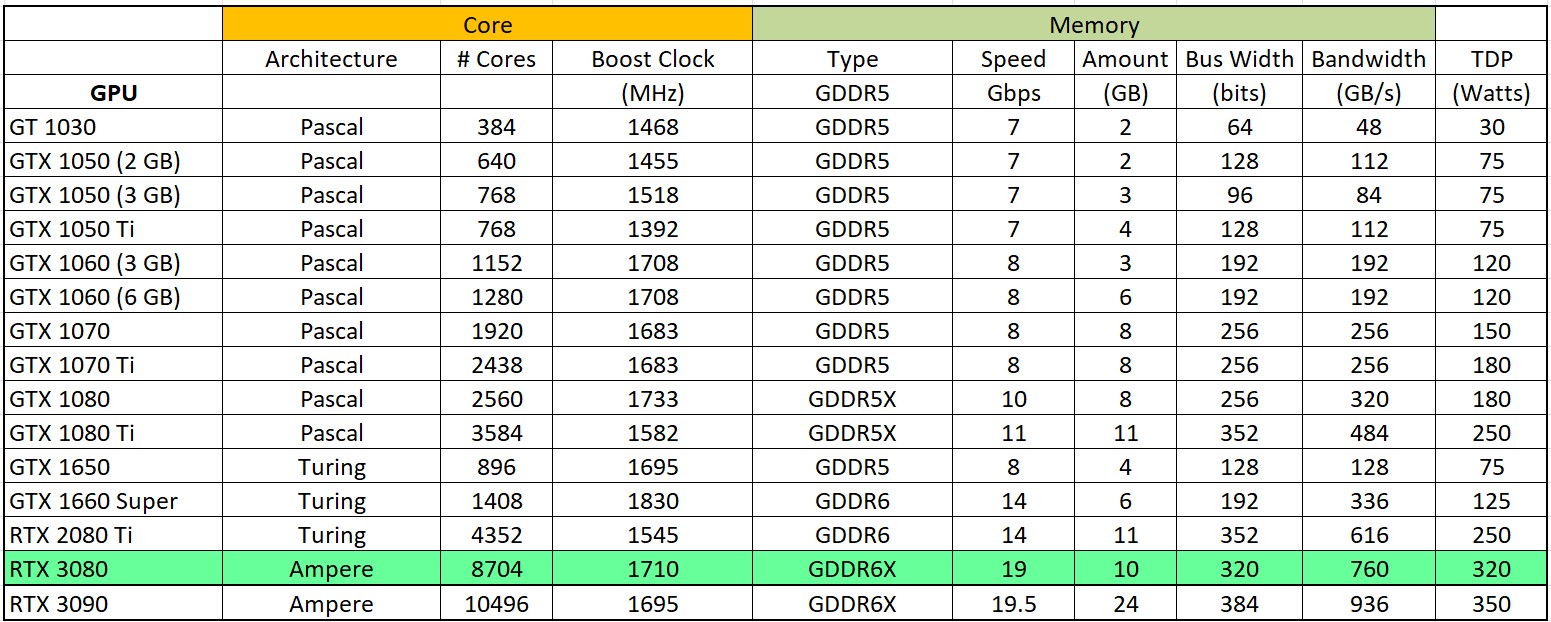
Notable differences between the laptop GPU and the desktop 3080 Ti are the number of CUDA cores (7424 vs 10240), the memory bus (256 GB vs 384 bit ), and the overall base / boost clock rates (810 / 1260 MHz vs 1365 / 1665 MHz). The desktop 3080 Ti is noticeably more powerful (and thirstier). Since I don’t have a full-sized 3080 Ti, the main point of comparison in this article will be against my 3080 (non-Ti), which has a more similar number of CUDA cores (8704) to the 3080 Ti mobile. See the table below for a detailed breakdown
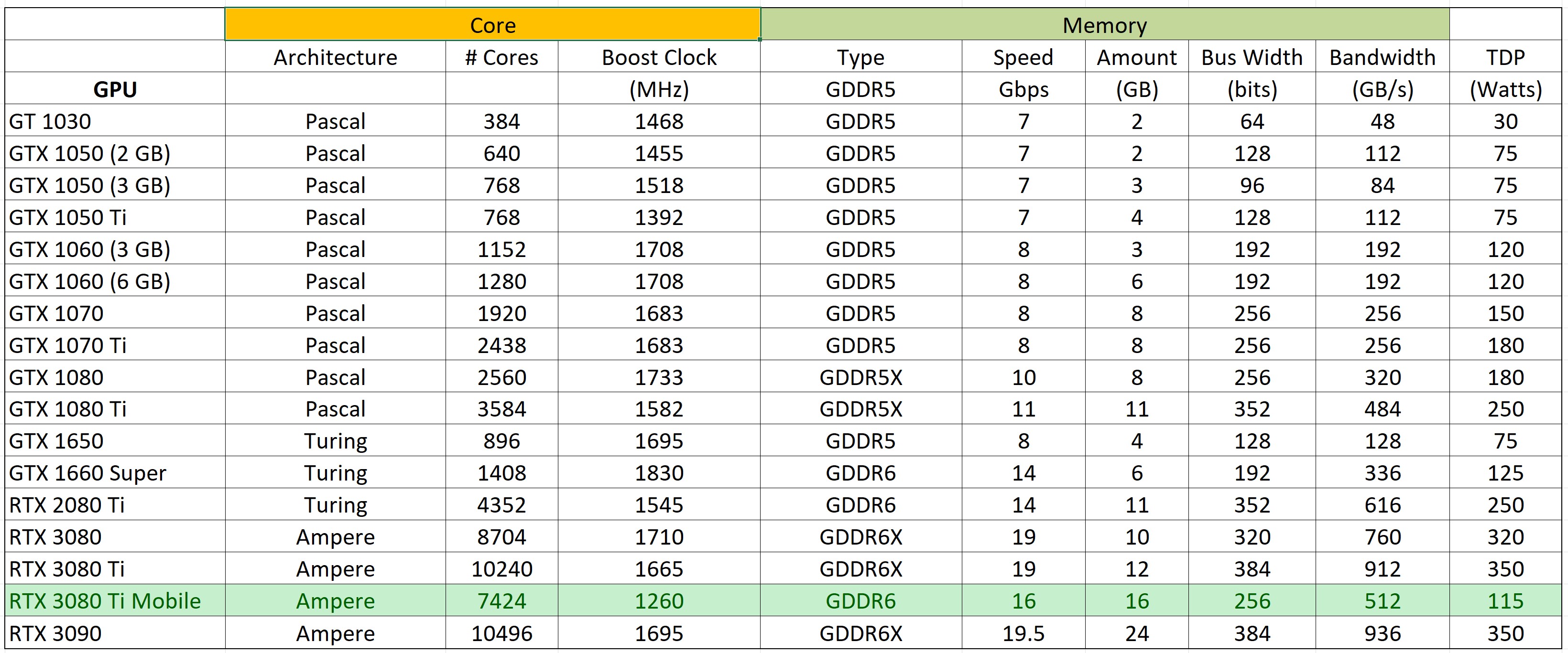
From eyeballing this chart, it’s possible to compute a rough PPD estimate of the 3080 Ti mobile compared to the desktop 3080 (which has a known PPD of about 7 million). To do this, we will derate the desktop 3080’s score by an approximate scaling ratio of GPU performance. This is possible to do since the 3080 and 3080 Ti mobile are both based on Nvidia’s Ampere architecture.

Scaling Ratio = [# CUDA Cores (3080 Ti Mobile) / # CUDA Cores (3080)] x [Boost Clock (3080 Ti Mobile)/Boost Clock (3080)]

Busting out the trusty calculator (BarelyCalc Credit: A. Colon):
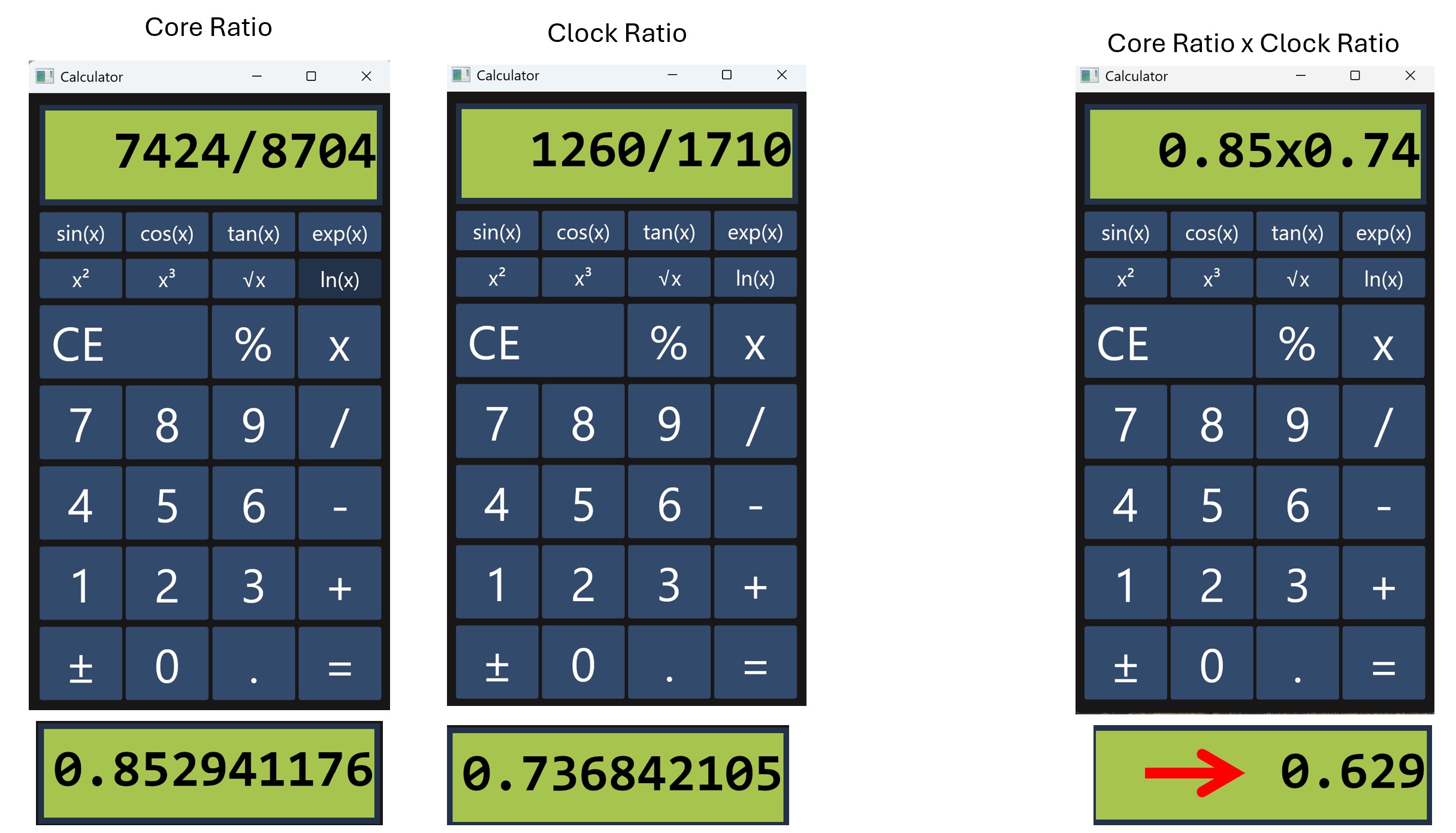
And scaling down the desktop 3080’s 7 million by 0.629 yields an estimated 3080 Ti mobile GPU performance of 4.4 million PPD.

Laptop Cooling–> Make sure you do it

For this test, I’m going to start with the laptop on a hard surface just to get a feel for the machine’s native cooling ability. The hard surface below the computer ensures the air intakes on the bottom have plenty of airflow. For short-term gaming and Folding@Home, this should provide adequate cooling. I expect the system to thermally throttle to keep itself cool. If anyone were to seriously consider using a laptop for long-term high-performance computing, a dedicated laptop cooler beneath the machine is highly recommended for the longevity of the device. For this test, I will be slipping my budget laptop cooler under the machine for the duration of benchmarking.

See the images below for the specific heatsink and cooling configuration on this Gigabyte. The bottom vents are generous (but not oversized as in some gaming laptops), and the twin fans provide cooling from both sides. This machine sucks in cool air from below and blows it out the sides and the back.
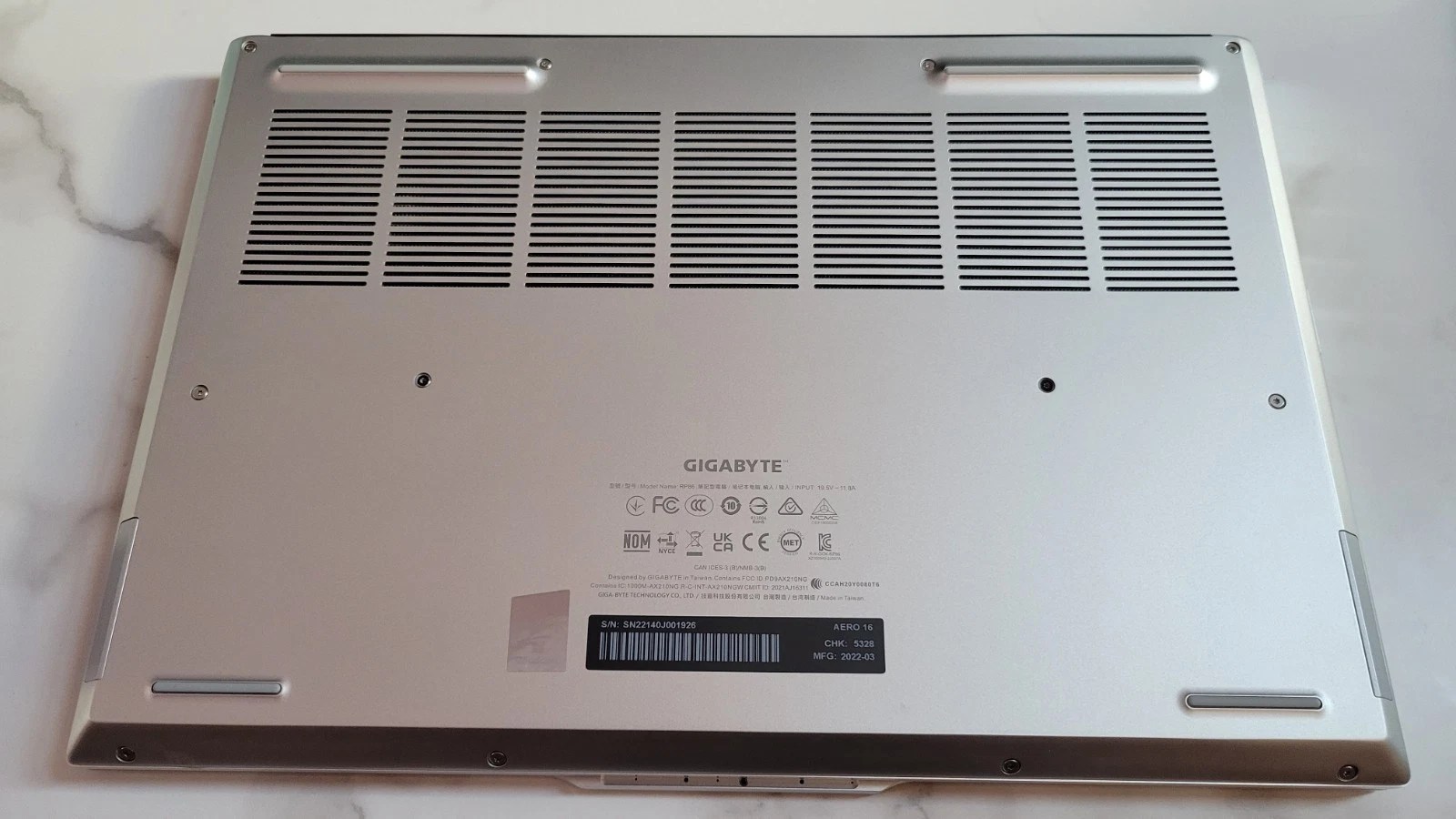
Aero 16 Underside (Photo Credit: Ebay User Ceo.Tech)

Here is what’s beneath the cover. Note the dual cooling fans and heat pipes:
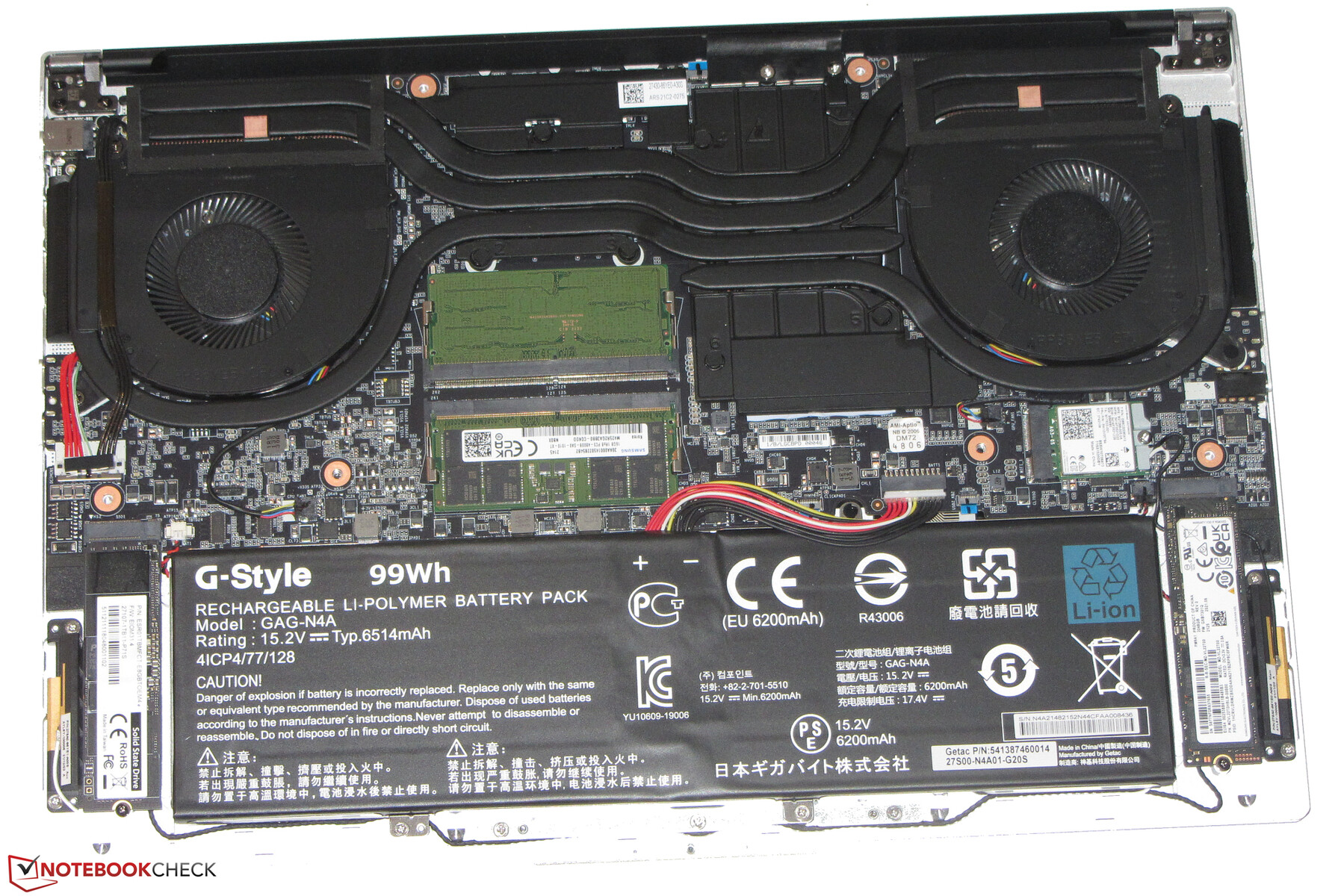
Credit for the inside shot goes to NoteBook Check! Please read their detailed review of the Aero 16, if interested, here: https://www.notebookcheck.net/Gigabyte-Aero-16-YE5-Review-Compact-4K-Multimedia-Notebook.610111.0.html

The Software Environment

I’ll be running this Folding@Home test in Windows 11 using the F@H client 8.4.9 on the GPU. This software is newer than what I’ve run in the past on my benchmark desktop, so the GPU performance plots won’t be an apples-to-apples comparison. But then again, it’s a bakeoff between a desktop and a laptop so…it’s more like a pineapples and grapes comparison.

The Metrics

As with all my previous articles, we’ll be using my trusty P3 Kill-A-Watt meter to measure power at the wall (laptop battery fully charged before testing so there should be no battery charging happening). Folding@Home performance is measured in Points Per Day (PPD). By measuring the system power consumption at the wall, we can compute the energy efficiency of this setup (PPD/Watt).

Pre-Test: Initial Configuration & Cooling

I downloaded the Folding@Home client here and configured one GPU slot for folding. Folding@Home, Google Chrome (for the client web app) and MSI Afterburner are going to be the only programs running during the test.
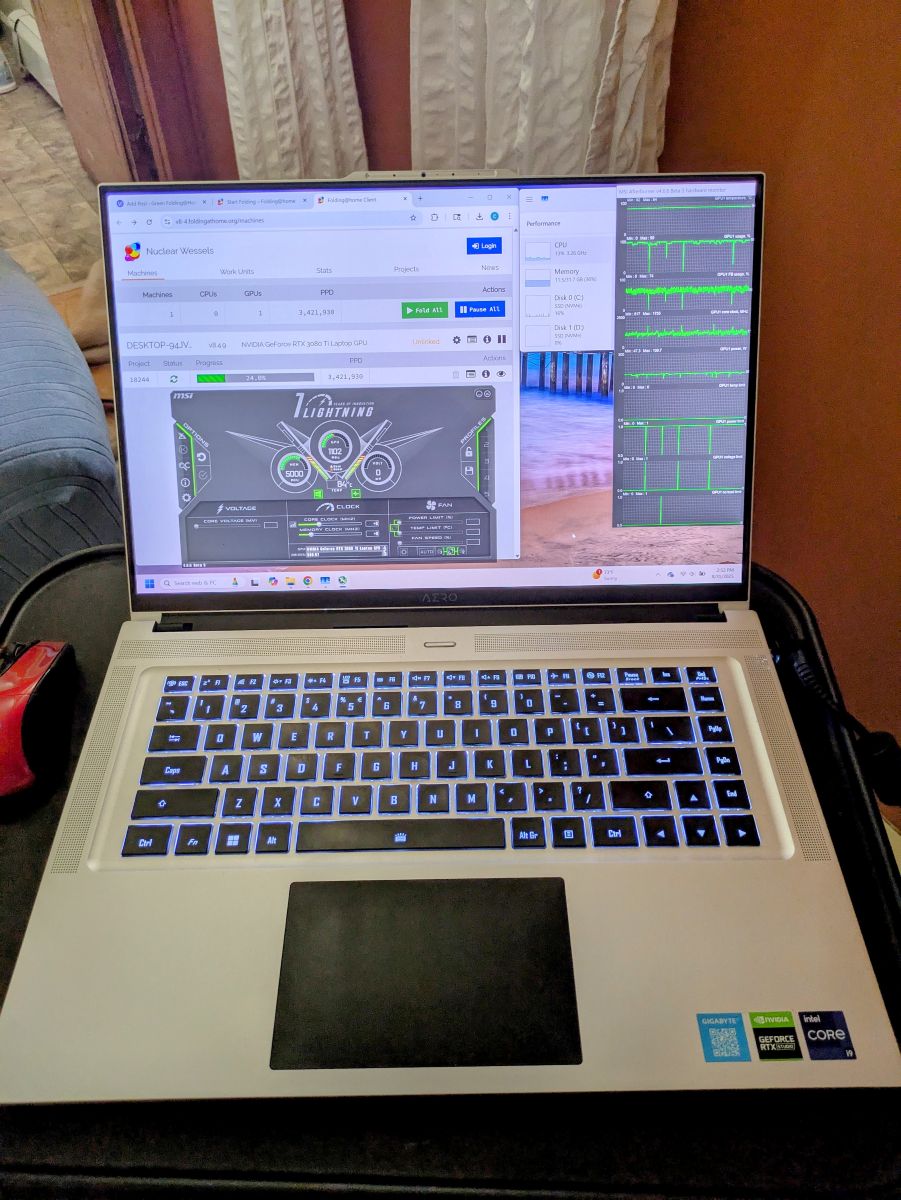
Below is the first work unit this machine has ever folded!
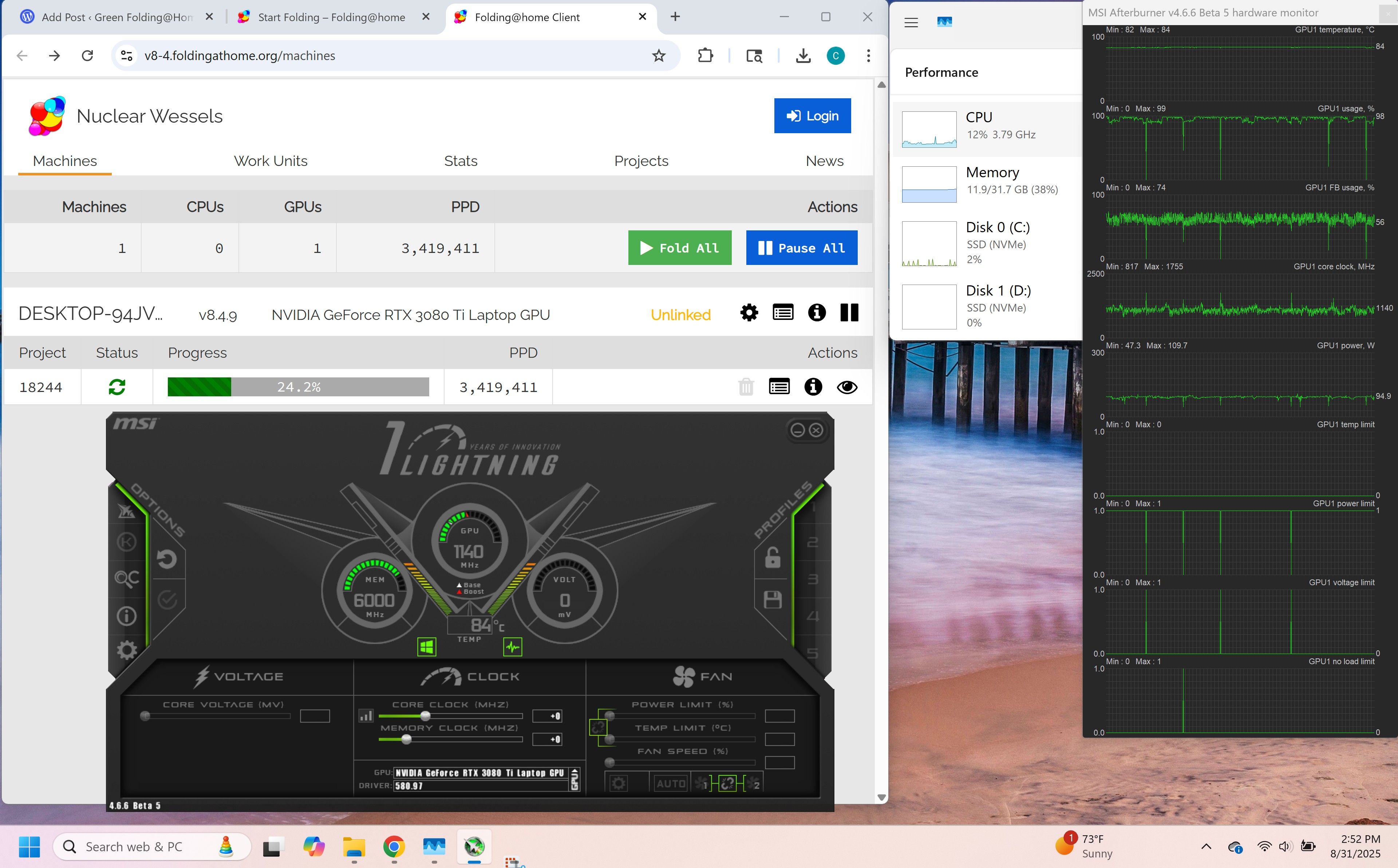
The initial work unit is estimating a 3.4 million PPD performance, which is a bit lower than the 4.4 million PPD I was estimating based on my experience with desktop 30xx-series GPUs. This could also be due to the fact that the Quick Return Bonus portion of the original Stanford University PPD score is exponential, not linear. It’s not worth worring over, as this is still an awesome score for a laptop. I didn’t have the watt meter hooked up (boo on me), but just roughing this out with a guess at total system power consumption of 100 watts results in an efficiency of 34K PPD/Watt! If that’s true, it’s a record for this blog! Part 2 of this article will thorougly investigate and optimize this performance.

There should be some room for signifigant optimization. I noticed the GPU core clocks are hovering right around 1100 MHz, so the machine isn’t hitting its full core boost clock rate. The GPU is pulling down about 95 watts, so slightly below the design’s advertised 105 watt TDP under the Windows default power profile. According to MSI Afterburner, the system is hitting the power limit, and is not actually thermally throttling (much to my surprise). The laptop is very hot to the touch, which means the aluminum case is doing its job dissipating the heat. The fans are kicked up to maximum, and I can tell this thing is begging for more cool air. GPU temps rose quickly and held steady at 84 degrees C. Let’s check out some thermals:
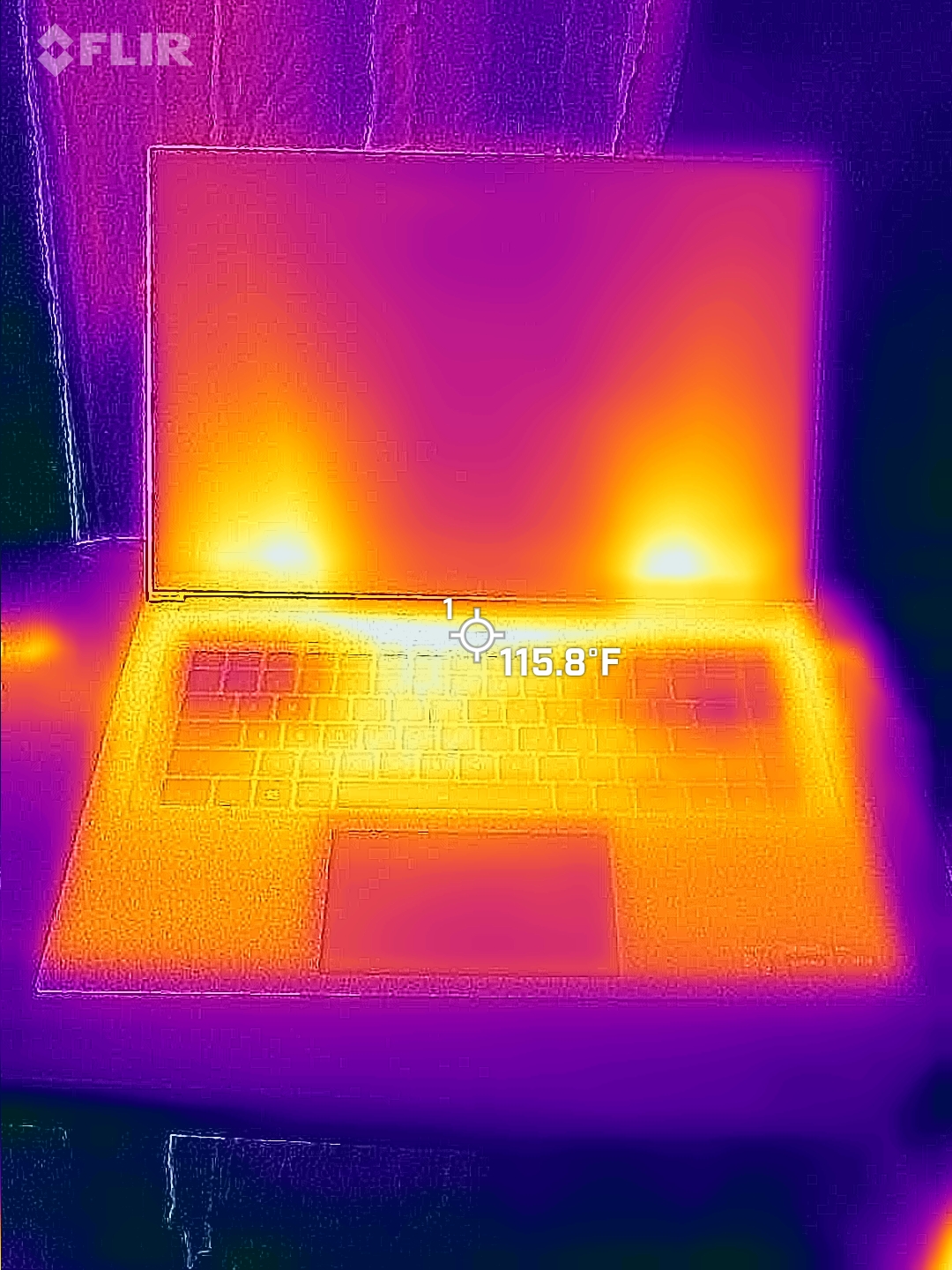
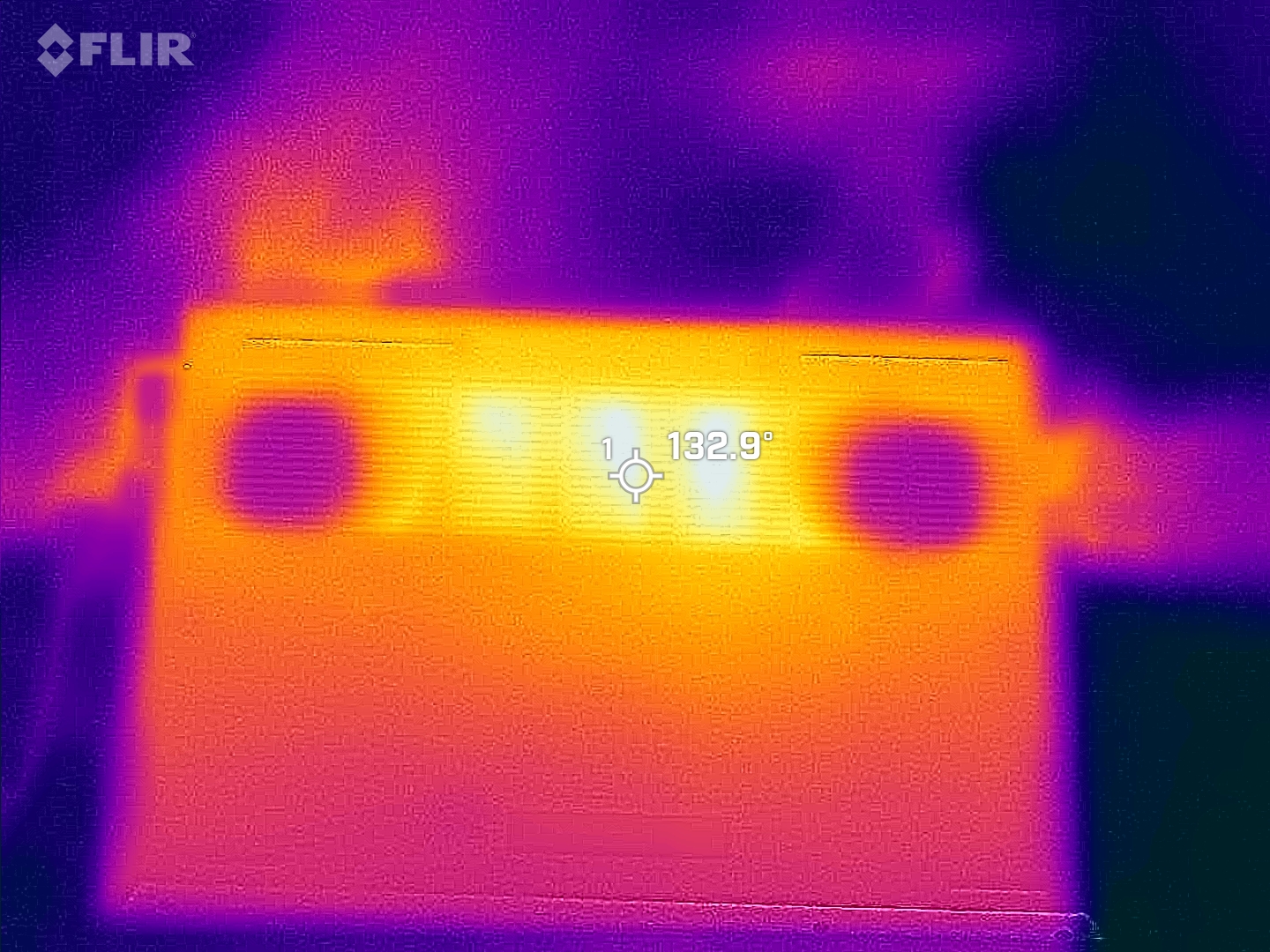
Note: My FLIR camera was set to report temps in Fahrenheit (sorry for mixing temperature units!). With a 115 degree F keyboard bezel and a 132 degree F bottom panel, this is one toasty laptop. In case anyone thinks this is a good thing, let me be clear: it’s too darn hot! High Performance Computing is a very not-normal use case for a laptop, and this result isn’t surprising. I’m not faulting Gigabyte at all. Based on these images and the fact that the laptop was too hot to hold, I’ll be breaking out the laptop cooler.

Laptop Cooler

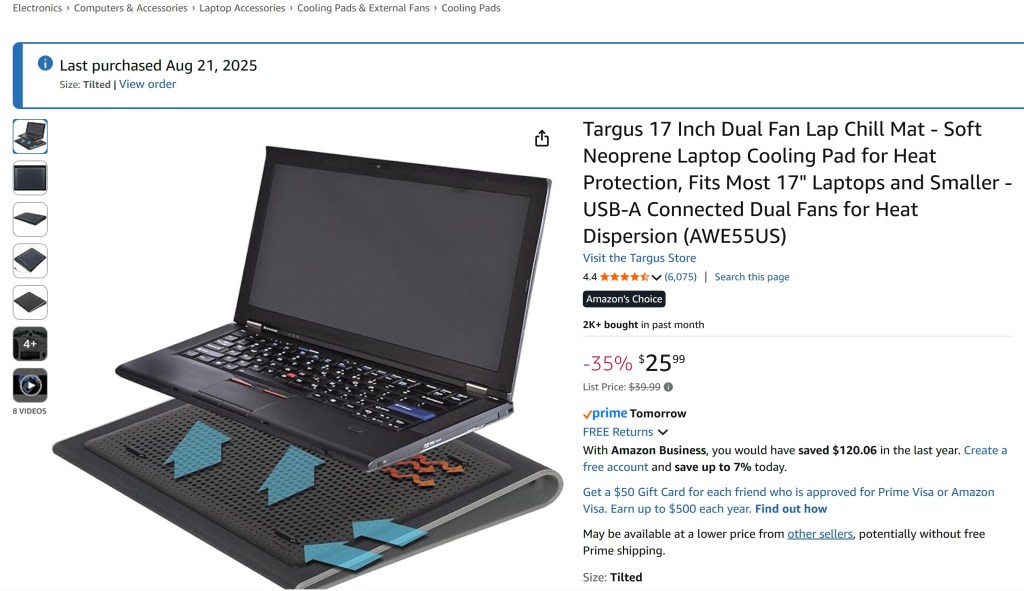
My laptop cooler is nothing special. For $25, this Targus model puts two small fans right under the air intakes on the bottom of the laptop. It’s a no-frills setup, but it has worked well for me for gaming by keeping the computer up off the bed sheets (the archnemesis of all laptop fan intakes). I was surprised with just how well this cooler did. After plugging it in (power coming from USB), the temperatures dropped from 84C to 71C, and the laptop’s fans became much quieter. The machine was still very warm to the touch though, and there wasn’t much of a change on the external radiating surface case temperatures. Still, based on that internal temp drop, I felt much more comfortable about doing some extended testing.
Side-Note: I did the cooling upgrade in the middle of the first work unit. You can see from the MSI afterburner plot that the overall FB Usage on the GPU (corresponding to memory load) became much less hashy after the temps came down, which may indicate more stable operation. Also, there was a very slight but noticeable uptrend in overall GPU clock rate. The estimated PPD as reported by the F@H client increased by 100,000 PPD. This is a small positive change (3%), which suggests there might be some benefit for GPU clock frequencies by reducing the temps, but this result isn’t statistically valid. Many more data points would be needed, using final PPD numbers and not the client’s estimated instantaneous performance, to understand the effect of the laptop cooler on F@H production. Future long-term testing of Folding on laptops with and without an external laptop cooler may be needed (but I don’t want to break my new toy so I won’t be doing much without the laptop cooler)
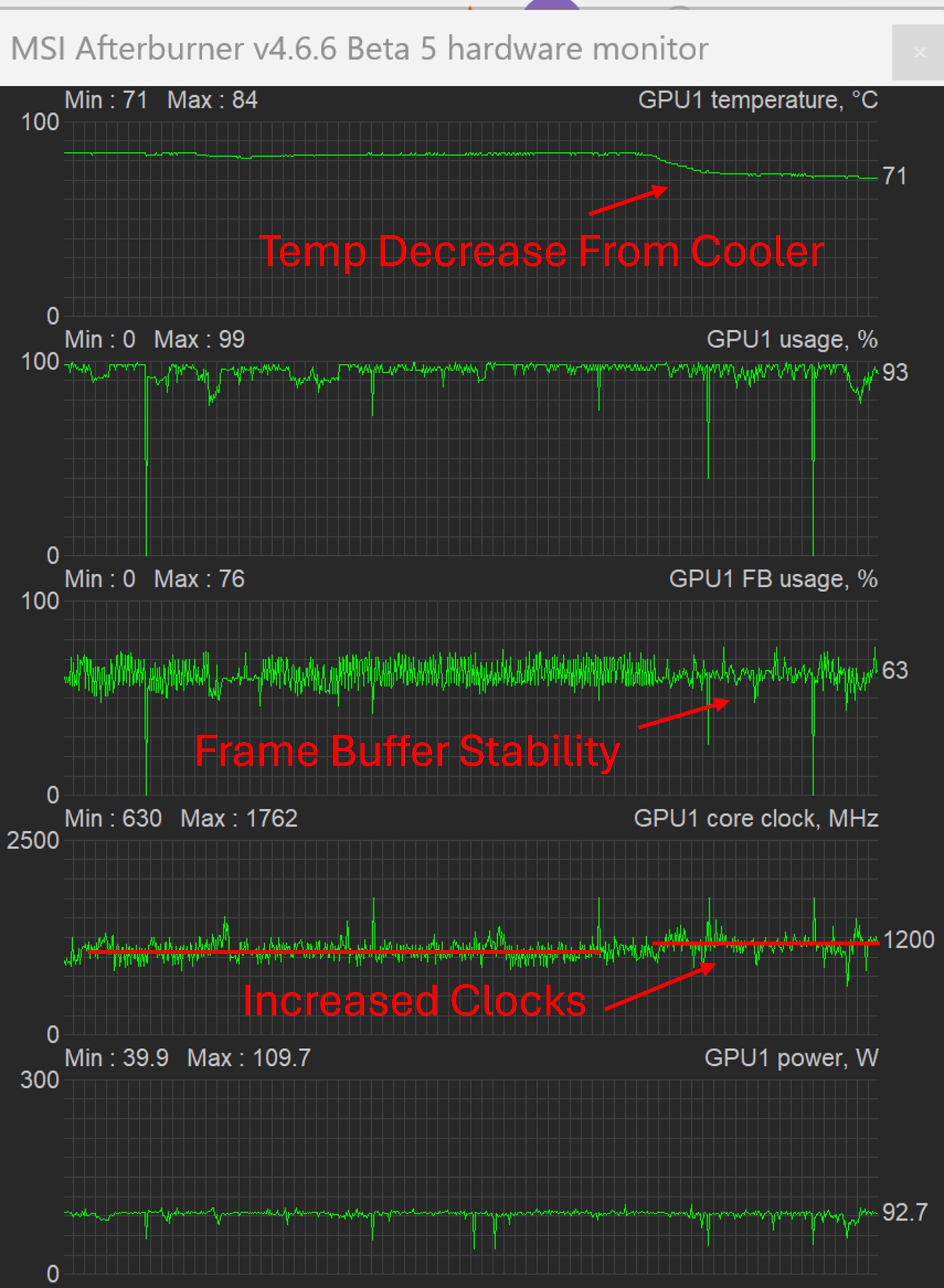
Effect of Laptop Cooler on GPU Temp, FB, and Clock Frequency during Folding@Home

Test Methodology

For this test, I’m going to run a whole bunch of workunits to get a statistically meaningful result, since Folding@Home has significant variation in PPD from one workunit to the next. In order to get a feel for how changing the GPU’s power allocation affects the results, I’m going to use Gigabyte’s Control Center to control the laptop’s power settings. This offers a more direct way than relying on Windows’ built-in power plans, although it’s not really any easier to decipher. Unfortunately, the power limit on the GPU (my main way of adjusting F@H performance and efficiency) is not adjustable in MSI Afterburner in this machine, most likely due to a locked vbios. Power consumption will be at the system level (wall power), measured by eye from the watt meter. Since this tends to jump around a bit, readings that are +/- 5 watts are essentially considered the same wattage.

Here is a screenshot of the Gigabyte Control Center. The relevant power options are boxed in red.
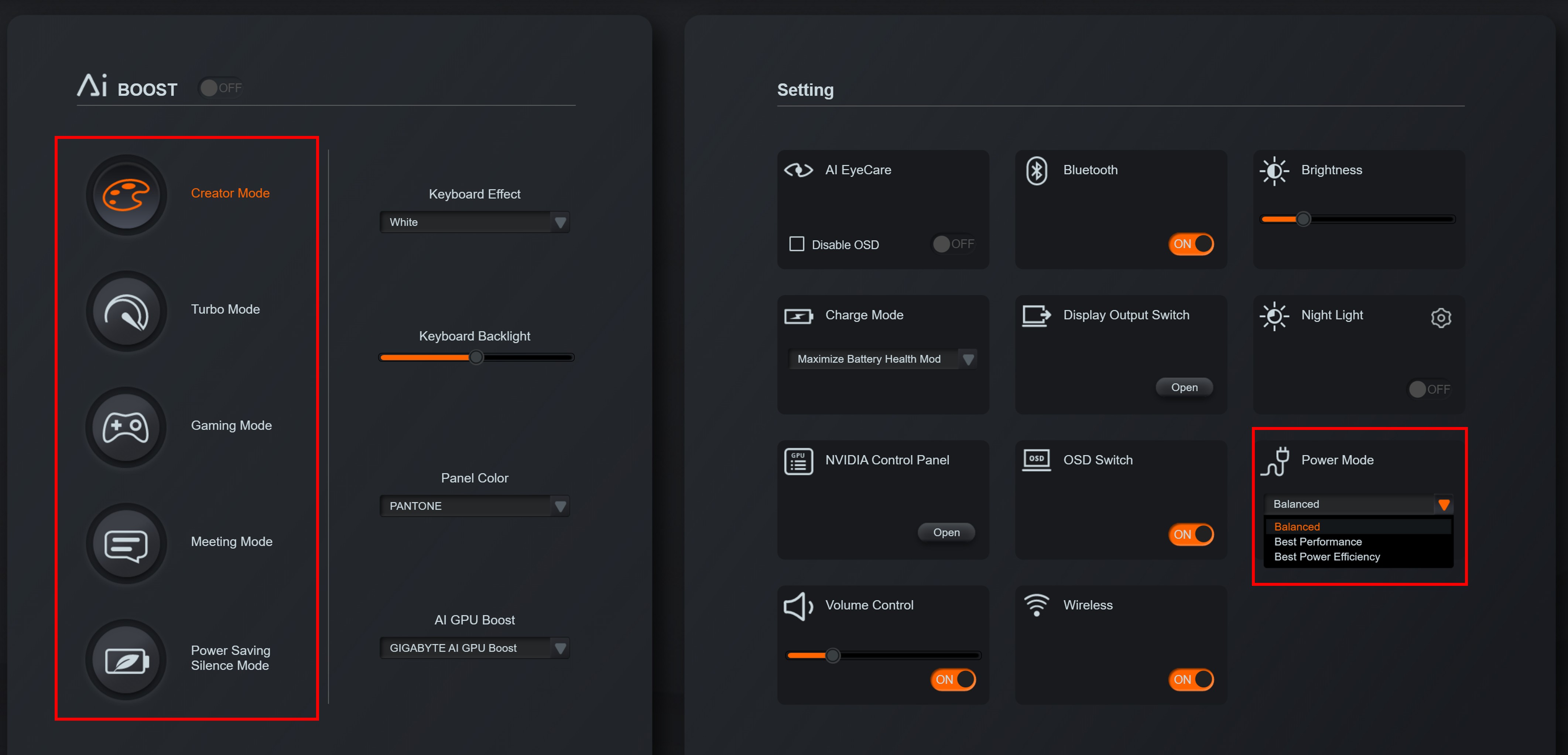
Gigabyte Control Center

Shown on the left-hand side are five power modes for the laptop. They are “Creator Mode”, “Turbo Mode”, “Gaming Mode”, “Meeting Mode”, and “Power Saving Silence Mode”. For each power mode, there are three corresponding drop-downs under the “Power Mode” box (Balanced, Best Performance, and Best Power Efficiency”. It’s super annoying that Gigabyte named these things the same. Do the power modes on the right modify the power modes on the left? Do they override them? The documentation is not very clear.

After playing around with these settings, I found very that the “big” power modes on the left do noticably change the GPU power consumption (as reported in MSI Afterburner). For example, when in “Gaming” or “Turbo” mode, the GPU would hit up to 105-110 watts (compared to the Windows Default of 95 watts). When set to Creator mode, it would hover between 80 and 90 watts. Meeting Mode and Power Saving mode further reduced the GPU to about 80 watts continuous.

Frustratingly, the effect of the power mode drop-downs was less evident.

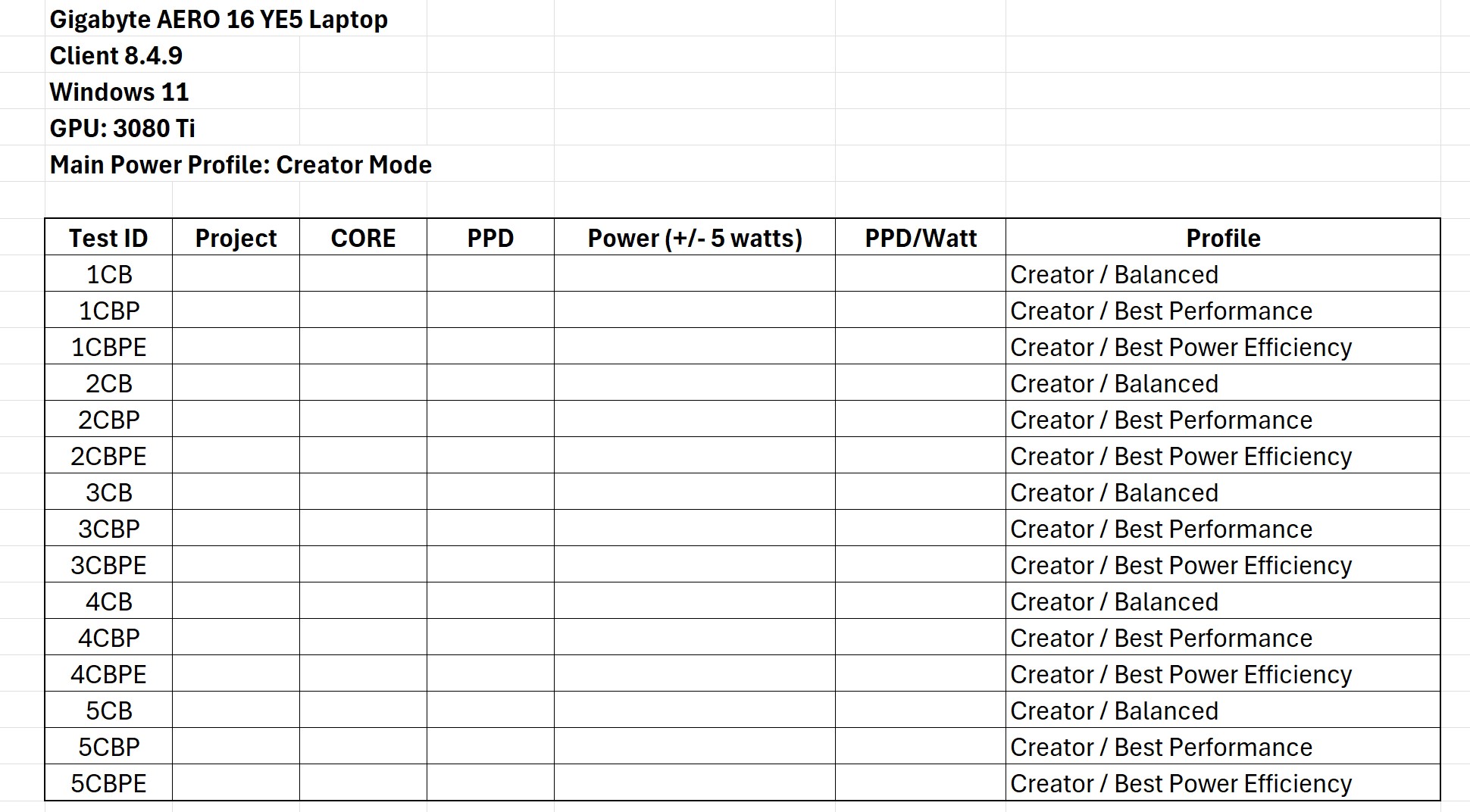
To sort all this out, I’m going to primarily focus on the five major power modes on the left side of the control panel, since those seemed to actually do something. I’m going to run five work units under each power mode and record the instantaneous PPD and Wattage at the midpoint of each run, as shown in the client. Within each work unit, I will also vary the “little” power mode setting at three discrete points during the solve and record the results. This will determine if the little modes do anything.

Overall, this will produce 5 x 5 x 3 = 75 data points, which should be enough to draw some general conclusions about this laptop and hopefully enough to determine the best settings for energy efficiency on this machine. Longer-term testing using statistics reported to the Folding@Home collections server will be done to verify the most efficient setting.

Here is an example of the test matrix that will be used to capture data for each setting:
Alright, I’ve got the machine up and running and a test plan. Now all we need to do is camp out and take some data. This will take some time (probably a week or two). Stay tuned for Part II of this article (Test Results)!
RTX 3080 Folding@Home Mini-Review

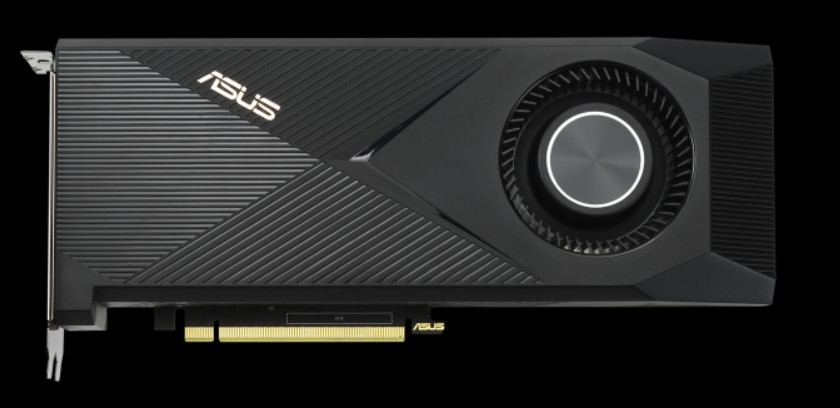
Hey everyone! It’s been a while since I’ve written a new article, mostly because of welcoming two new members to the family over the past two years (a 4th kid + a dog!). However, I haven’t been completely inactive. I sold my 3090 and picked up a much slimmer ASUS RTX 3080 (yes, it’s a blower model! I love my blower cards).

Asus NVidia RTX 3080 LHR

This card is a workhorse! I’ve been using it to game in 1440P and run diffusion model image generation. Although it doesn’t have nearly as many CUDA cores or as much memory as the 3090, this card still handles everything I throw at it. I expect it would struggle a bit with 4K gaming on ultra settings, but my gaming days are long behind me so I’m happy as can be.

Anyway, I thought I’d throw together a short review before moving on to more modern GPUs. Here is how the 3080 stacks up compared to the rest of the NVidia lineup I’ve tested so far:

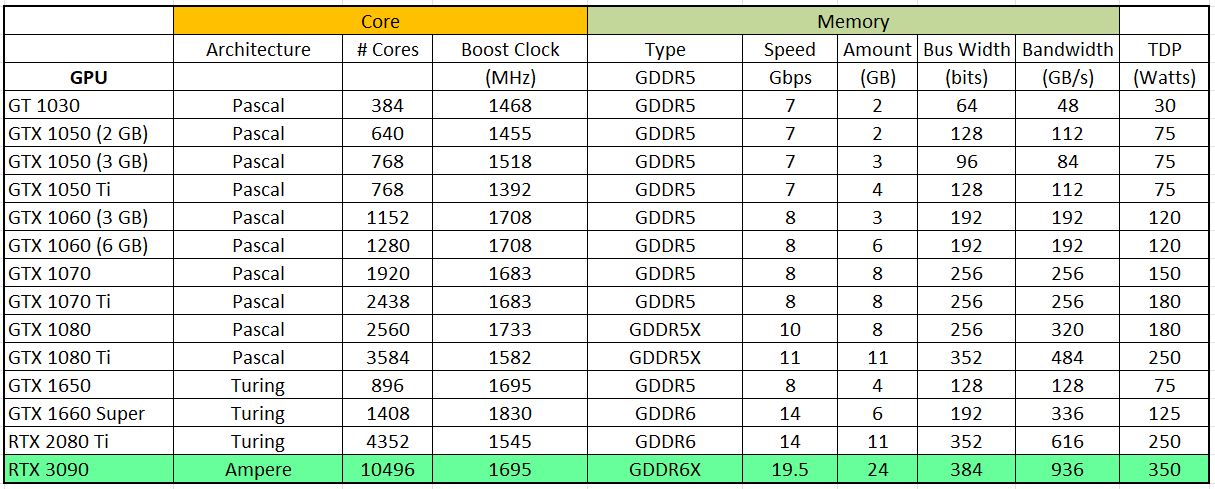
NVidia RTX 3080 Stats

From eyeballing this chart, it appears the 3080 should be significantly slower than the 3090 in compute workloads, since it has over 1000 fewer CUDA cores and less than half the memory. However, as we’ve seen before, for the majority of molecular dynamics models, there is a point of diminishing returns after which a single model simply cannot fully exercise the massive amount of hardware available to it.

I used my AMD R9 3950X-based benchmark desktop, which admittedly is getting a little long in the tooth at 5 years old (remember all those COVID incentive check PC builds!). The point is, the hardware is consistent except for the graphics card being tested, and I’m pretty sure the monstrous 16-core flagship Ryzen 9 3950X is still more than capable of feeding Folding@Home models to modern graphics cards. All power measurements were taken with my trusty P3 Kill A Watt meter at the wall (grab one on Amazon here if you want. I don’t get anything from this link…it’s just a nice watt meter and you should definitely own one or five!)

I used the Folding@Home Version 7.6.13 Client running in Windows 10 (although I am now on 11 as I type this, so perhaps there is a Win10 vs 11 comparison in the future). The card was running in CUDA mode, although I am going to stop noting that on the plots going foreword unless I specifically run a card with and without CUDA processing enabled in the F@H client.

Side-Note: The card shows up as the “LHR” model in the vBIOS. This stands for “Lite Hash Rate”. This is a now-obsolete limiter on the card’s mining hash rate to make it less appealing to cryptocurrency miners, and has minimal effect on Folding@Home performance according to various sources.

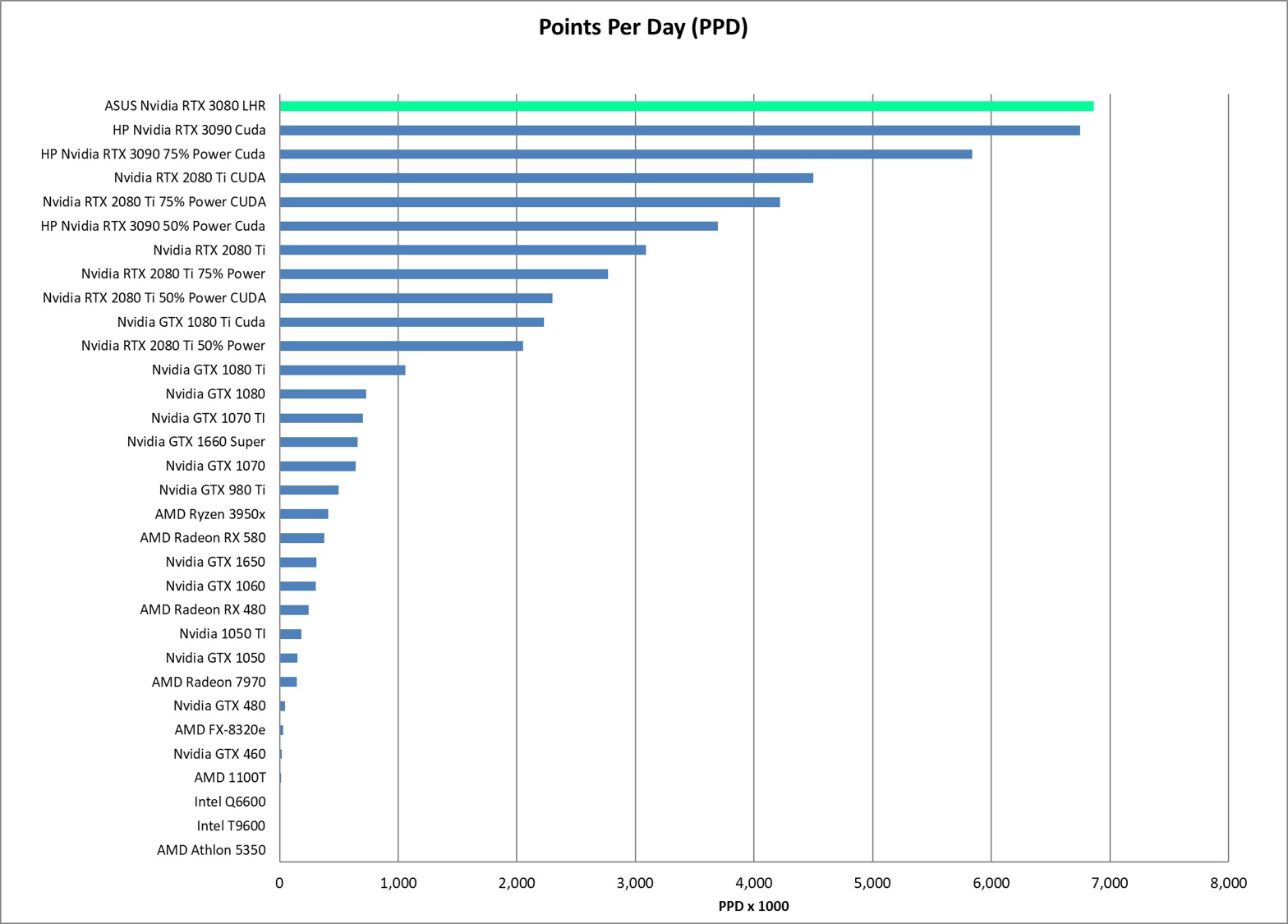
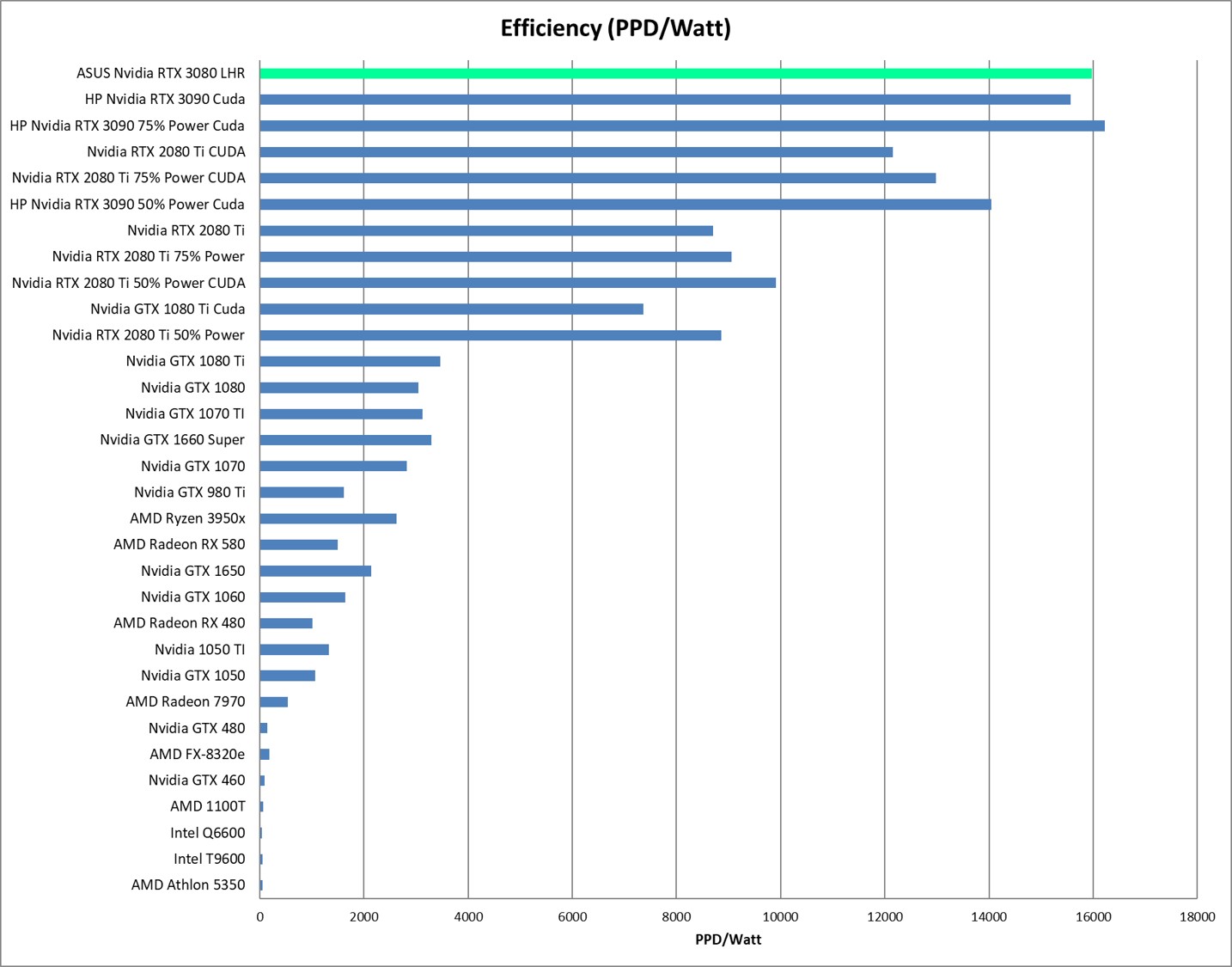
Since this is a short review, I will jump right to the Points Per Day (PPD) and Efficiency (PPD/Watt) results. They were surprising, to say the least.

Performance (Points Per Day) and System Wall Power (Watts)

NVidia RTX 3080 LHR PPD
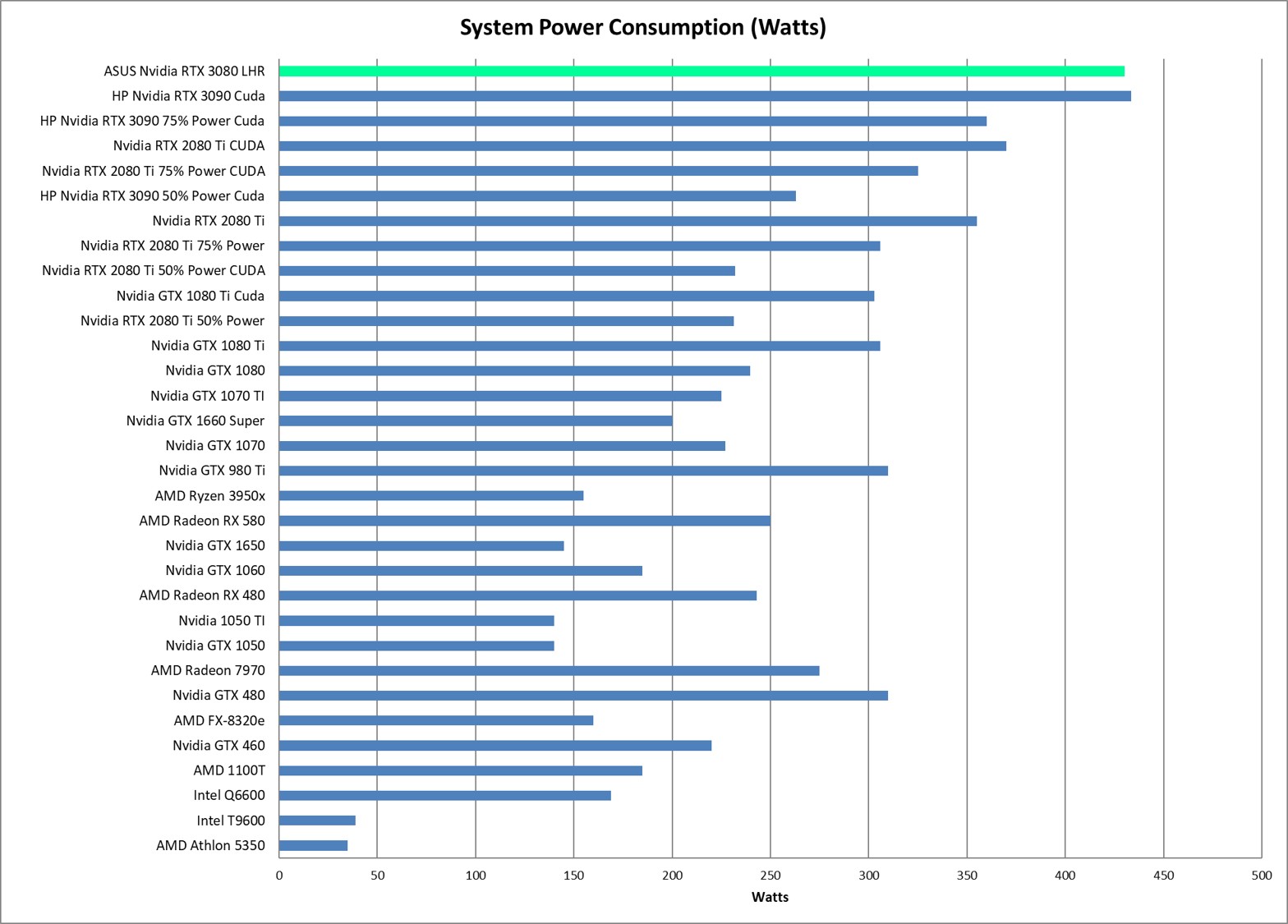
NVidia RTX 3080 LHR Power Consumption

Energy Efficiency (PPD/Watt)

NVidia RTX 3080 LHR Efficiency

Conclusion: RTX 3080 Beats its Big Brother!

The RTX 3080 is a great GPU for compute workloads such as Folding@Home, and actually surpasses the 3090 in terms of raw performance by a small margin (687K PPD vs 675K PPD). Now this is only a 3% difference and thus is well within the normal +/- 10 percent or so variation that we typically see when running the same series of models over and over on an individual graphics card. Thus, I think the more appropriate conclusion is to say that the 3080 and 3090 perform the same on normal-sized models in Folding@Home. I believe the models are simply not large enough at the time of this writing to fully utilize the extra CUDA cores and memory that the 3090 offers. Additionally, the slight improvement in power efficiency comes from the fact that the 3080 draws nominally 30 less watts than the 3090, making it a slightly more efficient card. Only when reducing the power target on the 3090 to 75% was I able to match the out-of-the-box efficiency of the 3090.

So, there you have it. The 3080 continues the trend of its predecessors, started by the noble 1080 TI as one of the best bang-for-the-buck computational graphics cards money can by. If you want to do some cancer-fighting with your computer on the cheap, you can pick up a used 3080 on eBay right now for about $350.

Folding@Home on GeForce RTX 3090 Review

Hi everyone, sorry for the delay in blog posts. Electricity in Connecticut has been so expensive lately that except for our winter heating Folding@Home cluster, it wasn’t affordable to keep running all those GPUs (even with our solar panels, which is really saying something). However, I did manage to get some good data on the top-tier Nvidia RTX 3090, which I got during COVID as the GPU in a prebuilt HP Omen gaming desktop. I transplanted the 3090 into my benchmark desktop, so these stats are comparable to previous cards I’ve tested.

Wait, what are we doing here?

For those just joining, this is a blog about optimizing computers for energy efficiency. I’m running Folding@Home, a distributed computing research project that uses your computer to help fight diseases such as cancer and covid and a host of other ailements. For more information, check out the project website here: https://foldingathome.org/

Look at this bad boy!

This is the HP OEM version of an RTX 3090. I was impressed that it had lots of copper heat pipes and a metal back plate. Overall this was a very solid card for an OEM offering.

HP OEM Nvidia RTX 3090 installed in my AMD Ryzen 9 3950X benchmark desktop

At the time of my testing, the RTX 3090 was the top-tier card from Nvidia’s new Ampere line. They have since released the 3090 Ti, which is ever so slightly faster. To give you an idea of where the RTX 3090 stacks compared to the previous cards I have tested, here is a table. Note that 350 watt TDP! That is a lot of power for this air cooler to dissipate.

The Test

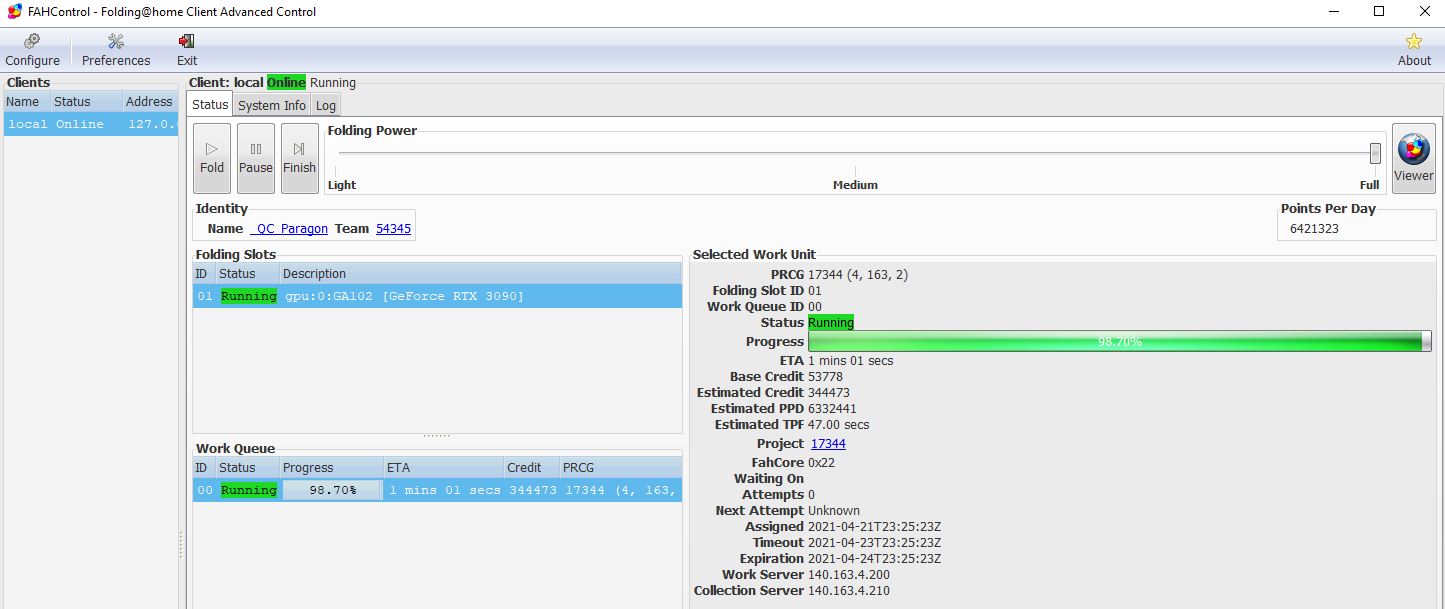
I ran Folding@Home on my benchmark desktop in Windows 10, using Folding@Home client 7.6.13. I was immediately blown away by the insane Points Per Day (PPD) that the 3090 can spit out! Here’s a screen shot of the client, where the card was doing a very impressive 6.4 million PPD!

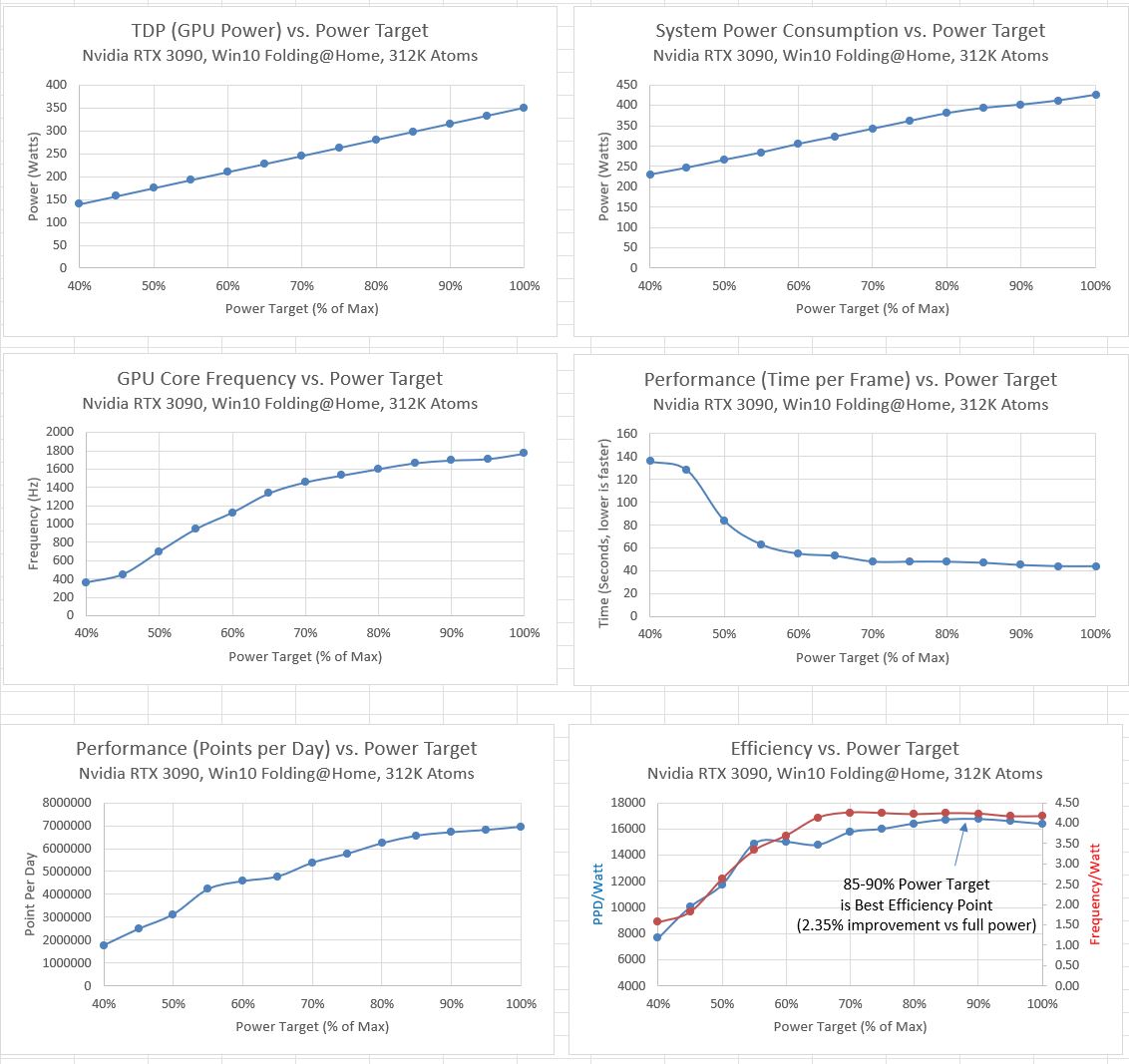
What was really interesting about the 3090 though was how much variation there was in performance depending on the size of the molecule being worked on. Very large molecules with high atom counts benefited greatly from the number of CUDA cores on this card, and it kicked butt in both raw performance (PPD) and effiency (PPD/Watt). Smaller molecules, however, did not fully utilize this card’s impressive potential. This resulted in a less efficiency and more wasted power. I would assume that running two smaller Ampere cards, for example the 3080, with small models would be more efficient than using the 3090 for small models, but I haven’t got any 3080’s to test that assumption (yet!).

In the plots below, you can see that the smaller model (89k atoms) resulted in a peak PPD of about 4 million, as opposed to the 7 million PPD with a 312k atom model. PPD/watt at 100% card power was also less efficient for the smaller model, coming in at about 16,500 PPD/Watt vs. 10,000 PPD/Watt. These are still great efficiency numbers, which shows how far GPU computing has come from previous generations.

Reduce GPU TDP Power Target to Improve Efficiency

I’ve previously shown how GPUs are set up for maximum performance out of the box, which makes sense for video gaming. However, if you are trying to maximize energy efficiency of your computational machines, reducing the power target of the GPU can result in massive efficiency gains. The GeForce RTX 3090 is a great example of this. When solving large models, this beast of a card benefits from throttling the power down, gaining 2.35% improved energy efficiency with a power target set for 85%. However, the huge improvement comes for solving smaller models. When running the 89k atom work unit, I got a whopping 29% efficiency improvement when setting the power target to 55% with only a 14% performance reduction! Since the F@H project gives out a lot of smaller work units in addition to some larger ones, I chose to run my machine at a 75% power target. On average, this splits the difference, and gives a noticeable efficiency improvement without sacrificing raw PPD performance too much. In the RTX 3090’s case, a 75% power target massively reduced the power draw on the computer (reduced wall consumption from 434 to 360 watts), as well as reduced heat and noise coming out of the chassis. This promotes a more happy office environment and a happier computer, that will last longer!

Tuning Results: 89K Atoms (Small Model)

Here are the tuning plots for a smaller molecule. In all cases, the X-axis is the power target, set in the Nvidia Driver. 100% corresponds to 350 Watts in the case of the RTX 3090.

Tuning Results: 312K Atoms (Large Model)

And here are the tuning results for a larger molecule.

Overall Results

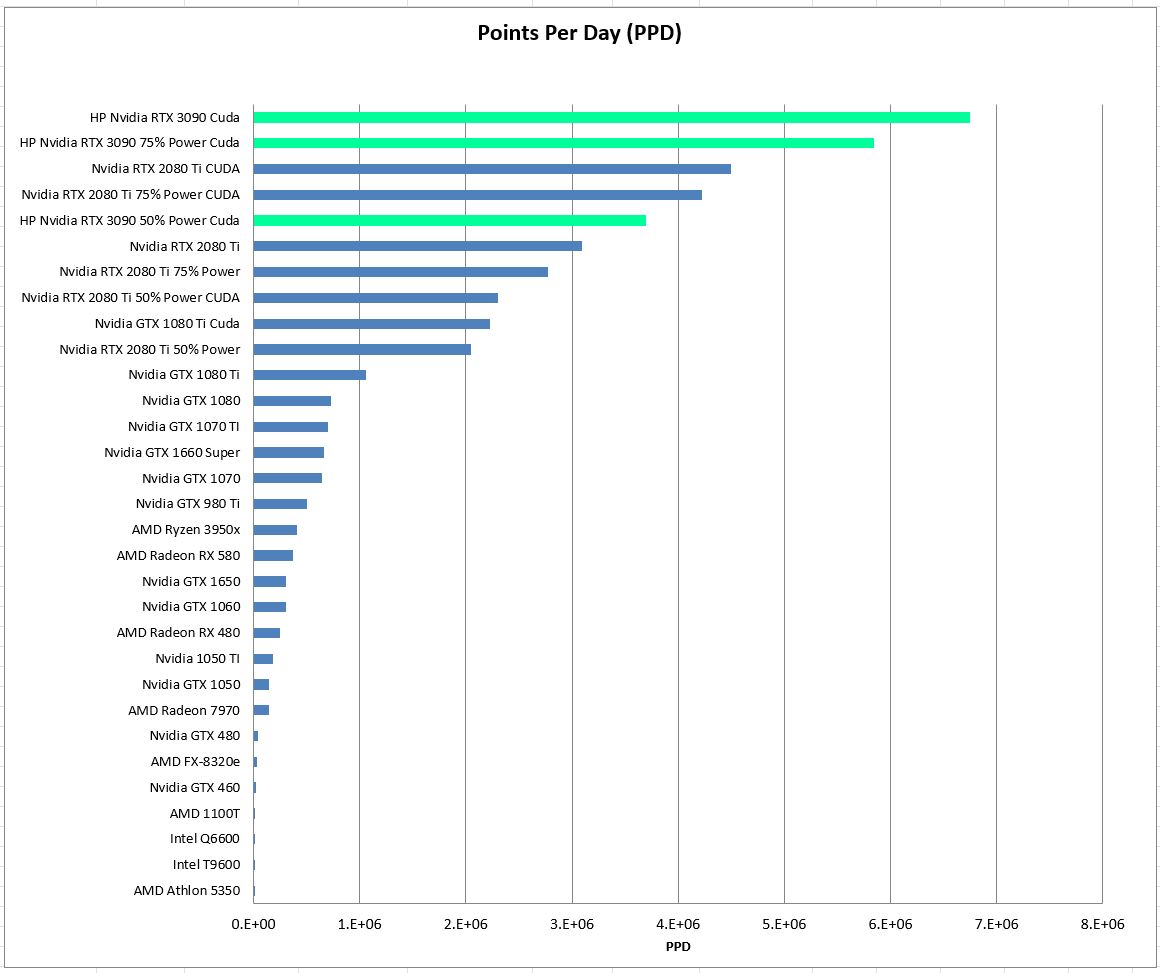
Here are the comparison results to the previous hardware configurations I have tested. Note that now that the F@H client supports enabling CUDA, I did some tests with CUDA on vs. off with the RTX 2080 Ti and the 3090. Pro Tip: MAKE SURE CUDA IS ON! It really speeds things up and also improves energy efficiency.

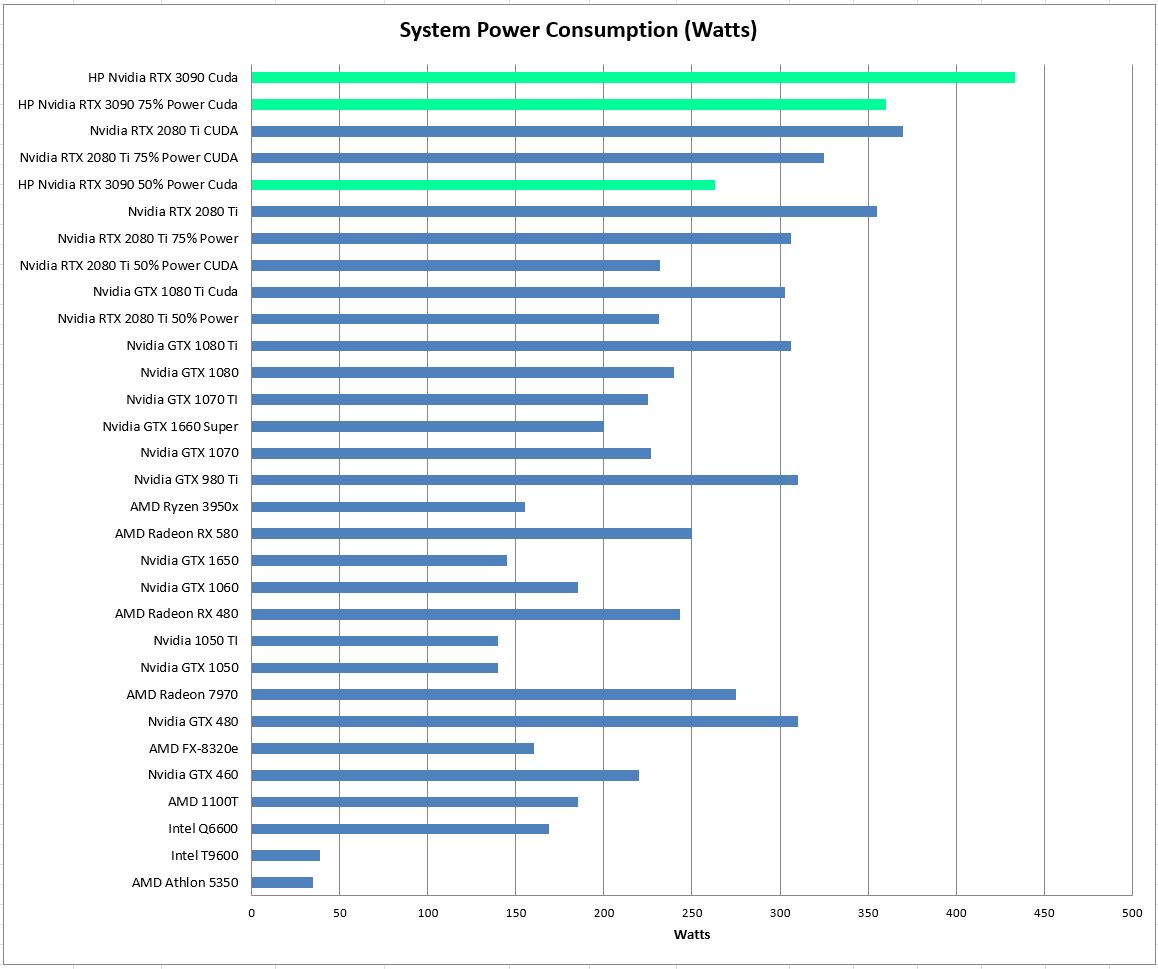
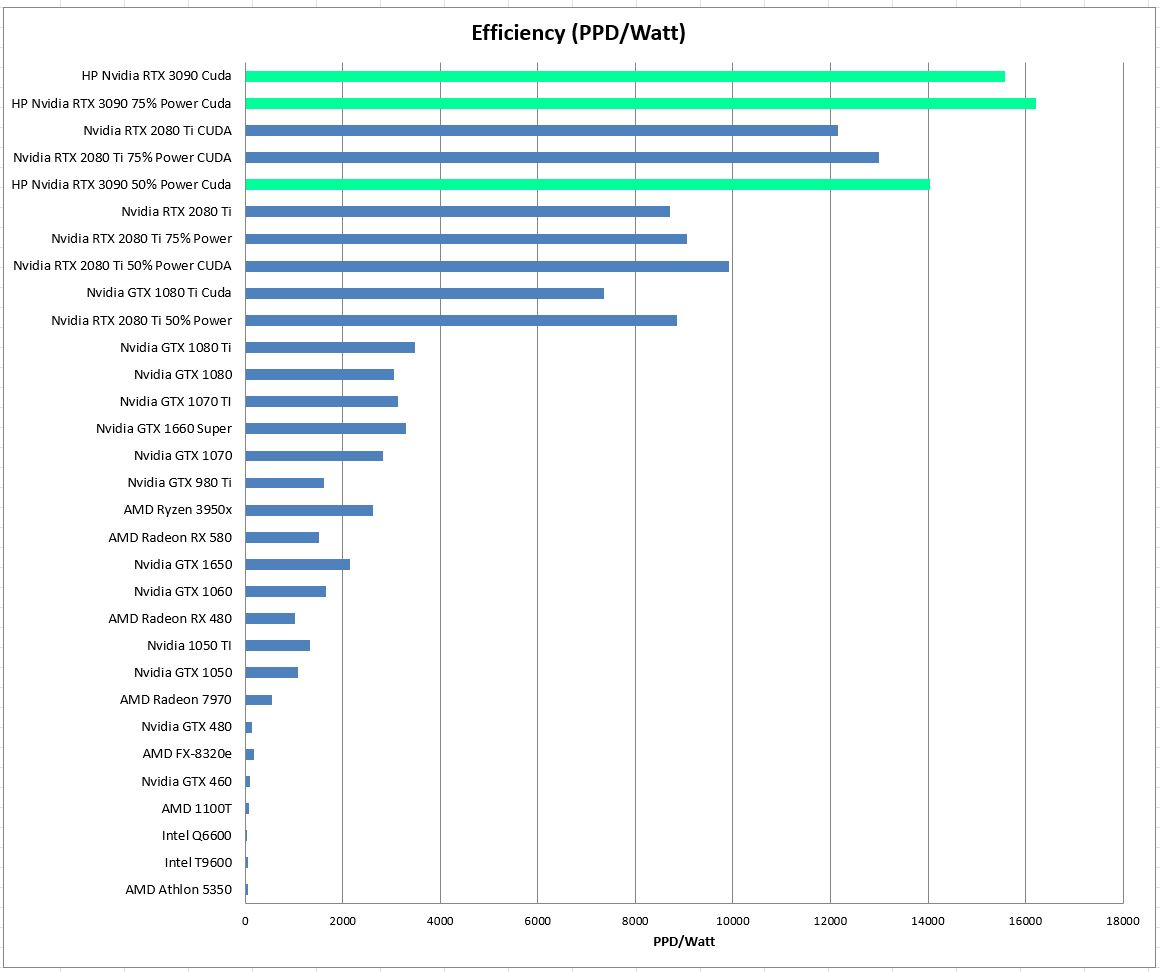
Key takeaways from below is that the 3090 offers 50% more performance (PPD) than the 2080 Ti, and is almost 30% more energy efficient while doing it! Note this does not mean this card sips power…it actually uses more watts than any of the other cards I’ve tested. However, it does a lot more computation with those watts, so it is putting the electricity to better use. Thus, a data center or workstation can get through more work in a shorter amount of time with 3090s vs. other cards, and thus use less power overall to solve a given amount of work. This is better for the environment!

Nvidia RTX 3090 Folding@Home Performance (green bars) compared to other hardware configurations
Nvidia RTX 3090 Folding@Home Total System Power Consumption (green bars) compared to other hardware configurations
Nvidia RTX 3090 Folding@Home Energy Efficiency (green bars) compared to other hardware configurations.

Conclusion

The flagship Ampere architecture Nvidia GeForce RTX 3090 is an excellent card for compute applications. It does draw a ton of power, but this can be mitigated by reducing the power target in the driver to gain efficiency and reduce heat and noise. In the case of Folding@Home disease research, this card is a step change in both performance and energy efficiency, offering 50% more compute power and 30% more efficiency than the previous generation. I look forward to testing out other Ampere cards, as well as the new 40xx “Lovelace” architecture, if Eversource ever drops the electric rate back to normal levels in CT.

AMD Ryzen 9 3950x Part 4: Full Throttle Folding with CPB Overclocking and SMT

This is part four of my Folding@Home review for AMD’s top-tier desktop processor, the Ryzen 9 3950x 16-core CPU. Up until recently, this was AMD’s absolute beast-mode gaming and content creation desktop processor. If you happen to have one, or are looking for a good CPU to fight COVID and Cancer with, you’ve come to the right place.

Folding@Home is a distributed computing project where users can donate computational runtime on their home computers to fight diseases like Cancer, Alzheimer’s, Mad-Cow, and many others. For better or for worse, COVID-19 caused an explosion of F@H popularity, because the project was retooled to focus on understanding the coronavirus molecule to aid researches develop ways to fight it. This increase in users caused Folding@Home to become (once again) the most powerful supercomputer in the world. Of course this comes with a cost: namely, in the form of electricity. Most of my articles to date have focused on GPU folding. However, the point of this series of articles is to investigate how someone running CPU folding can optimize their settings to do the most work for the least amount of power, thus reducing their power bill and reducing the environmental impact of all this computing.

In the last part of this review, I investigated the differences seen between running Folding@Home with SMT (also known as Hyperthreading) on and off. The conclusion from that review was that performance does scale with virtual cores, and that the best science-fighting and energy efficiency is seen with 30 or 32 threads enabled on the CPU folding slot.

The previous testing was all performed with Core Performance Boost off. CPB is the AMD equivalent of Intel’s Turbo Boost, which is basically automatic, dynamic overclocking of the processor (both CPU frequency and voltage) based on the load on the chip. Keeping CPB turned off in previous testing resulted in all tests being run with the CPU frequency at the base 3.5 GHz.

In this final article, I enabled CPB to allow the Ryzen 9 3950x to scale its frequency and voltage based on the load and the available thermal and power headroom. Note that for this test, I used the default AMD settings in the BIOS of my Asus Prime X570-P motherboard, which is to say I did not enable Precision Boost Overdrive or any other setting to increase the automatic overclocking beyond the default power and thermal limits.

Test Setup

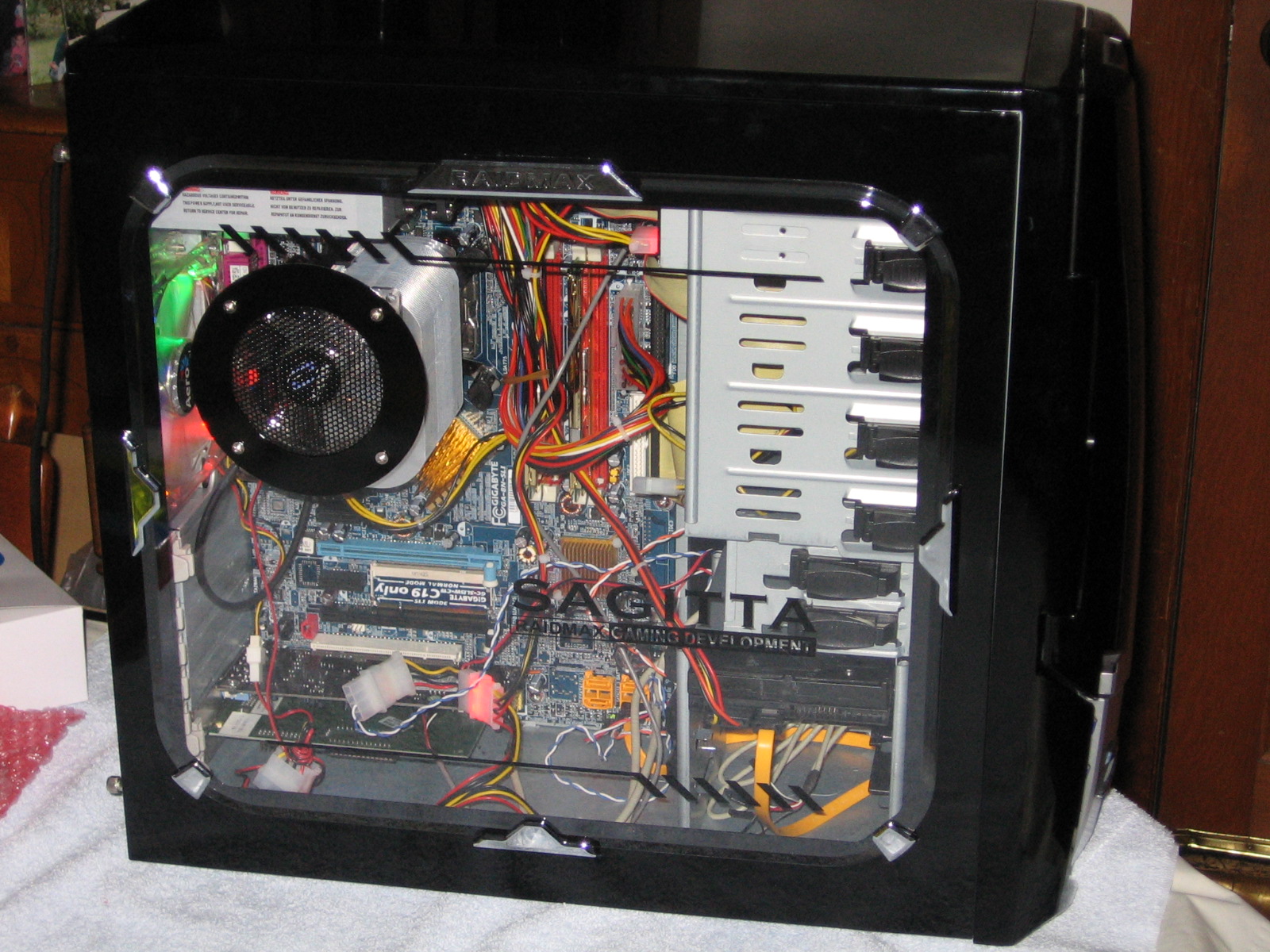
As with the other parts of this review, I used my new Folding@Home benchmark machine which was previously described in this post. The only tweaks to the computer since that post was written were the swap outs of a few 120mm fans for different models to improve cooling and noise. I also eliminated the 80 mm side intake fan, since all it did was disrupt the front-to-back airflow around the CPU and didn’t make any noticeable difference in temperatures. All of these cooling changes made less than a 2 watt difference in the machine’s idle performance (almost unmeasurable), so I’m not going to worry about correcting the comparison plots.

Because it’s been a while since I wrote about this, I figured I’d recap a few things from the previous posts. The current configuration of the machine is:

  • Case: Raidmax Sagitta
  • Power Supply: Seasonic Prime 750 Watt Titanium
  • Intake Cooling: 2 x 120mm fan (front)
  • Exhaust Cooling: 1 x 120 mm (rear) + PSU exhaust (top)
  • CPU Cooler: Noctua NH-D15 SE AM4
  • CPU: AMD Ryzen 9 3950x
  • Motherboard: Asus Prime X570-P
  • Memory: 32 GB Corsair Vengeance LPX DDR4 3600 MHz
  • GPU: Zotac Nvidia GeForce 1650 installed for CPU testing
  • OS Drive: Samsung 970 Evo Plus 512 GB NVME SSD
  • Storage Drive #1: Samsung 860 EVO 2TB SSD
  • Storage Drive #2: Western Digital Blue 128 GB NVME SSD
  • Optical Drive: Samsung SH-B123L Blu-Ray Drive
  • Operating System: Windows 10 Home

The Folding@Home software client used was version 7.6.13.

Test Methodology

The point of this testing is to identify the best settings for performance and energy efficiency when running Folding@Home on the Ryzen 3950x 16-core processor. To do this, I set the # of threads to a specific value between 1 and 32 and ran five work units. For each work unit, I recorded the instantaneous points per day (PPD) as reported in the client, as well as power consumption of the machine as reported on my P3 Kill A Watt meter. I repeated this 32 times, for a total of 160 tests. By running 5 tests at each nCPU setting, some of the work unit variability can be averaged out.

The Number of CPU threads can be set by editing the slot configuration

Folding@Home Performance: Ryzen 9 3950X

Folding@Home performance is measured in Points Per Day (PPD). This is the numbe that most people running the project are most interested in, as generating lots of PPD means your machine is doing a lot of good science to aid the researchers in their fight against diseases. The following plot shows the trend of Points Per Day vs. # of CPU threads engaged. The average work unit variation came out to being around 12%…this results in a pretty significant spread in performance between different work units at higher thread counts. As in the previous testing, I plotted a pair of boundary lines to capture the 95% confidence interval, meaning that assuming a Gaussian distribution of data points, 95% of the work units will perform between in this boundary region.

AMD Ryzen 9 3950X Folding@Home Performance: Core Performance Boost and Simultaneous Multi-Threading Enabled

As can be seen in the above plot, in general, the Folding@Home client’s Points Per Day production increases with increasing core count. As with the previous results, the initial performance improvement is fairly linear, but once the physical number of CPU cores is exceeded (16 in this case), the performance improvement drops off, only ramping up again when the core settings get into the mid 20’s. This is really strange behavior. I suspect it has something to do with how Windows 10 schedules logical process threads onto physical CPU cores, but more investigation is needed.

One thing that is different abut this test is that the Folding@Home consortium started releasing new work units based on the A8 core. These work units support the AVX2_256 instruction set, which allows some mathematical operations to be performed more efficiently on processors that support AVX2 (specifically, an add operation and a multiply operation can be performed at the same time). As you can see, the Core A8 work units, denoted by purple dots, fall far above the average performance and the 95% confidence interval lines. Although it is awesome that the Folding@Home developers are constantly improving the software to take advantages of improved hardware and computer programming, this influx of fancy work units really slowed my testing down! There were entire days when all I would get were core A8 units, when I really need core A7 units to compare to my previous testing. Sigh…such is the price of progress. Anyway, these work units were excluded from the 5-work unit averages composing each data point, since I want to be able to compare the average performance line to previous testing, which did not include these new work units.

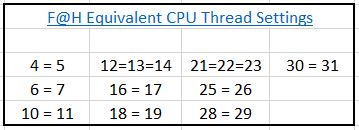
As noted in my previous posts, some settings of the # of CPU threads result in the client defaulting to a lower thread count to prevent numerical problems that can arise for certain mathematical operations. For reference, the equivalent thread settings are shown in the table below:

Equivalent Thread Settings:

The Folding@Home Client Adjusts the Thread Count to Avoid Numerical Problems Arising with Prime Numbers and Multiples Thereof…

Folding@Home Power Consumption

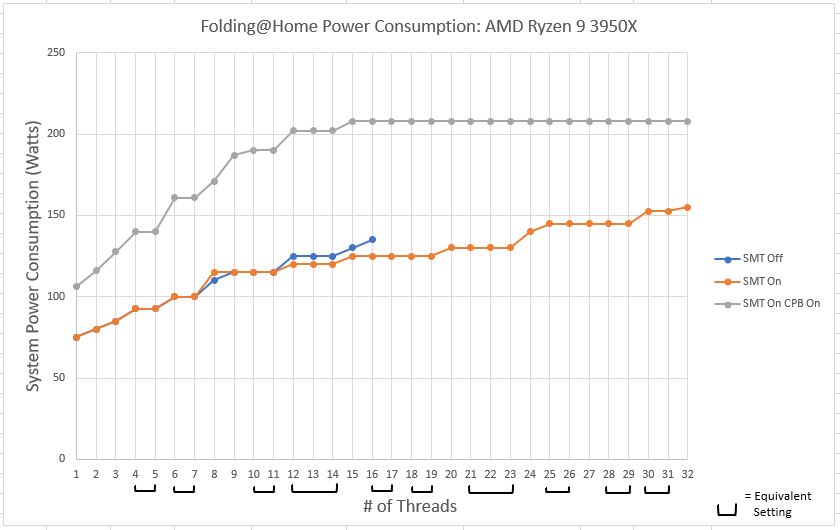
Here is a much simpler plot. This is simply the power consumption as reported by my P3 Kill A Watt meter at the wall. This is total system power consumption. As expected, it increases with increasing core count. Since the instantaneous power the computer is using wobbles around a bit as the machine is working, I consider this to be an “eyeball averaged” plot, with an accuracy of about 5 watts.

AMD Ryzen 9 3950X Folding@Home Power Consumption: Core Performance Boost and Simultaneous Multi-Threading Enabled

As can be seen in the above plot, something interesting starts happening at higher thread counts: namely, the power consumption plateaus. This wasn’t seen in previous testing with Core Performance Boost set to off. Essentially, with CPB on, the machine is auto-overclocking itself within the factory defined thermal and power consumption limits. Eventually, with enough cores being engaged, a limit is reached.

Investigating what is happening with AMD’s Ryzen Master software is pretty enlightening. For example, consider the following three screen shots, taken during testing with 2, 6, and 16 threads engaged:

2 Thread Solve:

AMD Ryzen Master: Folding@Home CPU Folding, 2 Threads Engaged

6 Thread Solve

AMD Ryzen Master: Folding@Home CPU Folding, 6 Threads Engaged

16 Thread Solve

AMD Ryzen Master: Folding@Home CPU Folding, 16 Threads Engaged

First off, please notice that the temperate limit (first little dial indicator) is never hit during any test condition, thanks to the crazy cooling of the Noctua NH-D15 SE. Thus, we don’t have to worry about an insufficient thermal solution marring the test results.

Next, have a look at the second and third dial indicators. For the 2-core solve, the peak CPU speed is a blistering 4277 MHz! This is a factory overclock of 22% over the Ryzen 9 3950x’s base clock of 3500 MHz. This is Core Performance Boost in action! At this setting, with only 2 CPU cores engaged, the total package power (PPT) is showing 58% use, which means that there is plenty of electrical headroom to add more CPU cores. For the 6-core solve, the peak CPU speed has come down a bit to 4210 MHz, and the PPT has risen to 79% of the rated 142 watt maximum. What’s happening is the extra CPU cores are using more power, and the CPU is throttling those cores back a bit to keep everything stable. Still, there is plenty of headroom.

That story changes when you look at the plot for the 16-thread solve. Here, the peak clock rate has decreased to 4103 MHz and the total package power has hit the limit at 142 watts (a good deal beyond the 105 watt TDP of the 3950X!). This means that the Core Performance Boost setting has pushed the clocks and voltage as high as can be allowed under the default auto-overclocking limits of CPB. This power limit on the CPU is the reason the system’s wall power consumption plateaus at 208 watts.

If you’re wondering what makes up the difference between the 208 watts reported by my watt meter and the 142 watts reported by Ryzen Master, the answer is the rest of the system besides the CPU socket. In other words, the motherboard, memory, video card, fans, hard drives, optical drive, and the power supply’s efficiency.

Just for fun, here is the screen shot of Ryzen Master for the full 32-core solve!

AMD Ryzen Master: Folding@Home CPU Folding, 32 Threads Engaged

Here, we have an all-core peak frequency of 3855 MHz. Interestingly, the CPU temp and PPT have decreased slightly from the 16-core solve, even though the processor is theoretically working harder. What’s happening here is yet another limit has been reached. Look at the 6th dial indicator labeled ‘TDC’. This is a measure of the instantaneous peak current, in Amperes, being applied to the CPU. Apparently with 32 threads, this peak current limit of 95 amps is getting hit, so clock speed and voltage is reduced, resulting in a lower average socket power (PPT) than the 16-core solve.

Folding@Home Efficiency

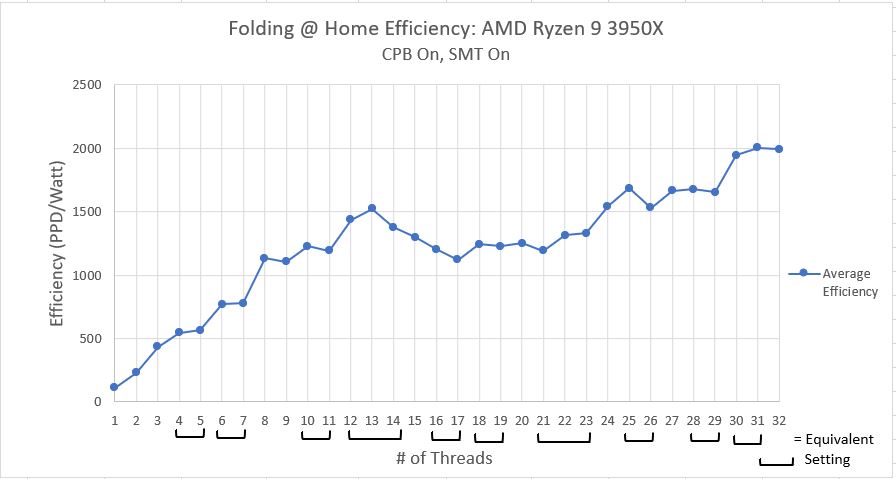
Now for my favorite plot…Efficiency! Here, I am taking the average performance in PPD (excluding the newfangled A8 work units for now) and dividing it by the system’s wall power consumption. This provides a measure of how much work per unit of power (PPD/Watt) the computer is doing.

AMD Ryzen 9 3950X Folding@Home Efficiency: Core Performance Boost and Simultaneous Multi-Threading Enabled

This plot looks fairly similar to the performance plot. In general, throwing more CPU threads at the problem lets the computer do more work in a unit of time. Although higher thread counts consume more power than lower thread counts, the additional power use is offset by the massive amount of extra computational work being done. In short, effiency improves as thread count improves.

There is a noticeable dent in the curve however, from 15 to 23 threads. This is this interesting region where things get weird. As I mentioned before, I think what might be happening is some oddity in how Windows 10 schedules jobs once the physical number of CPU threads has been exceeded. I’m not 100% sure, but what I think Windows is doing is potentially juggling the threads around to keep a few physical CPU cores free (basically, it’s putting two threads on one CPU core, i.e. utilizing SMT, even when it doesn’t have to, in order to keep some CPU cores available for other tasks, such as using Windows). It isn’t until we get over 24 threads that Windows decides we are serious about running all these jobs, and reluctantly schedules the jobs out for pure performance.

I do have some evidence to back up this theory. Investigating what is going on with Ryzen Master with Folding@Home set to 20 threads is pretty telling.

AMD Ryzen Master: Folding@Home CPU Folding, 32 Threads Engaged

Since 20 threads exceeds the 16-core capacity of the processor, one would think all 16 cores would be spun up to max in order to get through this work as fast as possible. However, that is not the case. Only 12 cores are clocked up. Now, if you consider SMT, these 12 cores can handle 24 threads of computation. So, virtual cores are being used as well as physical cores to handle this 20-thread job. This obviously isn’t ideal from a performance or an efficiency standpoint, but it makes sense considering what Windows 10 is: a user’s operating system, not a high performance computing operating system. By keeping some physical CPU cores free when it can, Microsoft is hoping to ensure users a smooth computing experience.

Comparison to Previous Results

The above plots are fun and all, but the real juice is the comparison to the previous results. As a reminder, these were covered in detail in these posts:

SMT On, CPB Off

SMT Off, CPB Off

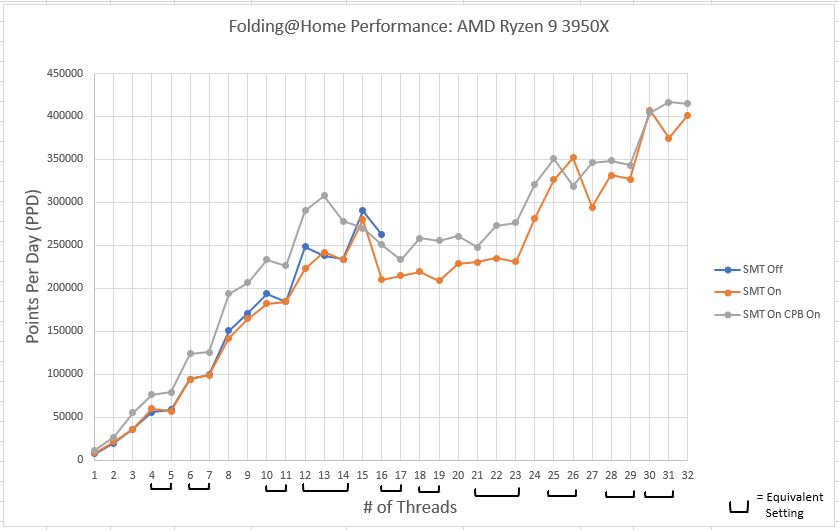
Performance Comparison

In the previous parts of this article, the difference between SMT (aka Hyperthreading) being on or off was shown to be negligible on the Ryzen 9 3950x in the physical core region (thread count = 16 or less). The major advantage of SMT was it allowed more solver threads to be piled on, which eventually results in increased performance and efficiency for thread counts above 25. In the plot below, the third curve basically shows what the effect of overclocking is. In this case, Core Performance Boost, AMD’s auto-overclocking routine, provides a fairly uniform 10-20 percent improvement. This diminishes for high core count settings though, becoming a nominal 5% improvement above 28 cores. It should be noted that the effects of work unit to work unit variation are still apparent, even with five averages per test case, so don’t try to draw any specific conclusions at any one thread count. Rather, just consider the overall trend.

AMD Ryzen 9 3950X Folding@Home Performance Comparison: Various Settings

Power Comparison

The power consumption plot shows a MASSIVE difference between wall power being used for the CPB testing vs the other two tests. This shouldn’t come as a surprise. Overclocking a processor’s frequency requires more voltage. Within a given transistor cycle, the Average Voltage * Average Current = Average Power, so for a constant current being supplied to the CPU socket, an increase in voltage increases the power being consumed. This is compounded by the transistor switching frequency going up as well (due to the increased frequency), which also results in a higher average power consumption due to there being more transistor switching activities occurring in a given unit of time.

In short, we are looking at a very noticable increase in your electrical bill to run Folding@Home on an overclocked machine.

AMD Ryzen 9 3950X Folding@Home Power Comparison: Various Settings

Efficiency Comparison

Efficiency is the whole point of this article and this blog, so behold! I’ve shown in previous articles both on CPUs and GPUs that overclocking typically hurts efficiency (and conversely, that underclocking and undervolting improves efficiency). The story doesn’t change with factory automatic overclocking routines like CPB. In the below, it is clear that and here we have a very strong case for disabling Core Performance Boost, since it is up to 25% less efficient when enabled.

AMD Ryzen 9 3950X Folding@Home Efficiency Comparison: Various Settings

Conclusion

The Ryzen 9 3950x is a very good processor for fighting disease with Folding@Home. The high core count produces exceptional efficiency numbers for a CPU, with a setting of 30 threads being ideal. Leaving 2 threads free for the rest of Windows 10 doesn’t seem to hurt performance or efficiency too much. Given the work unit variation, I’d say that 30 and 32 threads produce the same result on this processor.

As far as optimum settings, to get the most bang for electrical buck (i.e. efficiency), running that 30-thread CPU slot requires SMT to be enabled. Disabling CPB, which is on by default, results in a massive efficiency improvement by cutting over 50 watts off the power consumption. For a dedicated folding computer running 24/7, shaving that 50 watts off the electric bill would save 438 kWh/year of energy. In my state, that would save me $83 annually, and it would also save about 112 lbs of CO2 from being released into the atmosphere. Imagine the environmental impact if the 100,000+ computers running Folding@Home could each reduce their power consumption by 50 watts by just changing a setting!

Future Work

If there is one thing to be said about overclocking a Ryzen 3xxx-series processor, it’s that the possibilities are endless. A downside to disabling CPB is that if you aren’t folding all the time, your processor will be locked at its base clock rate, and thus your single-threaded performance will suffer. This is where things like PBO come in. PBO = Precision Boost Overdrive. This is yet another layer on top of CPB to fine-tune the overclocking while allowing the system to run in automatic mode (thus adapting to the loads that the computer sees). Typically, people use PBO to let the system sustain higher clock rates than standard CPB would allow. However, PBO also allows a user to enter in power, thermal, and voltage targets. Theoretically, it should be possible to set up the system to allow frequency scaling for low CPU core counts but to pull down the power limit for high core-counts, thus giving a boost to lightly threaded jobs while maintaining high core count efficiency. This is something I plan to investigate, although getting comparable results to this set of plots is going to be hard due to the prevalence of the new AVX2 enabled work units.

Maybe I’ll just have to do it all over again with the new work units? Sigh…

Power Supply Efficiency: Let’s Save Some Money

A while ago, I wrote a pair of articles on why it’s important to consider the energy efficiency of your computer’s power supply. Those articles showed how maximizing the efficiency of your Power Supply Unit (PSU) can actually save you money, since less electricity is wasted as heat with efficient power supplies.

Efficient Power Supplies: Part 1

Energy Efficient Power Supplies: Part 2

In this article, I’m putting this into practice, because the PSU in my Ubuntu folding box (Codenamed “Voyager”) is on the fritz.

This PSU is a basic Seasonic S12 III, which is a surprisingly bad power supply for such a good company as Seasonic. For one, it uses a group regulated design, which is inherently less efficient than the more modern DC-DC units. Also, the S12 is prone to coil whine (mine makes tons of noise even when the power supply is off). Finally, in my case, the computer puts a bunch of feedback onto the electrical circuits in my house, causing my LED lights to flicker when I’m running Folding@Home. That’s no good at all! Shame on you, Seasonic, shame!

Don’t believe me on how bad this PSU is? Read reviews here:

https://www.newegg.com/seasonic-s12iii-bronze-series-ssr-500gb3-500w/p/N82E16817151226

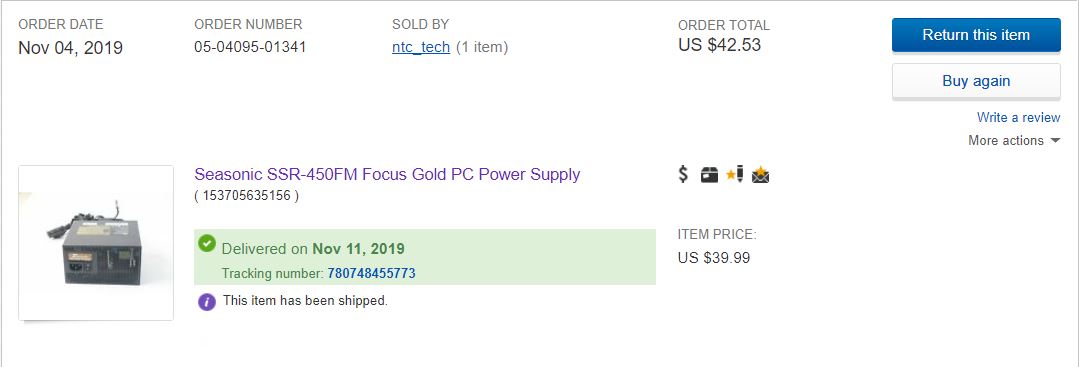
Now, I love Seasonic in general. They are one of the leading PSU manufactures, and I use their high-end units in all of my machines. So, to replace the S12iii, I picked up one of their midrange PSU’s in the Focus line…specifically, the Focus Gold 450. I got a sweet deal on eBay (got a used one for about $40, MSRP new on the SSR-450FM is $80).

SSR-450M Ebay Purchase Price

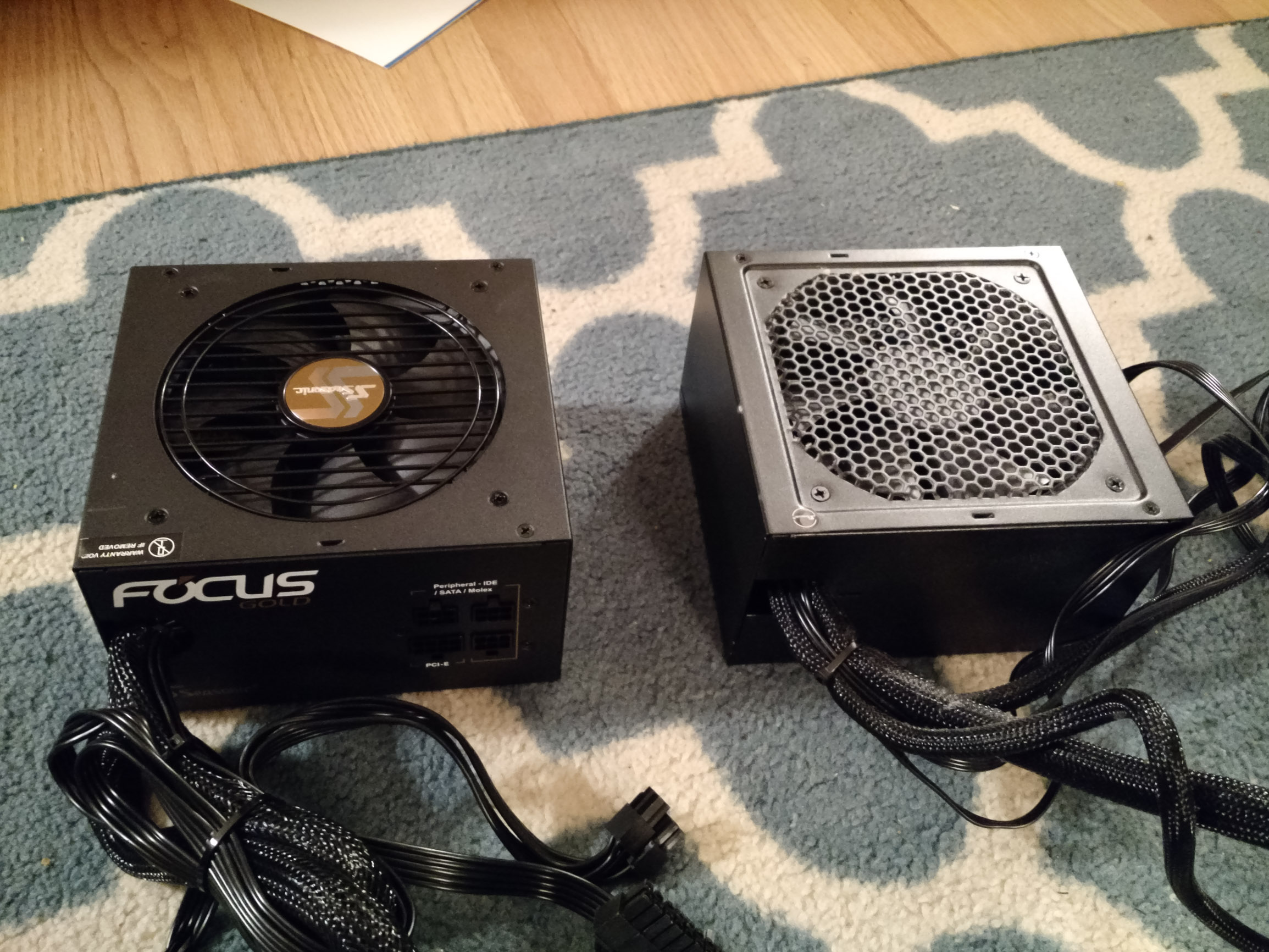
Here they are side by side. One immediate advantage of the new Focus PSU is that it is semi-modular, which will help me with some cable clutter.

Seasonic PSU Comparison: Focus Gold 450W (left) vs S12iii 500W (right)

Seasonic PSU Comparison: Focus Gold 450W (left) vs S12iii 500W (right)

Inspecting the specification labels also shows a few differences…namely the Focus is a bit less powerful (three less amps on the +12v rail), which isn’t a big deal for Voyager, since it is only running a single GeForce 1070 Ti card (180 Watt TDP) and an AMD A10-7700K (95 Watt TDP). Another point worth noting is the efficiency…whereas the S12iii is certified to the 80+ Bronze standard, the new Focus unit is certified as 80+ Gold.


Now this is where things get interesting. Voyager has a theoretical power draw of about 300 Watts max (180 Watts for the video card, 95 for the CPU, and about 25 Watts for the motherboard, ram, and drives combined). This is right around the 60% capacity rating of these power supplies. Here is the efficiency scorecard for the various 80+ certifications:

80+ Table

80+ Efficiency Table

As you can see, there is about a 5% improvement in efficiency going from 80+ bronze to 80+ gold. For a 300 watt machine, that would equate to 15 watts of difference between the Focus and the S12iii PSU’s. By upgrading to the Focus, I should more effectively turn the 120V AC power from my wall into 12V DC to run my computer, resulting in less total power draw from the wall (and less waste heat into my room).

I tested it out, using Stanford’s Folding@Home distributed computing project of course! Might as well cure some cancer, you know!

The Test

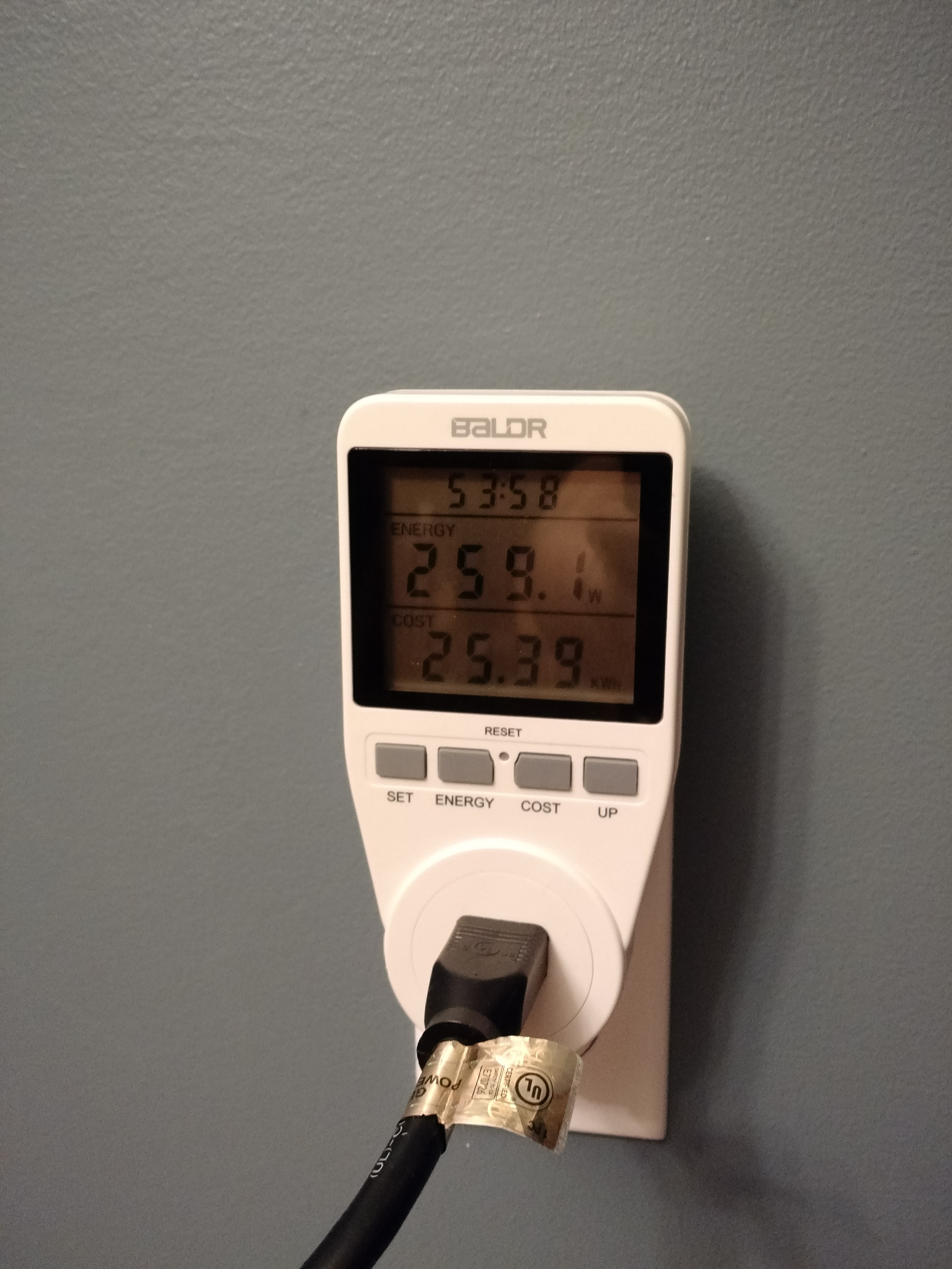
To do this test, I first let Voyager pull down a set of work units from Stanford’s server (GPU + CPU folding slots enabled). When the computer was in the middle of number crunching, I took a look at the instantaneous power consumption as measured by my watt meter:

Voyager_Old_PSU_Peak

80+ Bronze PSU: 259.1 Watts @ Full Load

260 Watts is about the max I ever see Voyager draw in practice, since Folding@Home never fully loads the hardware (typically it can hit the GFX card for about 90% capacity). So, this result made perfect sense. Next, I shut the machine down with the work units half-finished and swapped out the 80+ Bronze S12iii for the 80+ Gold Focus unit. I turned the machine back on and let it get right back to doing science.

Here is the updated power consumption number with the more efficient power supply.

Voyager_New_PSU_Peak

80+ Gold PSU Power Consumption @ 100% Load

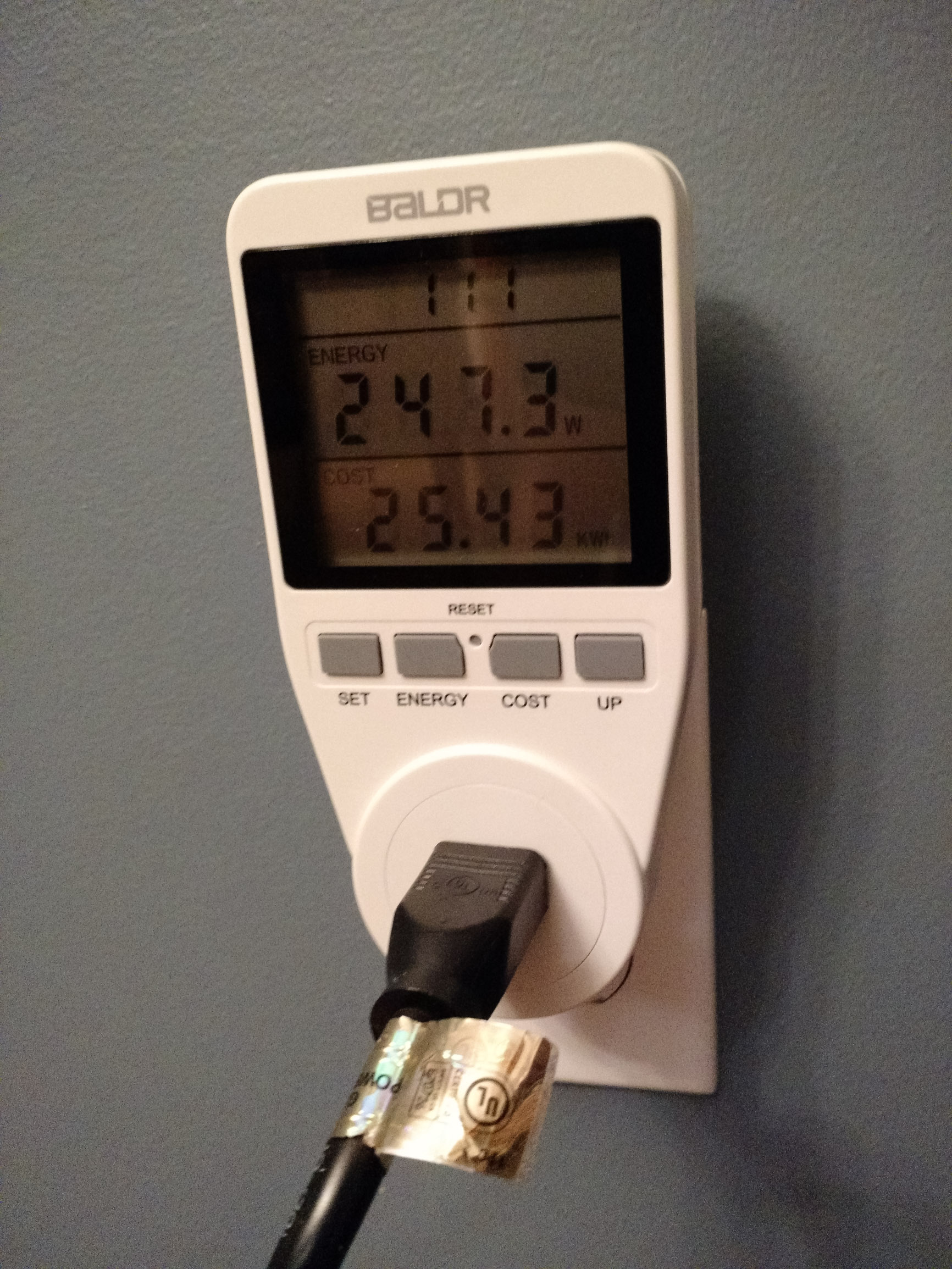
As you can see, the 80+ Gold Rated power supply shaved 11.8 watts off the top. This is about 4.5% of the old PSU unit’s previous draw, and it is about 4.8% of the new PSU unit’s power draw. So, it is very close to the advertised 5% efficiency improvement one would expect per the 80+ specifications. Conclusion: I’m saving electricity and the planet! Yay! 

As a side note, all the weird coil whine and light flickering issues I was having with the S12iii went away when I switched to Seasonic’s better Focus PSU.

But, Was It Worth It?

Now, as an environmentalist, I would say that this type of power savings is of course worth it, because it’s that much less energy wasted and that much less pollution. But, we are really talking about just a few watts (albeit on a machine that is trying to cure cancer 24/7 for years on end).

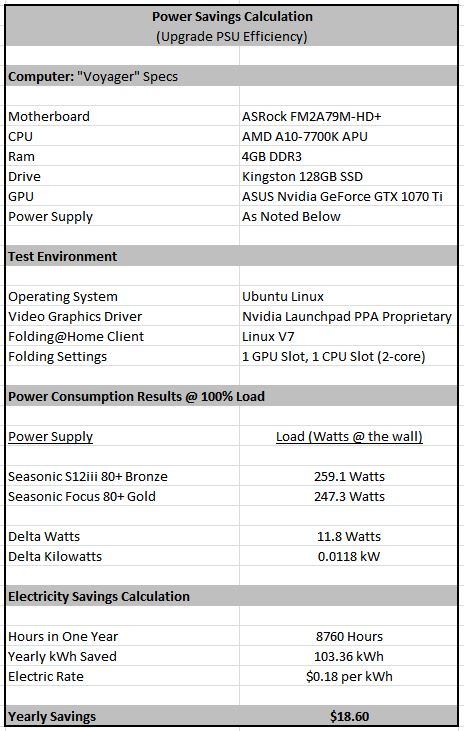
To get a better understanding of the financial implications of my $40 upgrade, I did a quick calc in Excel, using Connecticut’s average price of electricity as provided by Eversource ($0.18 per KWH).

Voyager PSU Efficiency Upgrade Calc

Voyager PSU Efficiency Upgrade Calc

Performing this calculation is fairly straightforward. Basically, it’s just taking the difference in wattage between the two power supply units and turning that into energy by multiplying it by one year’s worth of run time (Energy = Power * Time). Then, I multiply that out by the cost of energy to get a yearly cost savings of about $20 bucks. That’s not bad! Basically, I could pay for my PSU upgrade in two years if I run the machine constantly.

Things get better if I sell the old PSU. Getting $20 for a Seasonic anything should be easly (ignoring the moral dilemma of sticking someone with a shitty power supply that whines and makes their lights flicker). Then, I’d recoup my investment in a year, all while saving the planet!

So, from my perspective as someone who runs the computer 24/7, this power supply efficiency upgrade makes a lot of sense. It might not make as much sense for people whose computers are off for most of the day, or for computers that just sit around idle, because then it would take a lot longer to recover the costs.

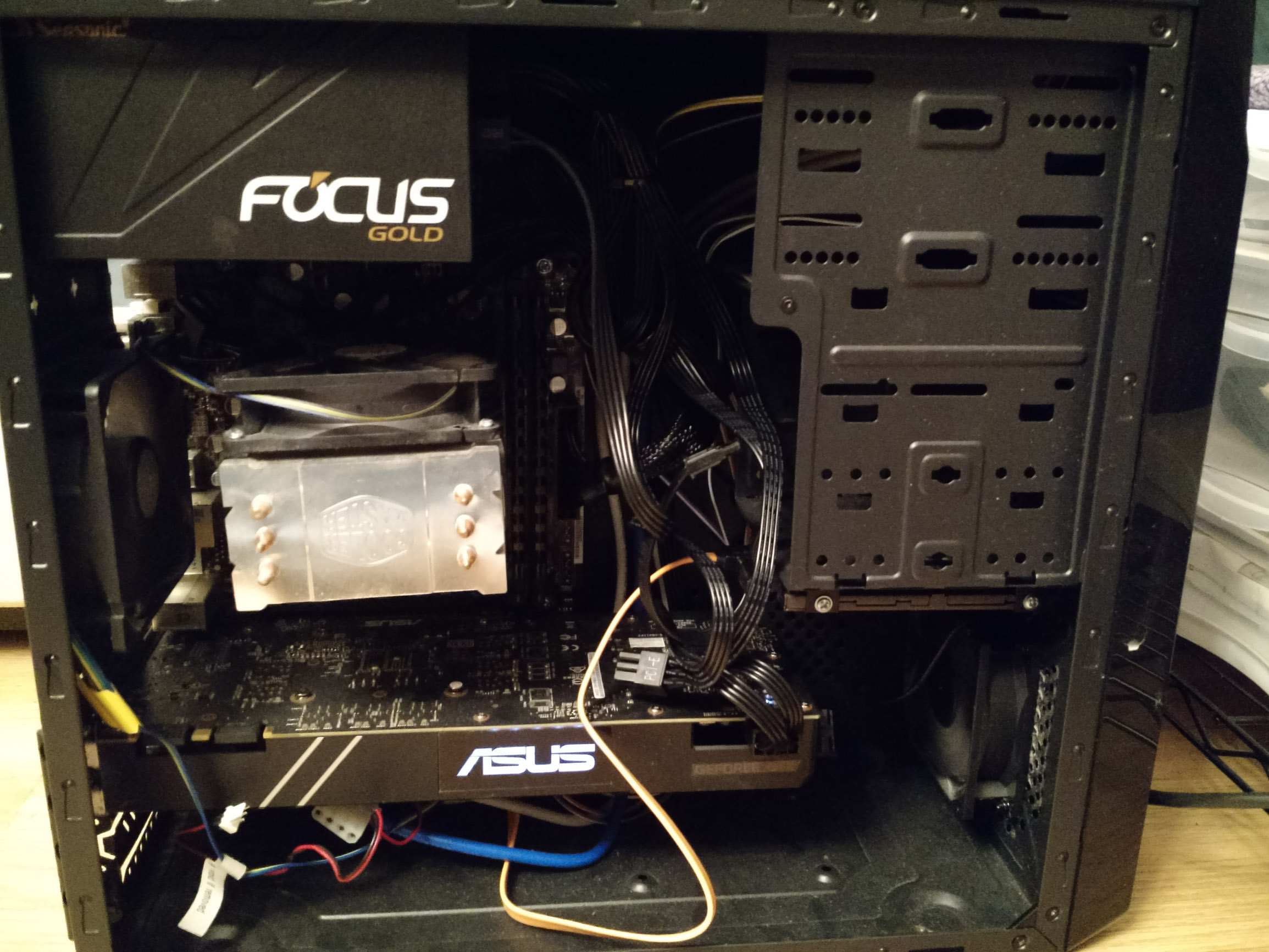
P.S. Now when I pop the side panel off Voyager, I am reminded to focus…

Voyager New PSU

Folding@Home: Nvidia GTX 1080 Review Part 3: Memory Speed

In the last article, I investigated how the power limit setting on an Nvidia Geforce GTX 1080 graphics card could affect the card’s performance and efficiency for doing charitable disease research in the Folding@Home distributed computing project. The conclusion was that a power limit of 60% offers only a slight reduction in raw performance (Points Per Day), but a large boost in energy efficiency (PPD/Watt). Two articles ago, I looked at the effect of GPU core clock. In this article, I’m experimenting with a different variable. Namely, the memory clock rate.

The effect of memory clock rate on video games is well defined. Gamers looking for the highest frame rates typically overclock both their graphics GPU and Memory speeds, and see benefits from both. For computation projects like Stanford University’s Folding@Home, the results aren’t as clear. I’ve seen arguments made both ways in the hardware forums. The intent of this article is to simply add another data point, albeit with a bit more scientific rigor.

The Test

To conduct this experiment, I ran the Folding@Home V7 GPU client for a minimum of 3 days continuously on my Windows 10 test computer. Folding@Home points per day (PPD) numbers were taken from Stanford’s Servers via the helpful team at https://folding.extremeoverclocking.com.  I measured total system power consumption at the wall with my P3 Kill A Watt meter. I used the meter’s KWH function to capture the total energy consumed, and divided out by the time the computer was on in order to get an average wattage value (thus eliminating a lot of variability). The test computer specs are as follows:

Test Setup Specs

  • Case: Raidmax Sagitta
  • CPU: AMD FX-8320e
  • Mainboard : Gigabyte GA-880GMA-USB3
  • GPU: Asus GeForce 1080 Turbo
  • Ram: 16 GB DDR3L (low voltage)
  • Power Supply: Seasonic X-650 80+ Gold
  • Drives: 1x SSD, 2 x 7200 RPM HDDs, Blu-Ray Burner
  • Fans: 1x CPU, 2 x 120 mm intake, 1 x 120 mm exhaust, 1 x 80 mm exhaust
  • OS: Win10 64 bit
  • Video Card Driver Version: 372.90

I ran this test with the memory clock rate at the stock clock for the P2 power state (4500 MHz), along with the gaming clock rate of 5000 MHz and a reduced clock rate of 4000 MHz. This gives me three data points of comparison. I left the GPU core clock at +175 MHz (the optimum setting from my first article on the 1080 GTX) and the power limit at 100%, to ensure I had headroom to move the memory clock without affecting the core clock. I verified I wasn’t hitting the power limit in MSI Afterburner.

*Update. Some people may ask why I didn’t go beyond the standard P0 gaming memory clock rate of 5000 MHz (same thing as 10,000 MHz double data rate, which is the card’s advertised memory clock). Basically, I didn’t want to get into the territory where the GDDR5’s error checking comes into play. If you push the memory too hard, there can be errors in the computation but work units can still complete (unlike a GPU core overclock, where work units will fail due to errors). The reason is the built-in error checking on the card memory, which corrects errors as they come up but results in reduced performance. By staying away from 5000+ MHz territory on the memory, I can ensure the relationship between performance and memory clock rate is not affected by memory error correction.

1080 Memory Boost Example

Memory Overclocking Performed in MSI Afterburner

Tabular Results

I put together a table of results in order to show how the averaging was done, and the # of work units backing up my +500 MHz and -500 MHz data points. Having a bunch of work units is key, because there is significant variability in PPD and power consumption numbers between work units. Note that the performance and efficiency numbers for the baseline memory speed (+0 MHz, aka 4500 MHz) come from my extended testing baseline for the 1080 and have even more sample points.

Geforce 1080 PPD Production - Ram Study

Nvidia GTX 1080 Folding@Home Production History: Data shows increased performance with a higher memory speed

Graphic Results

The following graphs show the PPD, Power Consumption, and Efficiency curves as a function of graphics card memory speed. Since I had three points of data, I was able to do a simple three-point-curve linear trendline fit. The R-squared value of the trendline shows how well the data points represent a linear relationship (higher is better, with 1 being ideal). Note that for the power consumption, the card seems to have used more power with a lower memory clock rate than the baseline memory clock. I am not sure why this is…however, the difference is so small that it is likely due to work unit variability or background tasks running on the computer. One could even argue that all of the power consumption results are suspect, since the changes are so small (on the order of 5-10 watts between data points).

Geforce 1080 Performance vs Ram Speed

Geforce 1080 Power vs Ram Speed

Geforce 1080 Efficiency vs Ram Speed

Conclusion

Increasing the memory speed of the Nvidia Geforce GTX 1080 results in a modest increase in PPD and efficiency, and arguably a slight increase in power consumption. The difference between the fastest (+500 MHz) and slowest (-500 MHz) data points I tested are:

PPD: +81K PPD (11.5%)

Power: +9.36 Watts (3.8%)

Efficiency: +212.8 PPD/Watt (7.4%)

Keep in mind that these are for a massive difference in ram speed (5000 MHz vs 4000 MHz).

Another way to look at these results is that underclocking the graphics card ram in hopes of improving efficiency doesn’t work (you’ll actually lose efficiency). I expect this trend will hold true for the rest of the Nvidia Pascal series of cards (GTX 10xx), although so far my testing of this has been limited to this one card, so your mileage may vary. Please post any insights if you have them.

Nvidia GeForce GTX 1070 Ti Folding@Home Review

In an effort to make as much use of the colder months in New England as I can, I’m running tons of Stanford University’s Folding@Home on my computer to do charitable science for disease research while heating my house. In the last article, I reviewed a slightly older AMD card, the RX 480, to determine its performance and efficiency running Folding@Home. Today, I’ll be taking a look at one of the favorite cards from Nvidia for both folding and gaming: The 1070 Ti.

The GeForce GTX 1070 Ti was released in November 2017, and sits between the 1070 and 1080 in terms of raw performance. As of February 2019, the 1070 Ti can be for a deep discount on the used market, now that the RTX 20xx series cards have been released. I got my Asus version on eBay for $250.

Based on Nvidia’s 14nm Pascal architecture, the 1070 Ti has 2432 CUDA cores and 8 GB of GDDR5 memory, with a memory bandwidth of 256 GB/s. The base clock rate of the GPU is 1607 MHz, although the cards automatically boost well past the advertised boost clock of 1683 Mhz. Thermal Design Power (TDP) is 180 Watts.

The 3rd party Asus card I got is nothing special. It appears to be a dual-slot reference design, and uses a blower cooler to exhaust hot air out the back of the case. It requires one supplemental 8-pin PCI-E Power connection.

IMG_20190206_185514342

ASUS GeForce GTX 1070 Ti

One thing I will note about this card is it’s length. At 10.5 inches (which is similar to many NVidia high-end cards), it can be a bit problematic to fit in some cases. I have a Raidmax Sagitta mid-tower case from way back in 2006, and it fits, but barely. I had the same problem with the EVGA GeForce 1070 I reviewed earlier.

IMG_20190206_190210910_TOP

ASUS GTX 1070 Ti – Installed.

Test Environment

Testing was done in Windows 10 on my AMD FX-based system, which is old but holds pretty well, all things considered. You can read more on that here. The system was built for both performance and efficiency, using AMD’s 8320e processor (a bit less power hungry than the other 8-core FX processors), a Seasonic 650 80+ Gold Power Supply, and 8 GB of low voltage DDR3 memory. The real key here, since I take all my power measurements at the wall with a P3 Kill-A-Watt meter, is that the system is the same for all of my tests.

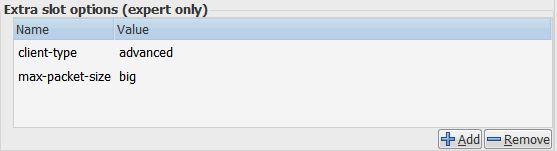
The Folding@Home Client version is 7.5.1, running a single GPU slot with the following settings:

GPU Slot Options

GPU Slot Options for Maximum PPD

These settings tend to result in a slighter higher points per day (PPD), because they request large, advanced work units from Stanford.

Initial Test Results

Initial testing was done on one of the oldest drivers I could find to support the 1070 Ti (driver version 388.13). The thought here was that older drivers would have less gaming optimizations, which tend to hurt performance for compute jobs (unlike AMD, Nvidia doesn’t include a compute mode in their graphics driver settings).

Unfortunately, the best Nvidia driver for the non-Ti GTX 10xx cards (372.90) doesn’t work with the 1070 Ti, because the Ti version came out a few months later than the original cards. So, I was stuck with version 388.13.

Nvidia 1070 TI Baseline Clocks

Nvidia GTX 1070 Ti Monitoring – Baseline Clocks

I ran F@H for three days using the stock clock rate of 1823 MHz core, with the memory at 3802 MHz. Similar to what I found when testing the 1070, Folding@Home does not trigger the card to go into the high power (max performance) P0 state. Instead, it is stuck in the power-saving P2 state, so the core and memory clocks do not boost.

The PPD average for three days when folding at this rate was 632,380 PPD. Checking the Kill-A-Watt meter over the course of those days showed an approximate average system power consumption of 220 watts. Interestingly, this is less power draw than the GTX 1070 (which used 227 watts, although that was with overclocking + the more efficient 372.90 driver). The PPD average was also less than the GTX 1070, which had done about 640,000 PPD. Initial efficiency, in PPD/Watt, was thus 2875 (compared to the GTX 1070’s 2820 PPD/Watt).

The lower power consumption number and lower PPD performance score were a bit surprising, since the GTX 1070 TI has 512 more CUDA cores than the GTX 1070. However, in my previous review of the 1070, I had done a lot of optimization work, both with overclocking and with driver tuning. So, now it was time to do the same to the 1070 Ti.

Tuning the Card

By running UNIGINE’s Heaven video game benchmark in windowed mode, I was able to watch what the card did in MSI afterburner. The core clock boosted up to 1860 MHz (a modest increase from the 1823 base clock), and the memory went up to 4000 MHz (the default). I tried these overclocking settings and saw only a modest increase in PPD numbers. So, I decided to push it further, despite the Asus card having only a reference-style blower cooler. From my 1070 review, I found I was able to fold nice and stable with a core clock of 2012 MHz and a memory clock of 3802 MHz. So, I set up the GTX 1070 Ti with those same settings. After running it for five days, I pushed the core a little higher to 2050 Mhz. A few days later, I upgraded the driver to the latest (417.71).

Nvidia 1070 TI OC

Nvidia GTX 1070 Ti Monitoring – Overclocked

With these settings, I did have to increase the fan speed to keep the card below 70 degrees Celsius. Since the Asus card uses a blower cooler, it was a bit loud, but nothing too crazy. Open-air coolers with lots of heat pipes and multiple fans would probably let me push the card higher, but from what I’d read, people start running into stability problems at core clocks over 2100 Mhz. Since the goal of Folding@home is to produce reliable science to help Stanford University fight disease, I didn’t want to risk dropping a work unit due to an unstable overclock.

Here’s the production vs. time history from Stanford’s servers, courtesy of https://folding.extremeoverclocking.com/

Nvidia GTX 1070 Ti Time History

Nvidia GTX1070 Ti Folding@Home Production Time History

As you can see below, the overclock helped improve the performance of the GTX 1070 Ti. Using the last five days worth of data points (which has the graphics driver set to 417.71 and the 2050 MHz core overclock), I got an average PPD of 703,371 PPD with a power consumption at the wall of 225 Watts. This gives an overall system efficiency of 3126 PPD/Watt.

Finally, these results are starting to make more sense. Now, this card is outpacing the GTX 1070 in terms of both PPD and energy efficiency. However, the gain in performance isn’t enough to confidently say the card is doing better, since there is typically a +/- 10% PPD difference depending on what work unit the computer receives. This is clear from the amount of variability, or “hash”, in the time history plot.

Interestingly, the GTX 1070 Ti it is still using about the same amount of power as the base model GTX 1070, which has a Thermal Design Power of 150 Watts, compared to the GTX 1070 Ti’s TDP of 180 Watts. So, why isn’t my system consuming 30 watts more at the wall than it did when equipped with the base 1070?

I suspect the issue here is that the drivers available for the 1070 Ti are not as good for folding as the 372.90 driver for the non-Ti 10-series Nvidia cards. As you can see from the MSI Afterburner screen shots above, GPU Usage on the GTX 1070 Ti during folding hovers in the 80-90% range, which is lower than the 85-93% range seen when using the non-Ti GTX 1070. In short, folding on the 1070 Ti seems to be a bit handicapped by the drivers available in Windows.

Comparison to Similar Cards

Here are the Production and Efficiency Plots for comparison to other cards I’ve tested.

GTX 1070 Ti Performance Comparison

GTX 1070 Ti Performance Comparison

GTX 1070 Ti Efficiency Comparison

GTX 1070 Ti Efficiency Comparison

Conclusion

The Nvidia GTX 1070 Ti is a very good graphics card for running Folding@Home. With an average PPD of 703K and a system efficiency of 3126 PPD/Watt, it is the fastest and most efficient graphics card I’ve tested so far. As far as maximizing the amount of science done per electricity consumed, this card continues the trend…higher-end video cards are more efficient, despite the increased power draw.

One side note about the GTX 1070 Ti is that the drivers don’t seem as optimized as they could be. This is a known problem for running Folding@Home in Windows. But, since the proven Nvidia driver 372.90 is not available for the Ti-flavor of the 1070, the hit here is more than normal. On the used market in 2019, you can get a GTX 1070 for $200 on ebay, whereas the GTX 1070 Ti’s go for $250. My opinion is that if you’re going to fold in Windows, a tuned GTX 1070 running the 372.90 driver is the way to go.

Future Work

To fully unlock the capability of the GTX 1070 Ti, I realized I’m going to have to switch operating systems. Stay tuned for a follow-up article in Linux.

Folding on the NVidia GTX 1060

Overview

Folding@home is Stanford University’s charitable distributed computing project. It’s charitable because you can donate electricity, as converted into work through your home computer, to fight cancer, Alzheimer, and a host of other diseases.  It’s distributed, because anyone can run it with almost any desktop PC hardware.  But, not all hardware configurations are created equally.  If you’ve been following along, you know the point of this blog is to do the most work for as little power consumption as possible.  After all, electricity isn’t free, and killing the planet to cure cancer isn’t a very good trade-off.

Today we’re testing out Folding@home on EVGA’s single-fan version of the NVIDIA GTX 1060 graphics card.  This is an impressive little card in that it offers a lot of gaming performance in a small package.  This is a very popular graphics card for gamers who don’t want to spend $400+ on GTX 1070s and 1080s.  But, how well does it fold?

Card Specifications

Manufacturer:  EVGA
Model #:  06G-P4-6163
Model Name: EVGA GeForce GTX 1060 SC GAMING (Single Fan)
Max TDP: 120 Watts
Power:  1 x PCI Express 6-pin
GPU: 1280 CUDA Cores @ 1607 MHz (Boost Clock of 1835 MHz)
Memory: 6 GB GDDR5
Bus: PCI-Express X16 3.0
MSRP: $269

06G-P4-6163-KR_XL_4

EVGA Nvidia GeForce GTX 1060 (photo by EVGA)

Folding@Home Test Setup

For this test I used my normal desktop computer as the benchmark machine.  Testing was done using Stanford’s V7 client on Windows 7 64-bit running FAH Core 21 work units.  The video driver version used was 381.65.  All power consumption measurements were taken at the wall and are thus full system power consumption numbers.

If you’re interested in reading about the hardware configuration of my test rig, it is summarized in this post:

https://greenfoldingathome.com/2017/04/21/cpu-folding-revisited-amd-fx-8320e-8-core-cpu/

Information on my watt meter readings can be found here:

I Got a New Watt Meter!

FOLDING@HOME TEST RESULTS – 305K PPD AND 1650 PPD/WATT

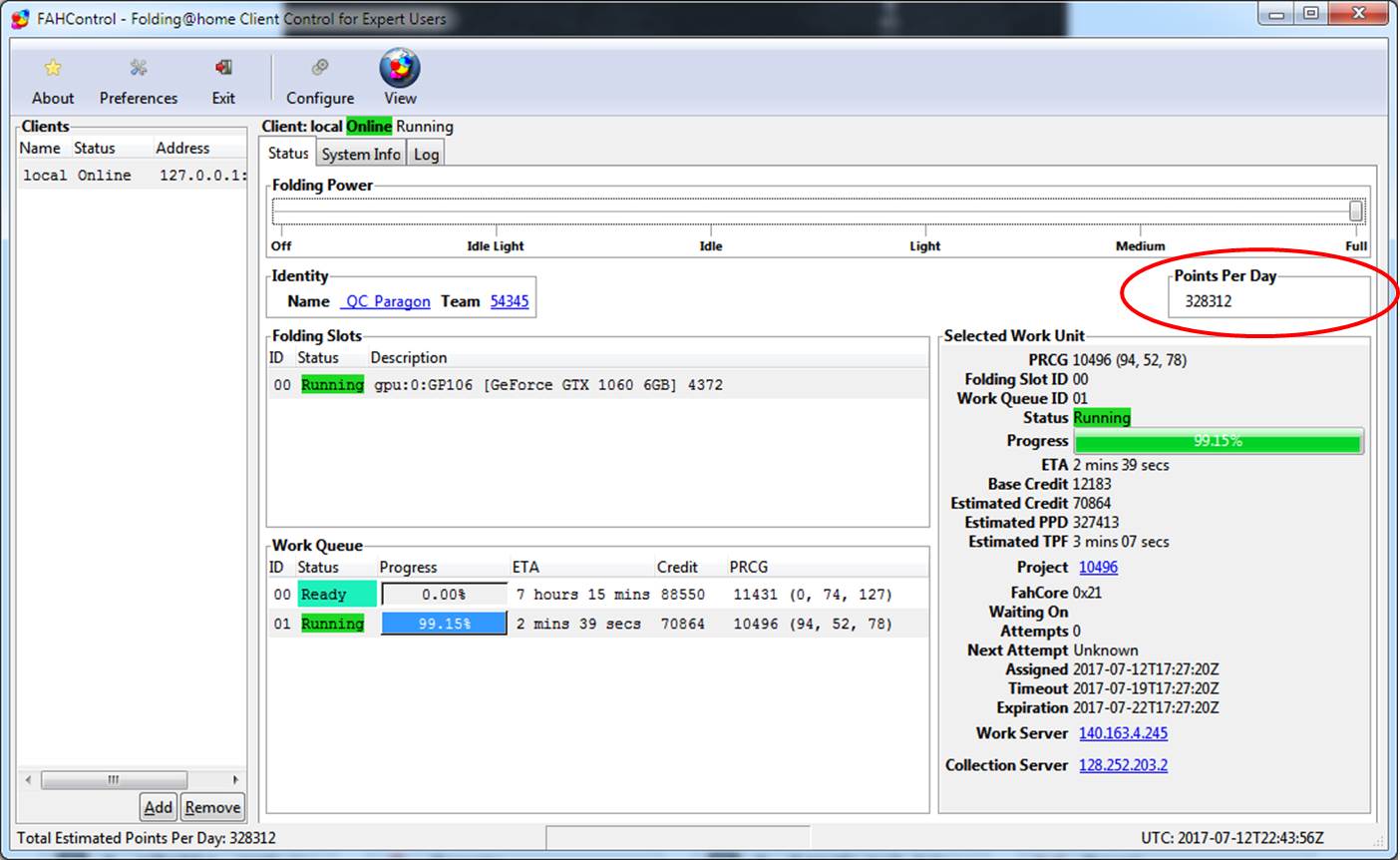
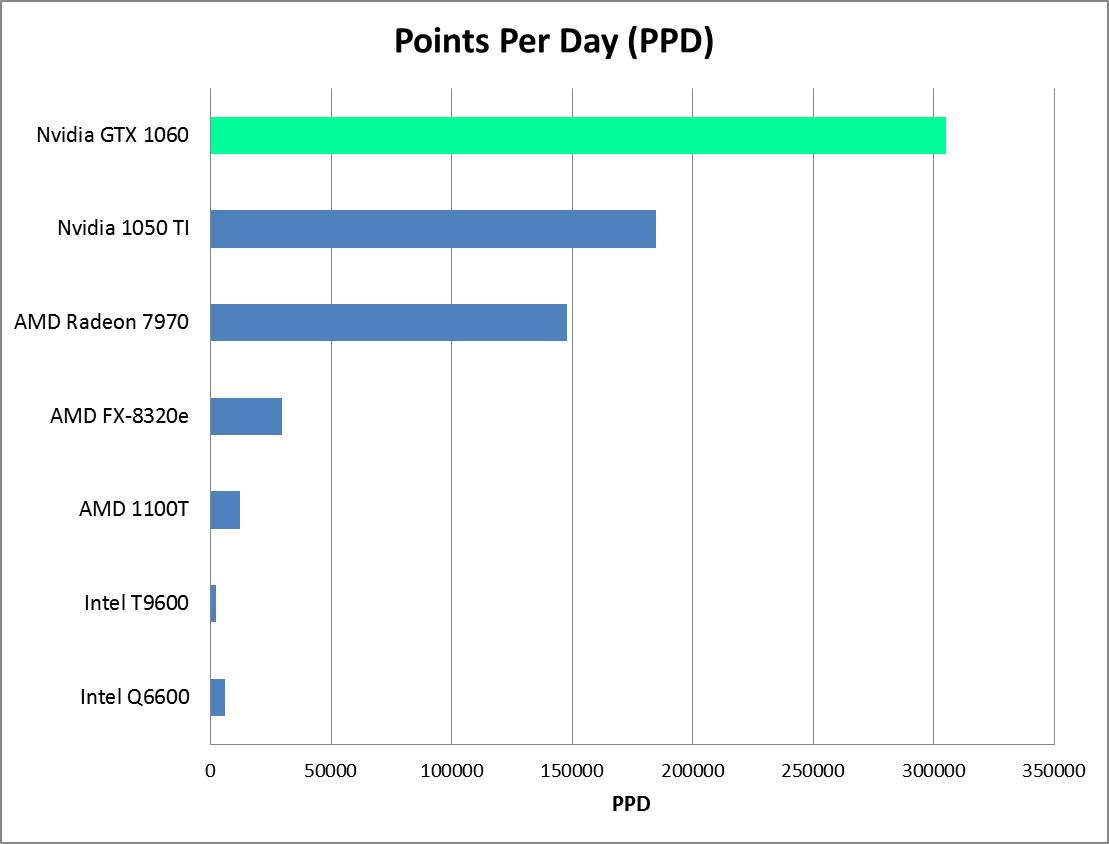
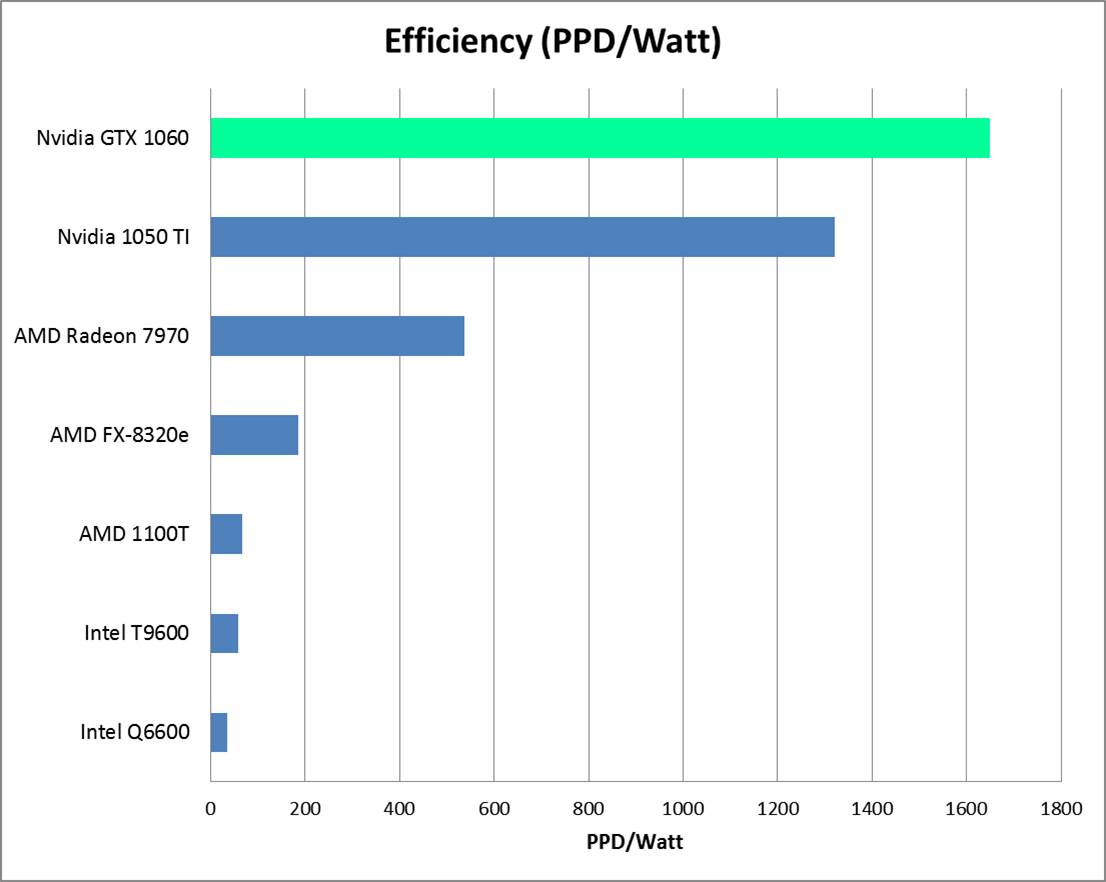
The Nvidia GTX 1060 delivers the best Folding@Home performance and efficiency of all the hardware I’ve tested so far.  As seen in the screen shot below, the native F@H client has shown up to 330K PPD.  I ran the card for over a week and averaged the results as reported to Stanford to come up with the nominal 305K Points Per Day number.  I’m going to use 305 K PPD in the charts in order to be conservative.  The power draw at the wall was 185 watts, which is very reasonable, especially considering this graphics card is in an 8-core gaming rig with 16 GB of ram.  This results in a F@H efficiency of about 1650 PPD/Watt, which is very good.

Screen Shot from F@H V7 Client showing Estimated Points per Day:

1060 TI Client

Nvidia GTX 1060 Folding @ Home Results: Windows V7 Client

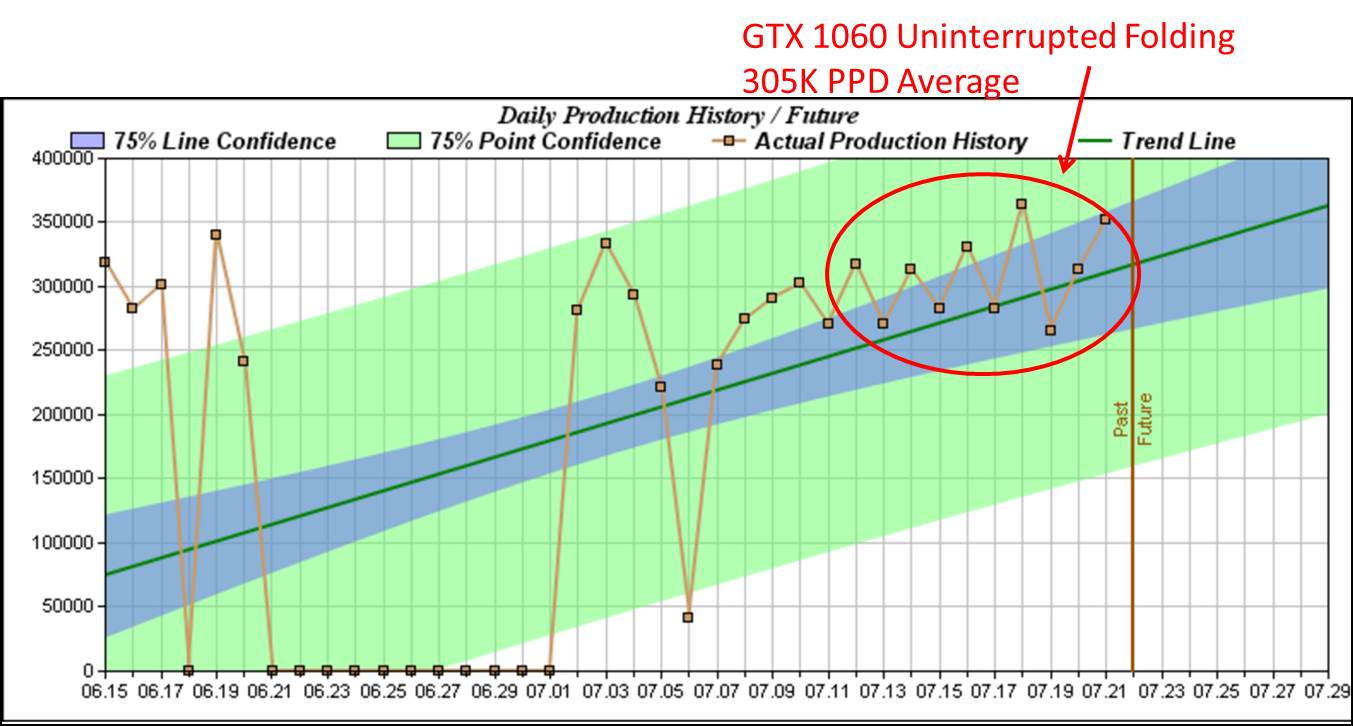
Here are the averaged results based on actual returned work units

(Graph courtesy of http://folding.extremeoverclocking.com/)

1060 GTX PPD History

NVidia 1060 GTX Folding PPD History

Note that in this plot, the reported results previous to the circled region are also from the 1060, but I didn’t have it running all the time.  The 305K PPD average is generated only from the work units returned within the time frame of the red circle (7/12 thru 7/21)

Production and Efficiency Plots

Nvidia 1060 PPD

NVidia GTX 1060 Folding@Home PPD Production Graph

Nvidia 1060 PPD per Watt

Nvidia GTX 1060 Folding@Home Efficiency Graph

Conclusion

For about $250 bucks (or $180 used if you get lucky on eBay), you can do some serious disease research by running Stanford University’s Folding@Home distributed computing project on the Nvidia GTX 1060 graphics card.  This card is a good middle ground in terms of price (it is the entry-level in NVidia’s current generation of GTX series of gaming cards).  Stepping up to a 1070 or 1080 will likely continue the trend of increased energy efficiency and performance, but these cards cost between $400 and $800.  The GTX 1060 reviewed here was still very impressive, and I’ll also point out that it runs my old video games at absolute max settings (Skyrim, Need for Speed Rivals).  Being a relatively small video card, it easily fits in a mid-tower ATX computer case, and only requires one supplemental PCI-Express power connector.  Doing over 300K PPD on only 185 watts, this Folding@home setup is both efficient and fast. For 2017, the NVidia 1060 is an excellent bang-for-the-buck Folding@home Graphics Card.

Request: Anyone want to loan me a 1070 or 1080 to test?  I’ll return it fully functional (I promise!)

F@H Efficiency: Overclock or Undervolt?

Efficiency Tweaking

After reading my last post about the AMD Phenom II X6 1100T’s performance and efficiency, you might be wondering if anything can be done to further improve this system’s energy efficiency.  The answer is yes, of course!  The 1100T is the top-end Phenom II processor, and is unlocked to allow tweaking to your heart’s content.  Normal people push these processors higher in frequency, which causes them to need more voltage and use more power.  While that is a valid tactic for gaining more raw points per day, I wondered if the extra points would be offset by a non-proportional increase in power consumption.  How is efficiency related to clock speed and voltage?  My aim here is to show you how you can improve your PPD/Watt by adjusting these settings.  By increasing the efficiency of your processor, you can reduce the guilt you feel about killing the planet with your cancer-fighting computer.  Note that the following method can be applied to any CPU/motherboard combo that allows you to adjust clock frequencies and voltages in the BIOS.  If you built your folding rig from scratch, you are in luck, because most custom PCs allow this sort of BIOS fun.  If you are using your dad’s stock Dell, you’re probably out of luck.

AMD Phenom II X6: Efficiency Improved through Undervolting

The baseline stats for the X6 Phenom 1100T are 3.3 GHz core speed with 2000 MHz HyperTransport and Northbridge clocks. This is achieved with the CPU operating at 1.375v, with a rated TDP (max power consumption) of 125 watts. Running the V7 Client in SMP-6 with my pass key, I saw roughly 12K ppd on A3 work units.  This is what was documented in my blog post from last time.

Now for the fun part.  Since this is a Black Edition processor from AMD, the voltages, base frequencies, and multipliers are all adjustable in the system BIOS (assuming your motherboard isn’t a piece of junk).  So, off I went to tweak the numbers.  I let the system “soak” at each setting in order to establish a consistent PPD baseline.  I got my PPD numbers by verifying what the client was reporting with the online statistics reporting.  Wattage numbers come from my trusty P3 Kill-A-Watt meter.

First, I tried overclocking the processor.  I upped the voltage as necessary to keep it stable (stable = folding overnight with no errors in F@H or my standard benchmark tests).  It was soon clear that from an efficiency standpoint, overclocking wasn’t really the way to go.  So, then I went the other way, and took a bit of clock speed and voltage out.

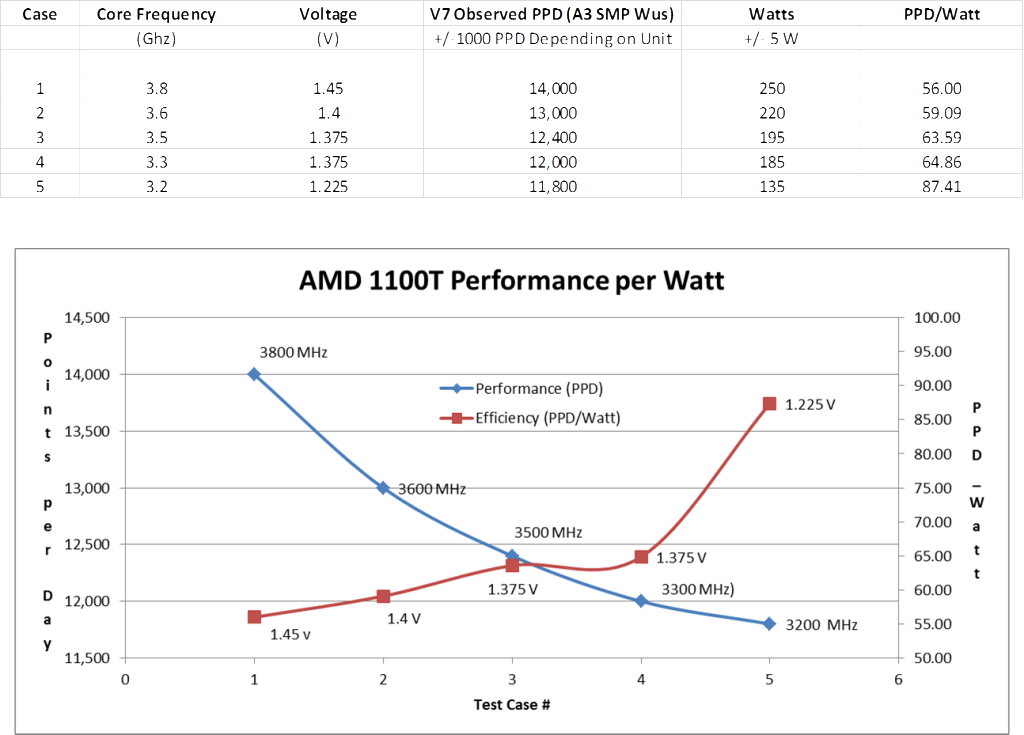
F@H Efficiency Curve: AMD Phenom II X6 1100T

F@H Efficiency Curve: AMD Phenom II X6 1100T

These results are very interesting.  Overclocking does indeed produce more points per day, but to go to higher frequencies required so much voltage that the power consumption went up even more, resulting in reduced efficiency.  However, a slight sacrifice of raw PPD performance allowed the 1100T to be stable at 1.225 volts, which caused a marked improvement in efficiency.  With a little more experimenting on the underclocking / undervolting side of things, I bet I could have got this CPU to almost 100 PPD / Watt!

Conclusion

PPD/Watt efficiency went up by about 30% for the Phenom II X6 1100T, just by tweaking some settings in the BIOS.  Optimizing core speed and voltage for efficiency should work for any CPU (or even graphics card, if your card has adjustable voltage).  If you care about the planet, try undervolting / underclocking your hardware slightly.  It will run cooler, quieter, and will likely last longer, in addition to doing more science for a given amount of electricity.

PPD/Watt Shootout: Uniprocessor Client is a Bad Idea

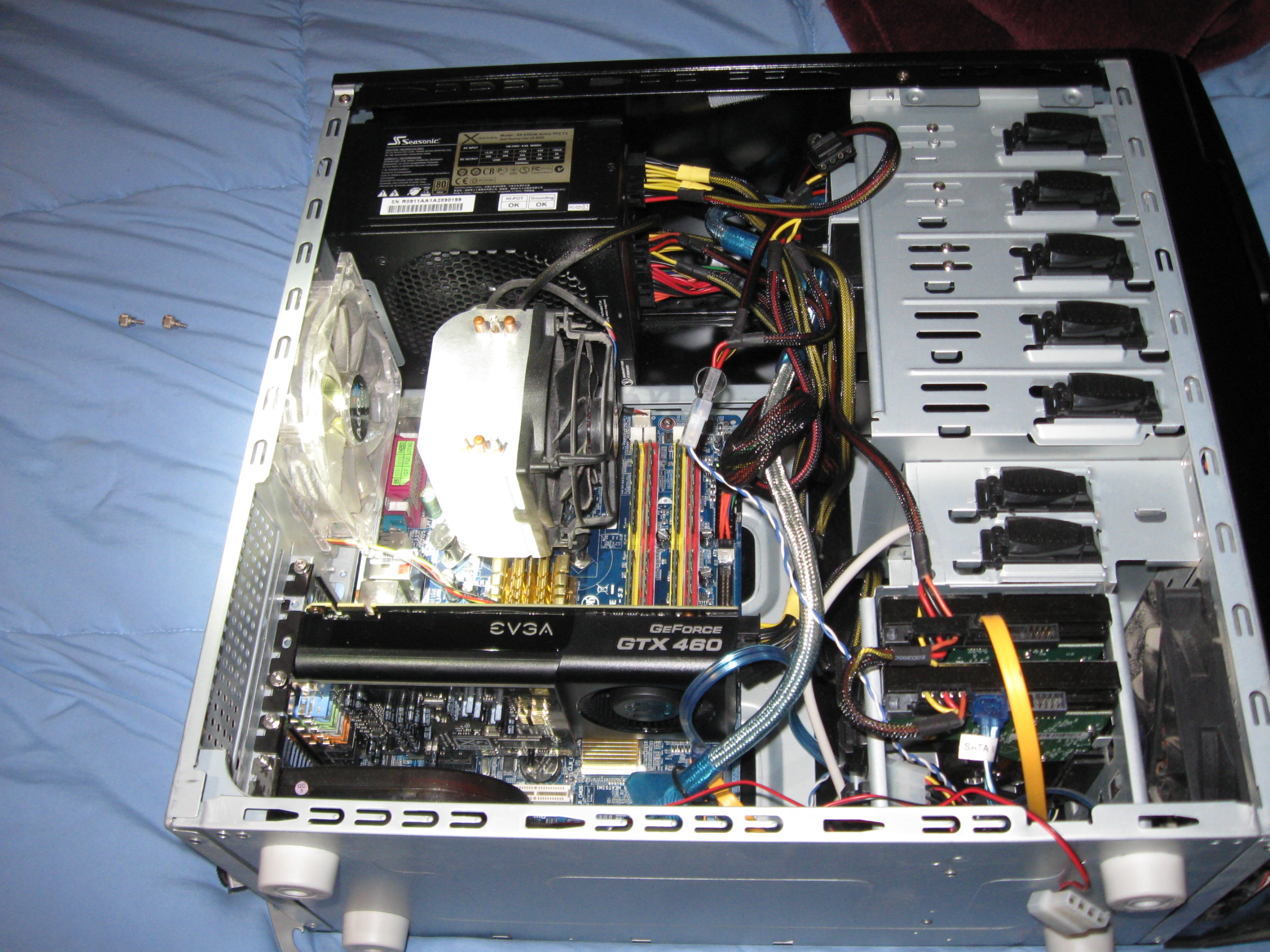
My Gaming / Folding computer with Q6600 / GTX 460 Installed

My Gaming / Folding computer with Q6600 / GTX 460 Installed

Since the dawn of Folding@Home, Stanford’s single-threaded CPU client known as “uniprocessor” has been the standard choice for stable folding@home installations.  For people who don’t want to tinker with many settings, and for people who don’t plan on running 24/7, this has been a good choice of clients because it allows a small science contribution to be done without very much hassle.  It’s a fairly invisible program that runs in the background and doesn’t spin up all your computer’s fans and heat up your room.  But, is it really efficient?  

The question, more specifically targeted for folding freaks reading this blog, is this:  Does the uniprocessor client make sense for an efficient 24/7 folding@home rig?  My answer:  a resounding NO!  Kill that process immediately!

A basic Google search on this will show that you can get vastly more points per day running the multicore client (SMP), a dedicated graphics card client (GPU), or both.  Just type “PPD Uniprocessor SMP Folding” into Google and read for about 20 minutes and you’ll get the idea.  I’m too lazy to point to any specific threads (no pun intended), but the various forum discussions reveal that the uniprocessor client is slower than slow.  This should not be surprising.  One CPU core is slower than two, which is slower than three!  Yay, math!

Also, Stanford’s point reward system isn’t linear but exponential.  If you return a work unit twice as fast, you get more than twice as many points as a reward, because prompt results are very valuable in the scientific world.  This bonus is known as the Quick Return Bonus, and it is available to users running with a passkey (a long auto-generated password that proves you are who you say you are to Stanford’s servers).  I won’t regurgitate all that info on passkeys and points here, because if you are reading this site then you most likely know it already.  If not, start by downloading Stanford’s latest all-in-one client known as Client V7.  Make sure you set yourself up with a username as well as a passkey, in case you didn’t have one.  Once you return 10 successful work units using your passkey, you can get the extra QRB points.  For the record, this is the setup I am using for this blog at the moment: V7 Client Version 7.3.6, running with passkey.

Unlike the older 6.x client interfaces, the new V7 client lets you pick the specific work package type you want to do within one program.  “Uniprocessor” is no longer a separate installation, but is selectable by adding a CPU slot within the V7 client and telling it how many threads to run.  V7 then downloads the correct work unit to munch on.

I thought I was talking efficiency!  Well, to that end, what we want to do is maximize the F@H output relative to the input.  We want to make as many Points per Day while drawing the fewest watts from the wall as possible.  It should be clear by now where this is going (I hope).  Because Stanford’s points system heavily favors the fast return of work units, it is often the case that the PPD/Watt increases as more and more CPU cores or GPU shaders are engaged, even though the resulting power draw of the computer increases.

Limiting ourselves to CPU-only folding for the moment, let’s have a look at what one of my Folding@Home rigs can do.  It’s Specs Time (Yay SPECS!). Here are the specs of my beloved gaming computer, known as Sagitta (outdated picture was up at the top).

  • Intel Q6600 Quad Core CPU @ 2.4 GHz
  • Gigabyte AMD Radeon HD 7870 Gigahertz Edition
  • 8 GB Kingston DDR2-800 Ram
  • Gigabyte 965-P S3 motherboard
  • Seasonic X-650 80+ Gold PSU
  • 2 x 500 GB Western Digital HDDs RAID-1
  • 2 x 120 MM Intake Fans
  • 1 x 120 MM Exhaust Fan
  • 1 x 80 MM Exhaust Fan
  • Arctic Cooling Freezer 7 CPU Cooler
  • Generic PCI Slot centrifugal exhaust fan

Ancient Pic of Sagitta (2006 Vintage).  I really need to take a new pic of the current configuration.

Ancient Pic of Sagitta (2006 Vintage). I really need to take a new pic of the current configuration.

You’ll probably say right away that this system, except for the graphics card, is pretty out of date for 2014, but for relative A to B comparisons within the V7 client this doesn’t matter.  For new I7 CPUs, the relative performance and efficiency differences seen by increasing the number of CPU cores for Folding reveals the same trend as will be shown here.  I’ll start by just looking at the 1-core option (uniprocessor) vs a dual-core F@H solve.

Uniprocessor Is Slow

As you can see, switching to a 2-CPU solve within the V7 client yields almost twice as many PPD (12.11 vs 6.82).  And, this isn’t even a fair comparison, because the dual-core work unit I received was one of the older A3 cores, which tend to produce less PPD than the A4 work units.

In conclusion, if everyone who is out there running the uniprocessor client switched to a dual-core client, FOLDING AT HOME WOULD BECOME TWICE AS EFFICIENT!  I can’t scream this loud enough.  Part of the reason for this is because it doesn’t take many more watts to feed another core in a computer that is already fired up and folding.  In the above example, we really started getting twice the amount of work done for only 13 more watts of power consumed.  THIS IS AWESOME, and it is just the beginning.  In the next article, I’ll look at the efficiency of 3 and 4 CPU Folding on the Q6600, as well as 6-CPU folding on my other computer, which is powered by a newer processor (AMD Phenom II X6 1100T). I’ll then move on to dual-CPU systems (non BIGADV at this point for those of you who know what this means, but we will get there too), and to graphics cards.  If you think 12 PPD/Watt is good, just wait until you read the next article!

Until next time…

-C