Tag Archives: PPD/Watt

NVIDIA GEFORCE GTX 1080 Folding@Home Review (Part 2)

Welcome back. In the last article, I found that the GeForce GTX 1080 is an excellent graphics card for contributing to Stanford University’s charitable distributed computing project Folding@Home. For Part 2 of the review, I did some extended testing to determine the relationship between the card’s power target and Folding@Home performance & efficiency.

Setting the graphics card’s power target to something less than 100% essentially throttles the card back (lowers the core clock) to reduce power consumption and heat. Performance generally drops off, but computational efficiency (performance/watt of power used) can be a different story, especially for Folding@Home. If the amount of power consumed by the card drops off faster than the card’s performance (measured in Points Per Day for Folding@Home), then the performance can actually go up!

Test Methodology

The test computer and environment was the same as in Part 1. Power measurements were made at the wall with a P3 Kill A Watt meter, using the KWH function to track the total energy used by the computer and then dividing by the recorded uptime to get an average power over the test period. Folding@Home PPD Returns were taken from Stanford’s collection servers.

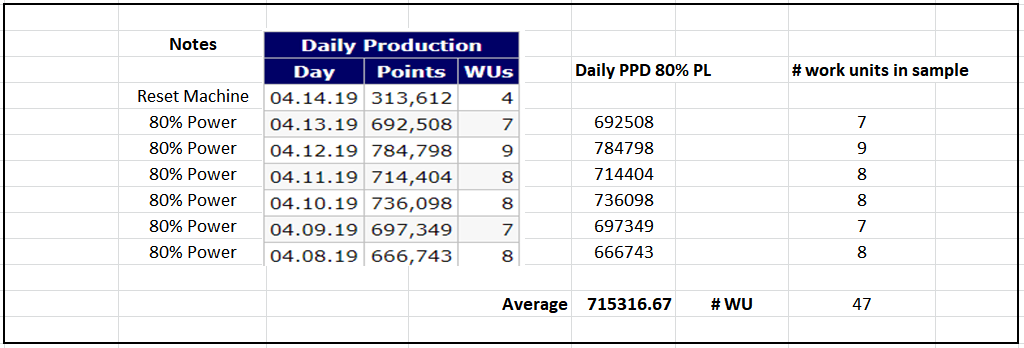
To gain useful statistics, I set the power limit on the graphics card driver via MSI Afterburner and let the card run for a week at each setting. Averaging the results over many days is needed to reduce the variability seen across work units. For example, I used an average of 47 work units to come up with the performance of 715K PPD for the 80% Power Limit case:

Work Unit Averaging

80% Power Limit: Average PPD Calculation over Six Days

The only outliers I tossed was one day when my production was messed up by thunderstorms (unplug your computers if there is lighting!), plus one of the days at the 60% power setting, where for some reason the card did almost 900K PPD (probably got a string of high value work units). Other than that the data was not massaged.

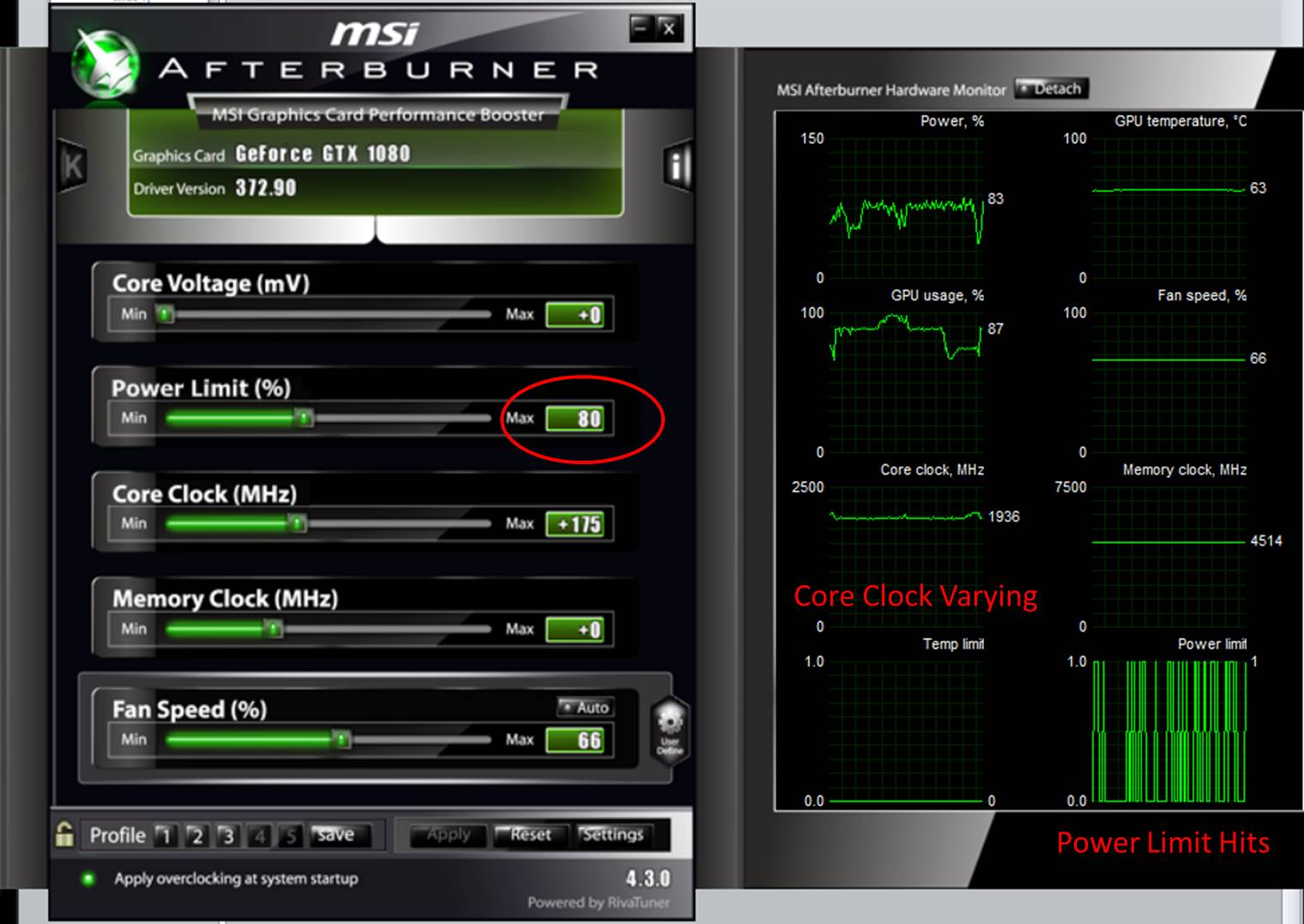
I tested the card at 100% power target, then at 80%, 70%, 60%, and 50% (90% did not result in any differences vs 100% because folding doesn’t max out the graphics card, so essentially it was folding at around 85% of the card’s power limit even when set to 90% or 100%).

FAH 1080 Power Target Example

Setting the Power Limit in MSI Afterburner

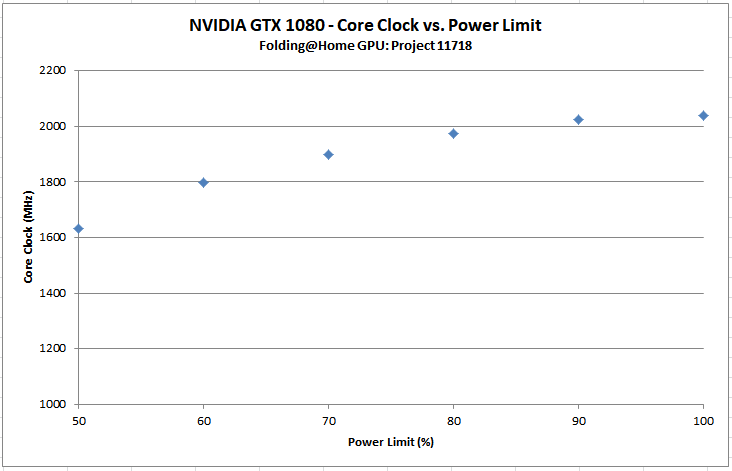
I left the core clock boost setting the same as my final test value from the first part of this review (+175 MHz). Note that this won’t force the card to run at a set faster speed…the power limit constantly being hit causes the core clock to drop. I had to reduce the power limit to 80% to start seeing an effect on the core clock. Further reductions in power limit show further reductions in clock rate, as expected. The approximate relationship between power limit and core clock was this:

Core Clock vs Power Limit

GTX 1080 Core Clock vs. Power Limit

Results

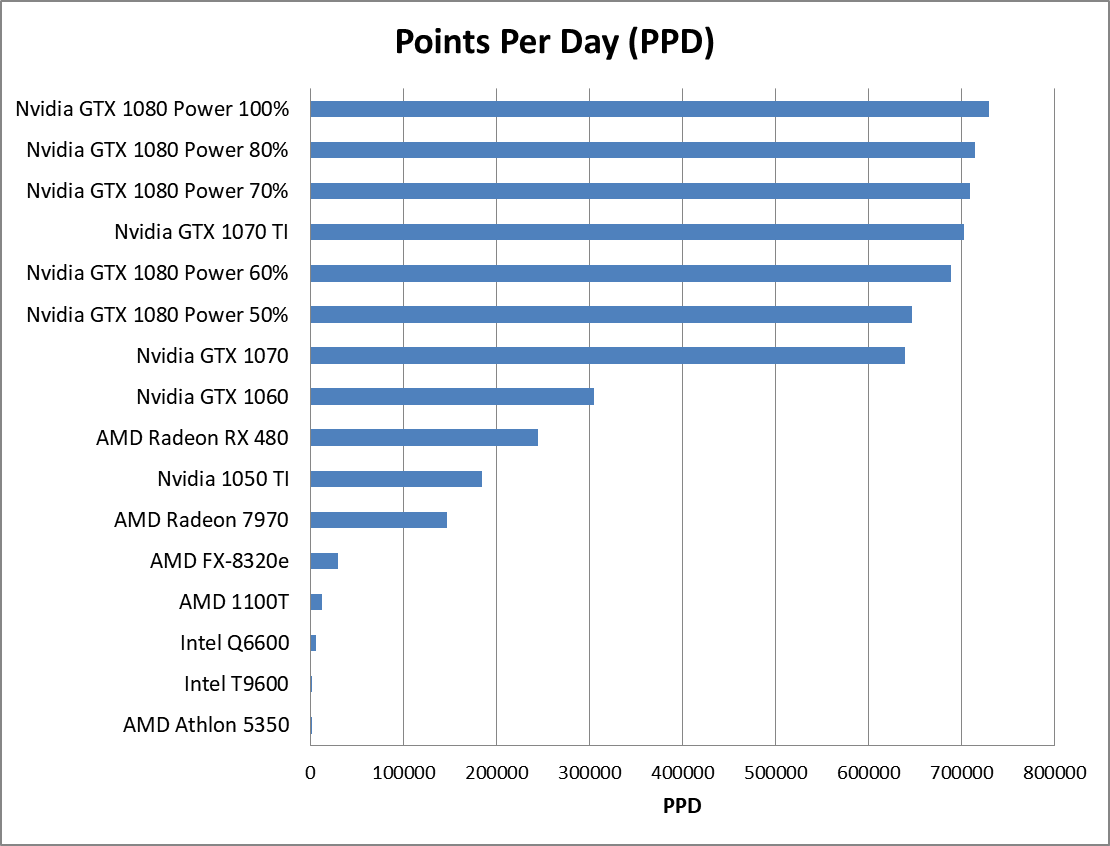
As expected, the card’s raw performance (measured in Points Per Day) drops off as the power target is lowered.

GTX 1080 Performance Part 2

Folding@Home Performance


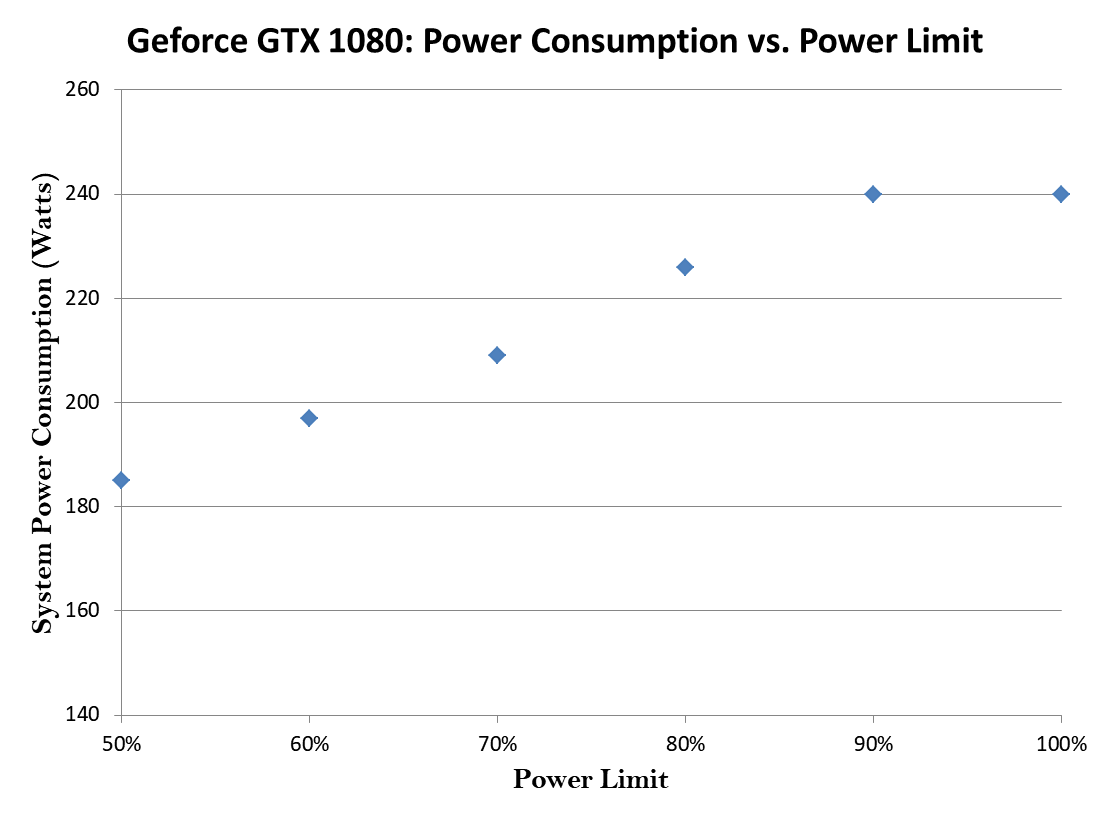
The system power consumption plot is also very interesting. As you can see, I’ve shaved a good amount of power draw off of this build by downclocking the card via the power limit. GTX 1080 Power Consumption


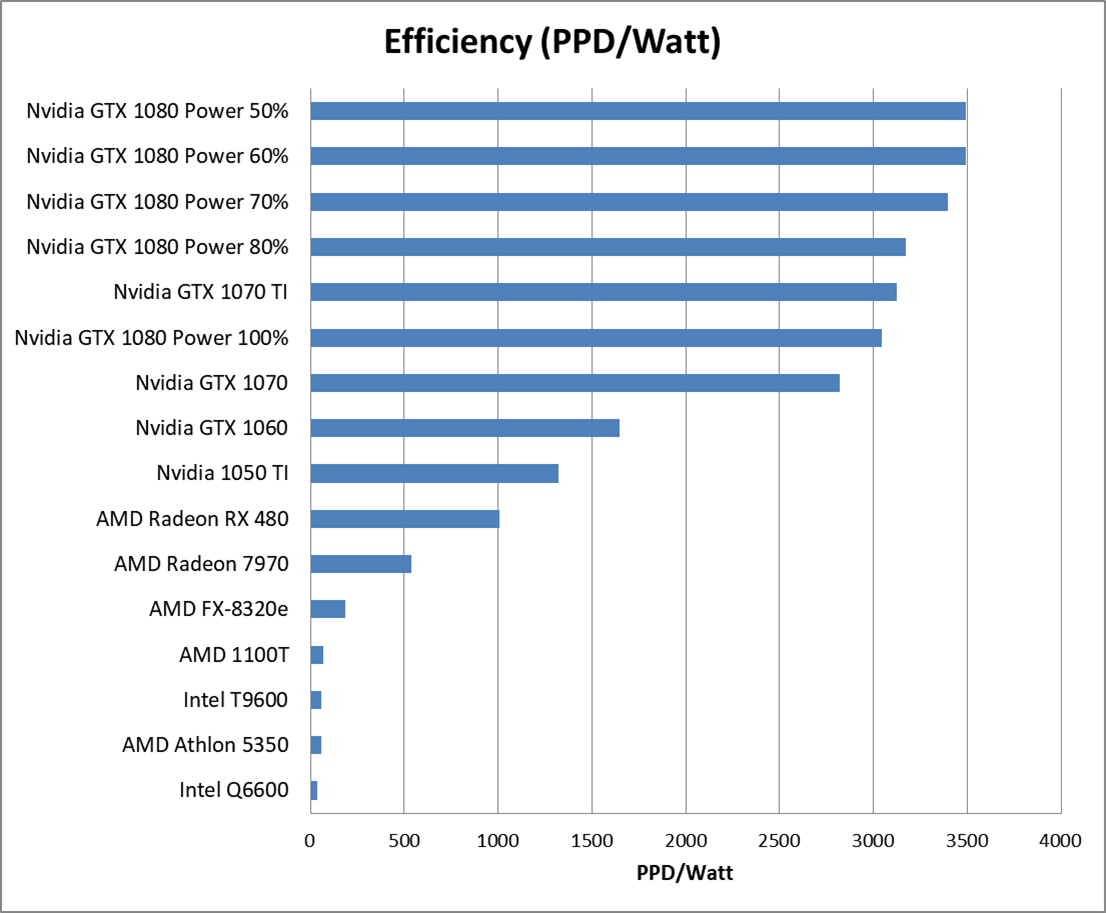
By far, the most interesting result is what happens to the efficiency. Basically, I found that efficiency increases (to a point) with decreasing power limit. I got the best system efficiency I’ve ever seen with this card set to 60% power limit (50% power limit essentially produced the same result).

GTX 1080 Efficiency Part 2

Folding@Home Efficiency

Conclusion

For NVIDIA’s Geforce GTX 1080, decreasing a graphic’s card’s power limit can actually improve the efficiency of the card for doing computational computing in Folding@Home. This is similar to what I found when reviewing the 1060. My recommended setting for the 1080 is a power limit of 60%, because that provides a system efficiency of nearly 3500 PPD/Watt and maintains a raw performance of almost 700K PPD.


NVIDIA GEFORCE GTX 1080 Folding@Home Review (Part 1)

Intro

It’s hard to believe that the Nvidia GTX 1080 is almost three years old now, and I’m just getting around to writing a Folding@Home review of it. In the realm of graphics cards, this thing is legendary, and only recently displaced from the enthusiast podium by Nvidia’s new RTX series of cards. The 1080 was Nvidia’s top of the line gaming graphics card (next to the Ti edition of course), and has been very popular for both GPU coin mining and cancer-curing (or at least disease research for Stanford University’s charitable distributed computing project: Folding@Home). If you’ve been following along, you know it’s that second thing that I’m interested in. The point of this review is to see just how well the GTX 1080 folds…and by well, I mean not just raw performance, but also energy efficiency.


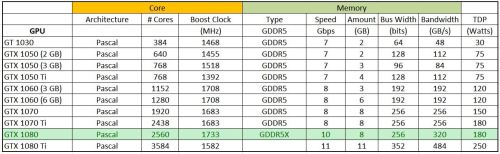
Quick Stats Comparison

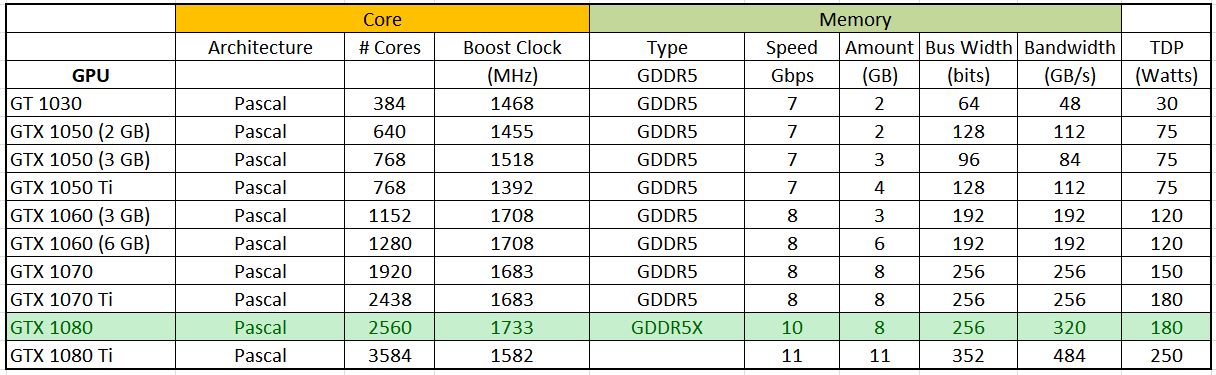
I threw together a quick table to give you an idea of where the GTX 1080 stacks up (I left the newer RTX cards and the older GTX 9-series cards off of here because I’m lazy…
Nvidia Pascal Cards

Nvidia Pascal Family GPU Comparison

As you can see, the GTX 1080 is pretty fast, eclipsed only by the GTX 1080 Ti (which also has a higher Thermal Design Power, suggesting more electricity usage). From my previous articles, we’ve seen that the more powerful cards tend to do work more efficiency, especially if they are in the same TDP bracket. So, the 1080 should be a better folder (both in PPD and PPD/Watt efficiency) than the 1070 Ti I tested last time.

Test Card: ASUS GeForce GTX 1080 Turbo

As with the 1070 Ti, I picked up a pretty boring flavor of a 1080 in the form of an Asus turbo card. These cards lack back plates (which help with circuit board rigidity and heat dissipation) and use cheap blower coolers, which suck in air from a single centrifugal fan on the underside and blow it out the back of the case (keeping the hot air from building up in the case). These are loud, and tend to run hotter than open-fan coolers, so overclocking and boost clocks are limited compared to aftermarket designs. However, like Nvidia’s own Founder’s Edition reference cards, this reference design provides a good baseline for a 1080’s minimum performance.
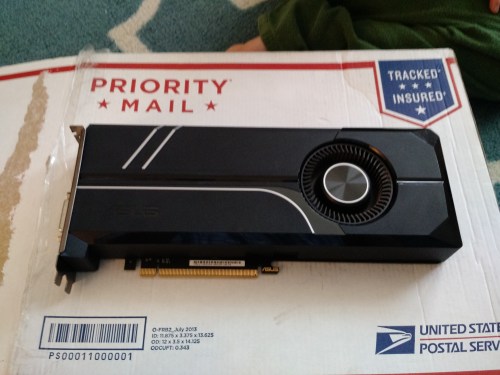
ASUS GeForce GTX 1080 Turbo

ASUS GeForce GTX 1080 Turbo

The new 1080 looks strikingly similar to the 1070 Ti…Asus is obviously reusing the exact same cooler since both cards have a 180 Watt TDP.
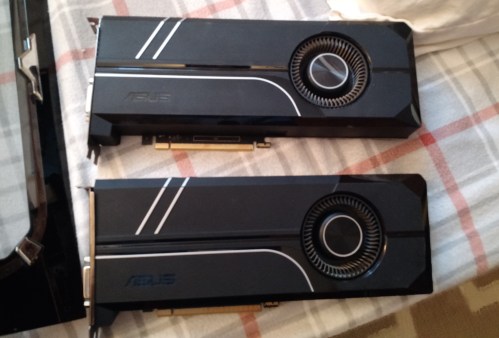
Asus GTX 1080 and 1070 Ti

Asus GTX 1080 and 1070 Ti (which one is which?)

Test Environment

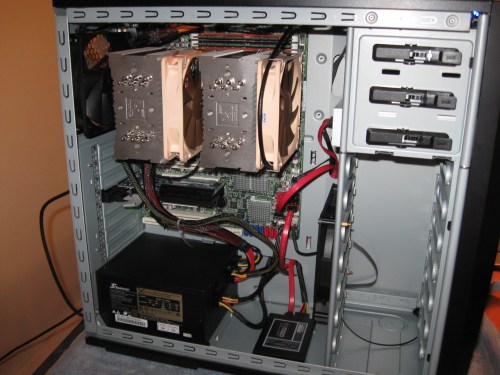
Like most of my previous graphics card testing, I put this into my AMD FX-Based Test System. If you are interested in how this test machine does with CPU folding, you can read about it here. Testing was done using Stanford’s Folding@Home V7 Client (version 7.5.1) in Windows 10. Points Per Day (PPD) production was collected from Stanford’s servers. Power measurements were done with a P3 Kill A Watt Meter (taken at the wall, for a total-system power profile).

Test Setup Specs

  • Case: Raidmax Sagitta
  • CPU: AMD FX-8320e
  • Mainboard : Gigabyte GA-880GMA-USB3
  • GPU: Asus GeForce 1080 Turbo
  • Ram: 16 GB DDR3L (low voltage)
  • Power Supply: Seasonic X-650 80+ Gold
  • Drives: 1x SSD, 2 x 7200 RPM HDDs, Blu-Ray Burner
  • Fans: 1x CPU, 2 x 120 mm intake, 1 x 120 mm exhaust, 1 x 80 mm exhaust
  • OS: Win10 64 bit
  • Video Card Driver Version: 372.90

Video Card Configuration – Optimize for Performance

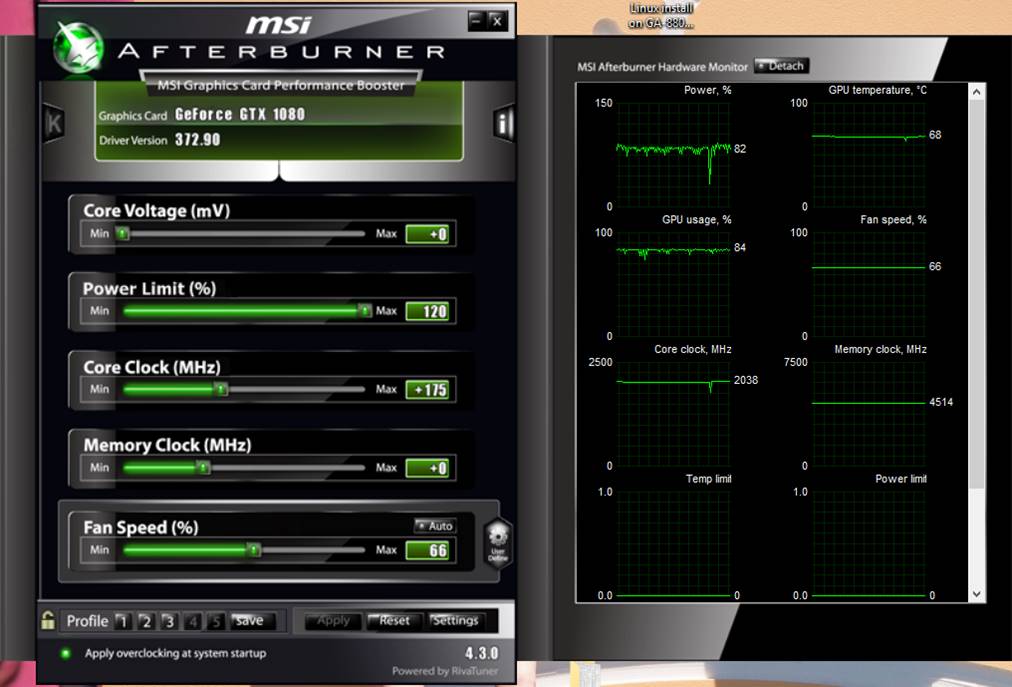
In my previous articles, I’ve shown how Nvidia GPUs don’t always automatically boost their clock rates when running Folding@home (as opposed to video games or benchmarks). The same is true of the GTX 1080. It sometimes needs a little encouragement in order to fold at the maximum performance. I overclocked the core by 175 MHz and increased the power limit* by 20% in MSI afterburner using similar settings to the GTX 1070. These values were shown to be stable after 2+ weeks of testing with no dropped work units.

*I also experimented with the power limit at 100% and I saw no change in card power consumption. This makes sense…folding is not using 100% of the GPU. Inspection of the MSI afterburner plots shows that while folding, the card does not hit the power limit at either 100% or 120%. I will have to reduce the power limit to get the card to throttle back (this will happen in part 2 of this article).

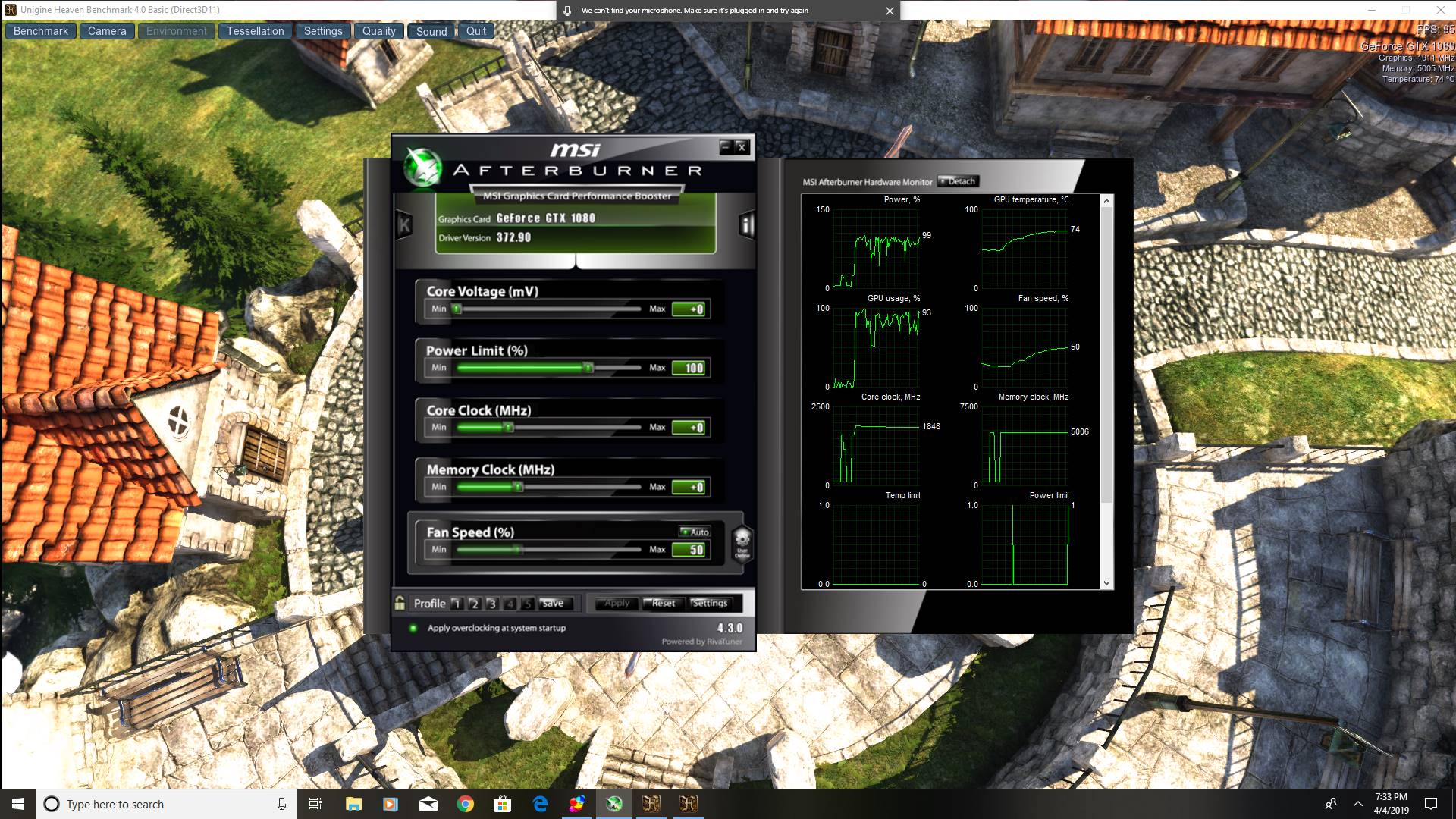
As with previous cards, I did not push the memory into its performance zone, but left it at the default P2 (low-power) state clock rate. The general consensus is that memory clock does not significantly affect folding@home, and it is better to leave the power headroom for the core clock, which does improve performance. As an interesting side-note, the memory clock on this thing jumps up to 5000 Mhz (effective) in benchmarks. For example, see the card’s auto-boost settings when running Heaven:
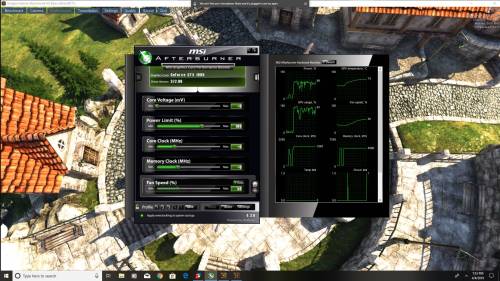
1080 Benchmark Stats

Nvidia GeForce GTX 1080 – Boost Clocks (auto) in Heaven Benchmark

Testing Overview

For most of my tests, I just let the computer run folding@home 24/7 for a couple of days and then average the points per day (PPD) results from Stanford’s stats server. Since the GTX 1080 is such a popular card, I decided to let it run a little longer (a few weeks) to get a really good sampling of results, since PPD can vary a lot from work unit to work unit. Before we get into the duration results, let’s do a quick overview of what the Folding@home environment looks like for a typical work unit.

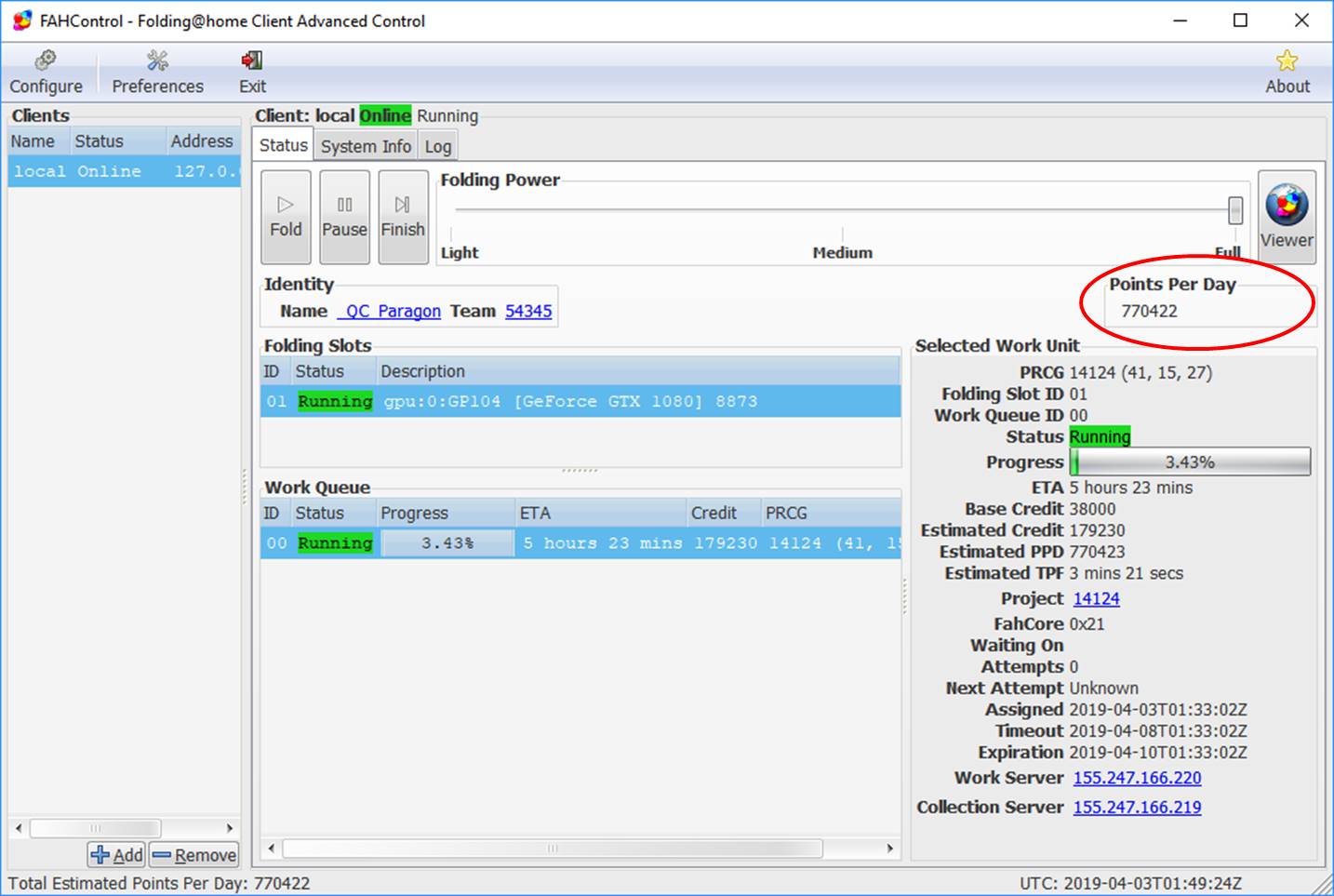
The following is an example screen shot of the display from the client, showing an instantaneous PPD of about 770K, which is very impressive. Here, it is folding on a core 21 work unit (Project 14124).
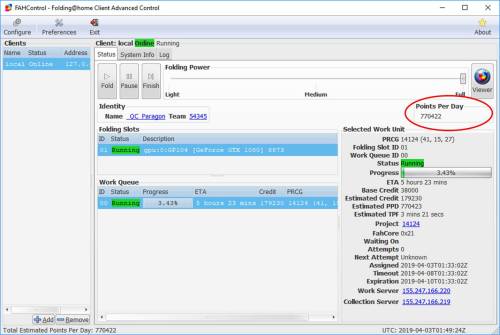
F@H Client 1080

Folding@Home V7 Client – GeForce GTX 1080

MSI Afterburner is a handy way to monitor GPU stats. As you can see, the GPU usage is hovering in the low 80% region (this is typical for GPU folding in Windows. Linux can use a bit more of the GPU for a few percentage points more PPD). This Asus card, with its reference blower cooler, is running a bit warm (just shy of 70 degrees C), but that’s well within spec. I had the power limit at 120%, but the card is nowhere near hitting that…the power limit seems to just peak above 80% here and there.
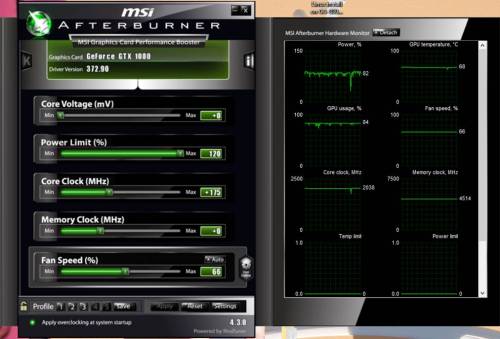
GTX 1080 MSI Afterburner

GTX 1080 stats while folding.

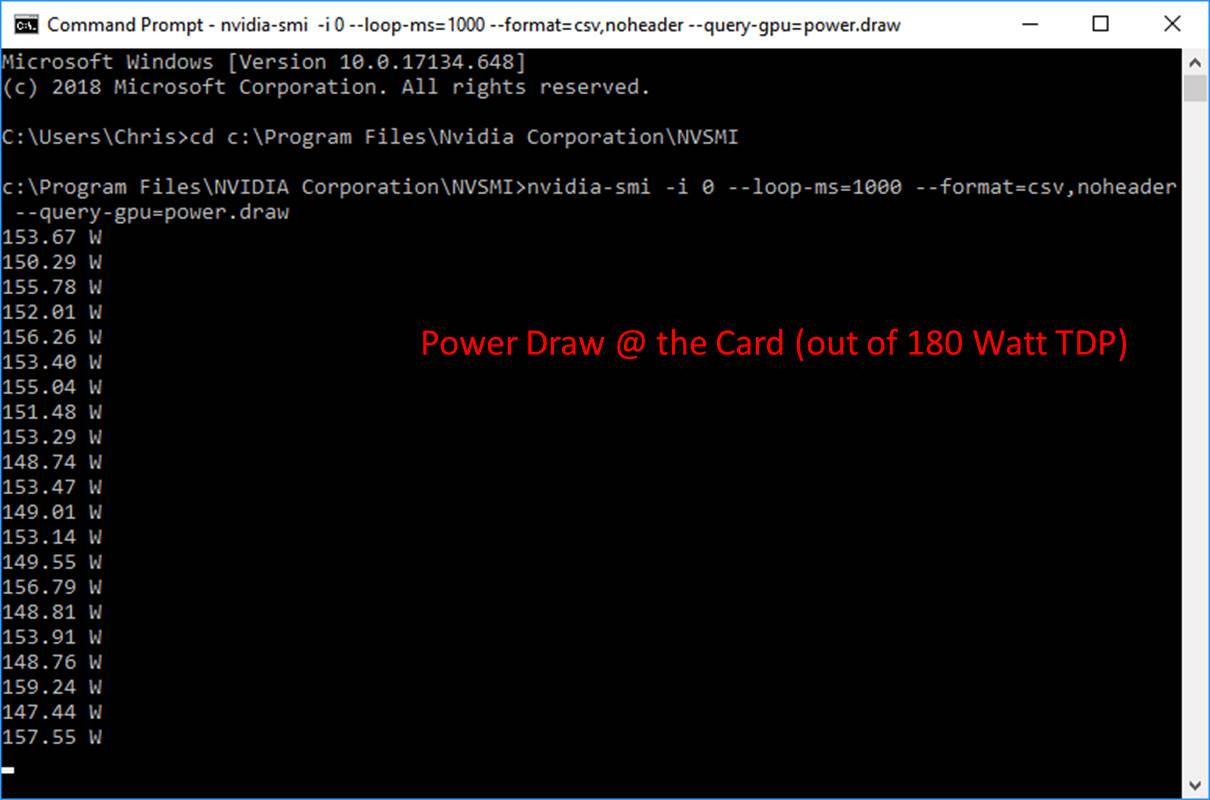
Measuring card power consumption with the driver shows that it’s using about 150 watts, which seems about right when compared to the GPU usage and power % graphs. 100% GPU usage would be ideal (and would result in a power consumption of about 180 watts, which is the 1080’s TDP).

In terms of card-level efficiency, this is 770,000 PPD / 150 Watts = 5133 PPD/Watt.
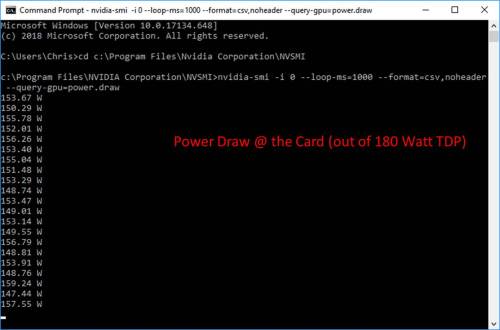
Power Draw (at the card)

Nvidia Geforce GTX 1080 – Instantaneous Power Draw @ the Card

Duration Testing

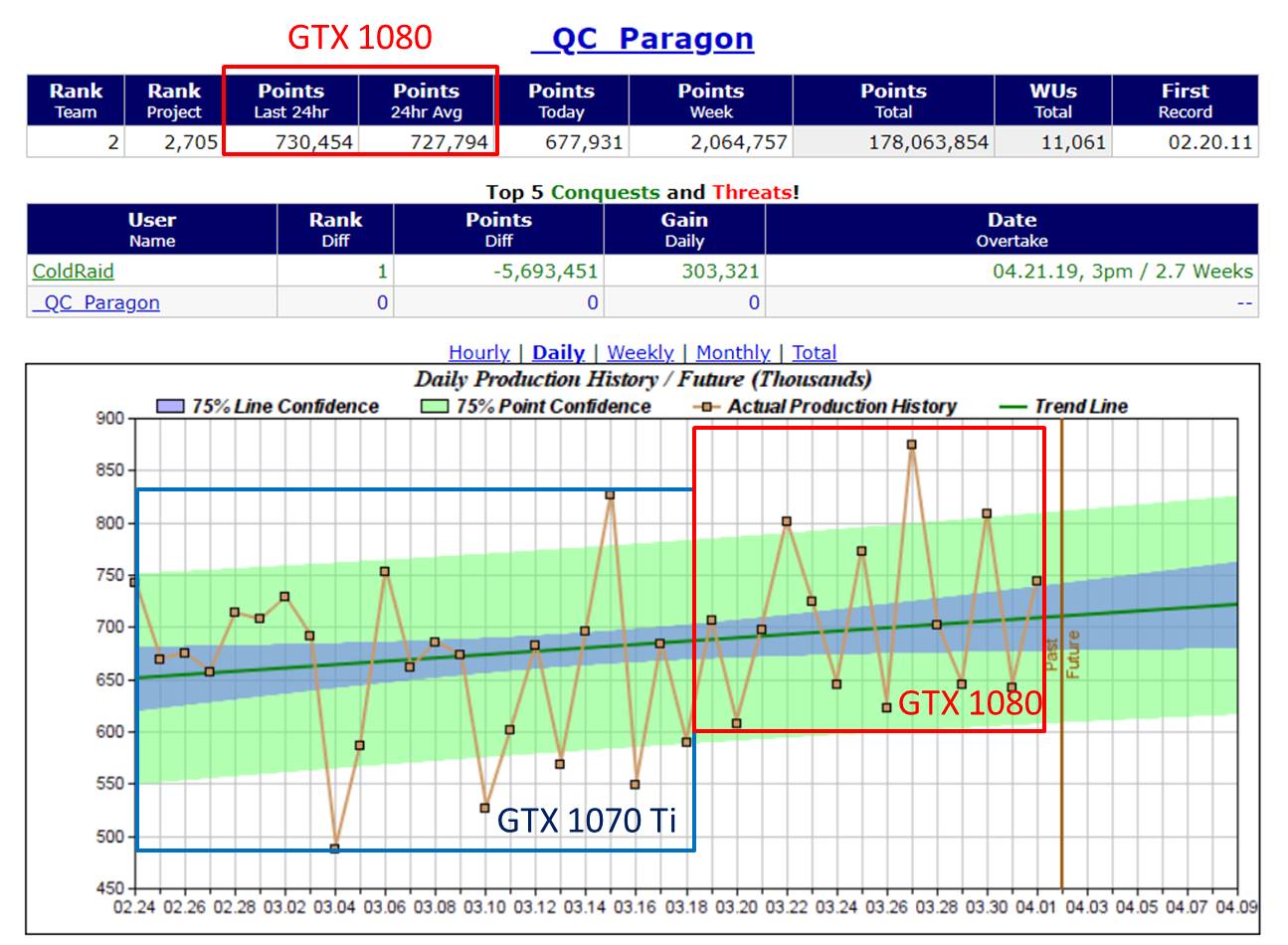
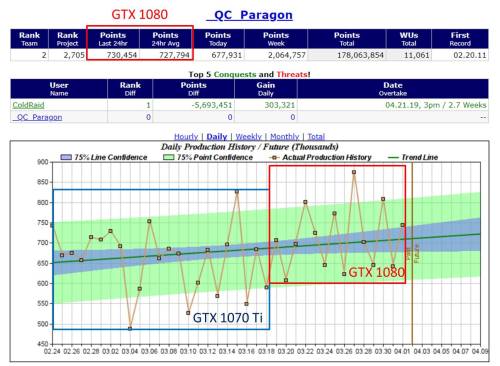
I ran Folding@Home for quite a while on the 1080. As you can see from this plot (courtesy of https://folding.extremeoverclocking.com/), the 1080 is mildly beating the 1070 Ti. It should be noted that the stats for the 1070 Ti are a bit low in the left-hand side of the plot, because folding was interrupted a few times for various reasons (gaming). The 1080 results were uninterrupted.
1080 Production History

Geforce GTX 1080 Production History

Another thing I noticed was the amount of variation in the results. Normal work unit variation (at least for less powerful cards) is around 10-20 percent. For the GTX 1080, I saw swings of 200K PPD, which is closer to 30%. Check out that one point at 875K PPD!

Average PPD: 730K PPD

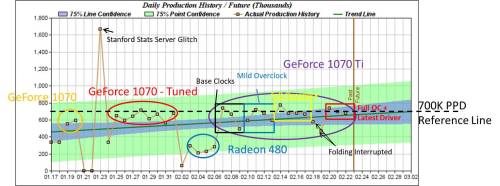
I averaged the PPD over two weeks on the GTX 1080 and got 730K PPD. Previous testing on the GTX 1070 Ti (based on continual testing without interruptions) showed an average PPD of 700K. Here is the plot from that article, reproduced for convenience.
Nvidia GTX 1070 Ti Time History

Nvidia GTX 1070 Ti Folding@Home Production Time History

I had expected my GTX 1080 to do a bit better than that. However, it only has about 5% more CUDA cores than the GTX 1070 Ti (2560 vs 2438). The GTX 1080’s faster memory also isn’t an advantage in Folding@Home. So, a 30K PPD improvement for the 1080, which corresponds to about a 4.3% faster, makes sense.

System Average Power Consumption: 240 Watts @ the Wall

I spot checked the power meter (P3 Kill A Watt) many times over the course of folding. Although it varies with work unit, it seemed to most commonly use around 230 watts. Peek observed wattage was 257, and minimum was around 220. This was more variation than I typically see, but I think it corresponds with the variation in PPD I saw in the performance graph. It was very tempting to just say that 230 watts was the number, but I wasn’t confident that this was accurate. There was just too much variation.

In order to get a better number, I reset the Kill-A-Watt meter (I hadn’t reset it in ages) and let it log the computer’s usage over the weekend. The meter keeps track of the total kilowatt-hours (KWH) of energy consumed, as well as the time period (in hours) of the reading. By dividing the energy by time, we get power. Instead of an instantaneous power (the eyeball method), this is an average power over the weekend, and is thus a compatible number with the average PPD.

The end result of this was 17.39 KWH consumed over 72.5 hours. Thus, the average power consumption of the computer is:

17.39/72.5 (KWH/H) * 1000 (Watts/KW) = about 240 Watts (I round a bit for convenience in reporting, but the Excel sheet that backs up all my plots is exact)

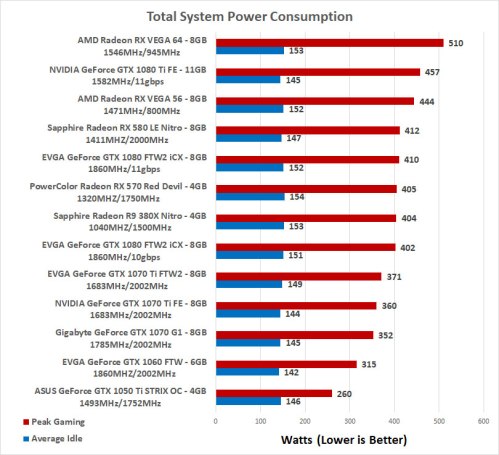
This is a bit more power consumed than the GTX 1070 Ti results, which used an average of 225 watts (admittedly computed by the eyeball method over many days, but there was much less variation so I think it is valid). This increased power consumption of the GTX 1080 vs. the 1070 Ti is also consistent with what people have seen in games. This Legit Reviews article shows an EVGA 1080 using about 30 watts more power than an EVGA 1070 Ti during gaming benchmarks. The power consumption figure is reproduced below:
LegitReviews_power-consumption

Modern Graphics Card Power Consumption. Source: Legit Reviews

This is a very interesting result. Even though the 1080 and the 1070 Ti have the same 180 Watt TDP, the 1080 draws more power, both in folding@home and in gaming.

System Computational Efficiency: 3044 PPD/Watt

For my Asus GeForce GTX 1080, the folding@home efficiency is:

730,000 PPD / 240 Watts = 3044 PPD/Watt.

This is an excellent score. Surprisingly, it is slightly less than my Asus 1070 Ti, which I found to have an efficiency of 3126 PPD/Watt. In practice these are so close that it just could be attributed to work unit variation. The GeForce 1080 and 1070 Ti are both extremely efficient cards, and are good choices for folding@home.

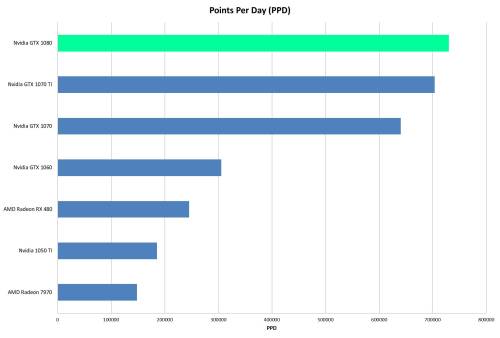
Comparison plots here:
GeForce 1080 PPD Comparison

GeForce GTX 1080 Folding@Home PPD Comparison
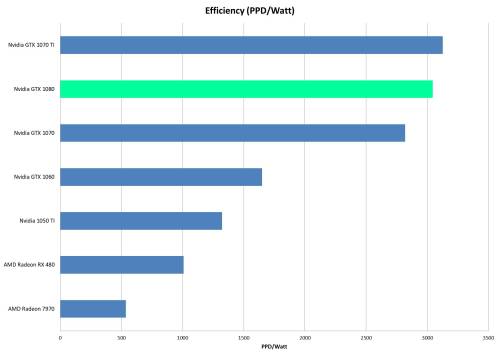
GeForce 1080 Efficiency Comparison

GeForce GTX 1080 Folding@Home Efficiency Comparison

Final Thoughts

The GTX 1080 is a great card. With that said, I’m a bit annoyed that my GTX 1080 didn’t hit 800K PPD like some folks in the forums say theirs do (I bet a lot of those people getting 800K PPD use Linux, as it is a bit better than Windows for folding). Still, this is a good result.

Similarly, I’m annoyed that the GTX 1080 didn’t thoroughly beat my 1070 Ti in terms of efficiency. The results are so close though that it’s effectively the same. This is part one of a multi-part review, where I tuned the card for performance. In the next article, I plan to go after finding a better efficiency point for running this card by experimenting with reducing the power limit. Right now I’m thinking of running the card at 80% power limit for a week, and then at 60% for another week, and reporting the results. So, stay tuned!

Ultra-Low Power Consumption Computer Tested – 25 Watt AMD Athlon 5350 Quad-Core APU!

When it comes to the web server and file hosting world, where computers run 24/7, power consumption is often the leading concern when selecting hardware. The same is often true for low-load applications, such as HTPCs, where power and heat are at odds with a silent, inexpensive machine. For these machines, which might see an occasional spike in load but typically sit in a near-idle state, a low idle power consumption is key.

The place where lower power components are not as valuable is the high performance computing world. Here, the goal shouldn’t be isn’t the absolute lowest power consumed, but the lowest power required to do a unit of work.

Flipping this around, the goal is to maximize the amount of computational work done per unit of power. This is computational efficiency.

Computational Efficiency on Super Low-Power Computers

Most of the reviews on this blog have been on rather expensive, high-powered hardware. By this I mean big honking graphics cards running on 8-core machines with 16 GB of ram. I’ve even tested dual-CPU servers with 64 GB of ram, like the dual AMD Opteron workstation below:

Dual Opteron RIG

Dual Opteron 4184 12-Core Server – 64 GB Ram

In this article, I’m going in the other direction. I’ll be testing a little teeny-weenie computer, to see just how well an ultra-low power consumption computer does in terms of computational efficiency.

The Machine

Four years ago, AMD did something that some people thought was silly. They released a socketed version of one of their ultra low-power processors. This meant that instead of being constrained with a tiny integrated device like chromebook, people could actually build an upgradable desktop with a drop-in CPU. Well, APU, actually, since AMD included the graphics on the chip.

That processor was the Kabini architecture APU. Built on a 28 nm process, it went along with a new socket (AM1).  There is a really good overview of this here:

https://www.anandtech.com/show/7933/the-desktop-kabini-review-part-1-athlon-5350-am1

I won’t go into too much detail, other than to point out that the flagship chip, the Athlon 5370, was a quad-core, 2.2 Ghz APU with 128 Radeon graphics cores, and an amazing Thermal Design Power of just 25 watts! In a time when the most energy efficient dual and quad-core processors were hovering around 45-65 Watt TDP, this chip was surprising. And, it eliminated the need for a discrete graphics card. And all for $60 bucks!

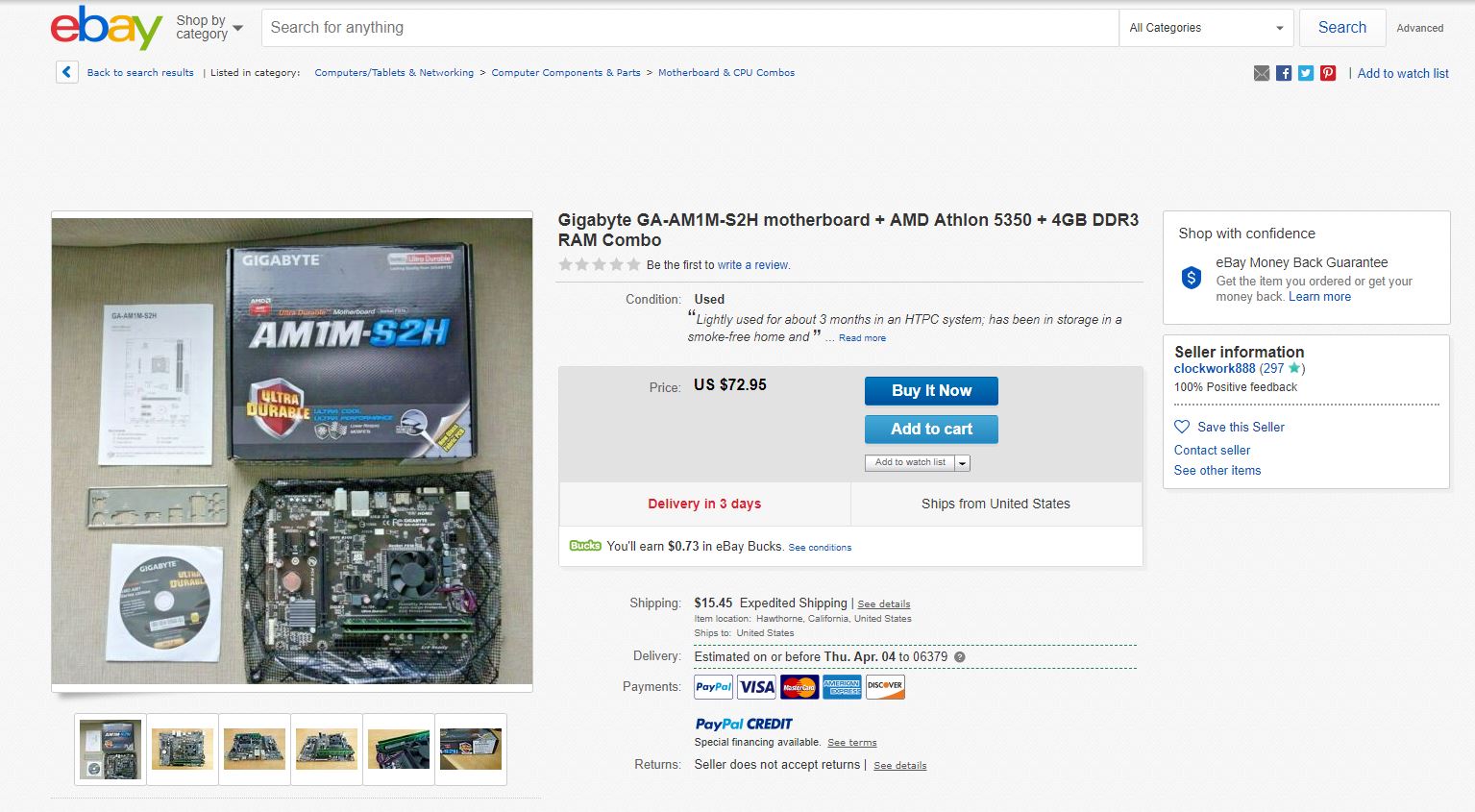
So, I got my hands on one (not the 5370, but the slightly slower 2.05 Ghz 5350). The prices are a bit inflated now (some nutters want up to 300 dollars for these little guys on eBay, although if you are lucky you can get a deal). For example, this isn’t the one I bought, but it’s a pretty nice combo (board, ram, and CPU) for $72 dollars.

AM1 Build Deal

AMD 25 Watt Quad Core Deal!

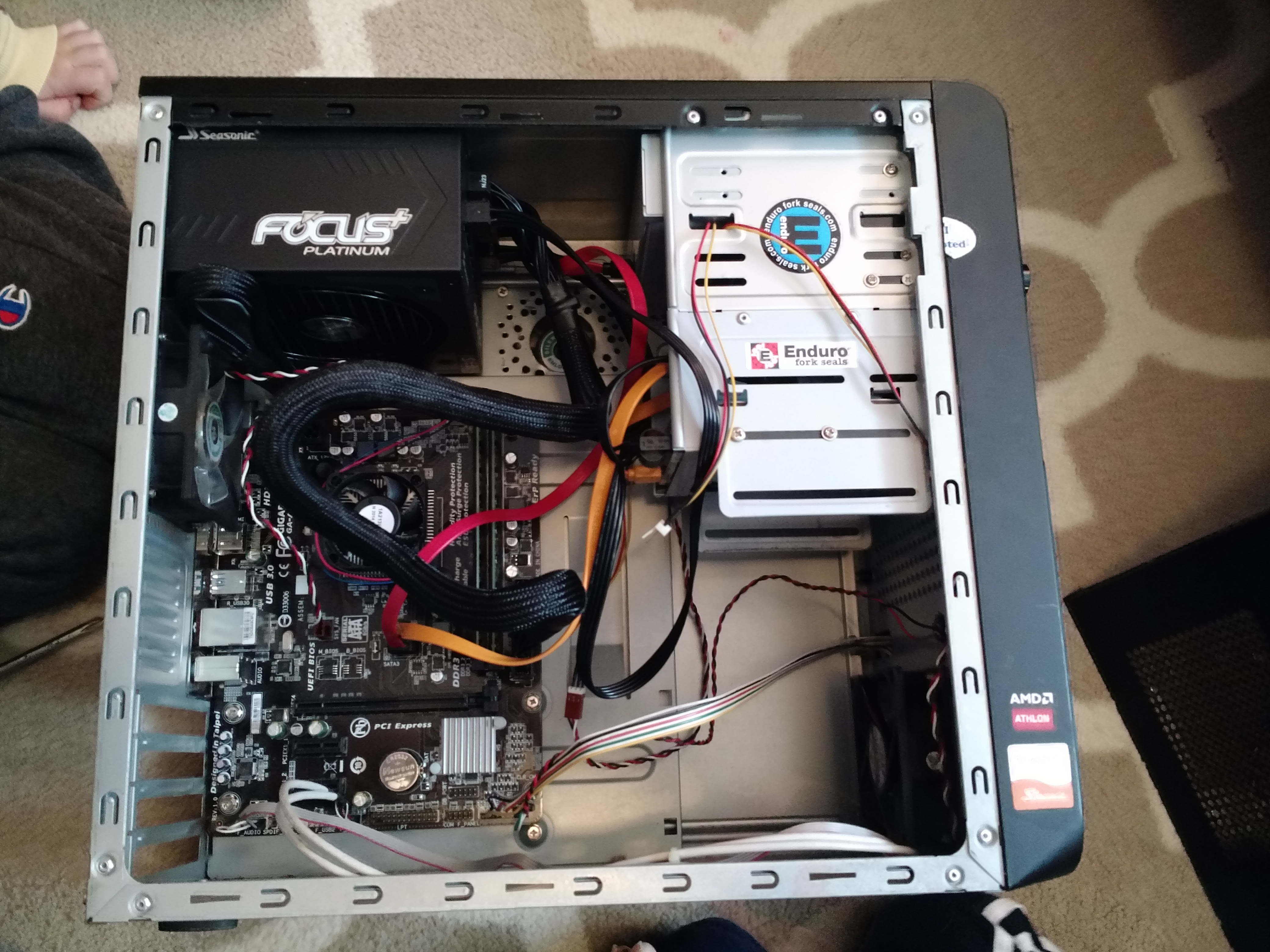
Since the goal was to make a machine with the absolute lowest system power consumption, I got a Gigabyte GA-AM1M-S2H microATX board and two sticks of DDR3L (1.35 volt) energy efficient memory. The hard drive is an old, slow, single-platter (I think) Hitachi 80 GB unit, which seems to offer passable performance without the same power consumption as larger multi-platter drives. I used a Seasonic Focus 80+ Platinum 550 watt power supply, which is one of the most energy efficient PSUs available (I went with this vs. a Pico PSU because I wanted the ability to add a big graphics card later). I put 4 80mm case fans on a controller so I can take them right out of the equation.

Here’s pictures of the build. All the stickers make it faster…and external case fans are the bomb (put them on there for my kids to play with).

Defiant_Build

Low Power Consumption Build. Codename: Defiant

After a bit of fussing around, I was able to get the machine up and running with Linux Mint 19.1. Using my P3 Kill A Watt Meter, I measured a system idle power consumption of about 23 watts with the case fans off and 28 watts with the case fans on. That’s less than half of an incandescent light bulb!

Folding@Home Performance

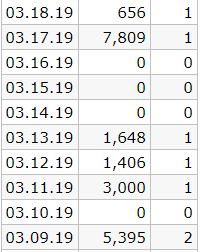
I downloaded the latest V7 Folding@Home client for Linux and enabled 4-core CPU folding (I also set the computer up with a passkey to earn the quick return bonus points). I let it run for a month to make sure everything was stable. Here are the results from the latest week of CPU folding:

AMD APU PPD

AMD Athlon 5350 Folding@Home Production

As you can see, the machine is not fast enough to always return a work unit every day. However, using a 10-day average, the Points Per Day production is 1991.4 PPD. This is in the ballpark of what was reported by the client.

Power consumption when folding was 35 watts (30 with case fans off…with a system this small, the fan power consumption is a significant percentage). I thought it would have been a bit higher, but then again, power supplies are not very efficient at super low loads, and this machine’s mid 20-watt idle consumption is way, way less than what the Seasonic 550-watt PSU is designed for. As the power consumption comes up out of the ultra-low region, the PSU efficiency increases. So, throwing a full 25 Watt TDP of CPU folding at the equation resulted in only a net 10 watt increase in power consumption at the wall.

In short, running full-tilt, this little computer only uses 35 watts of power! That’s incredible! In terms of efficiency, the PPD/Watt is 1991.4/35 = 56.9

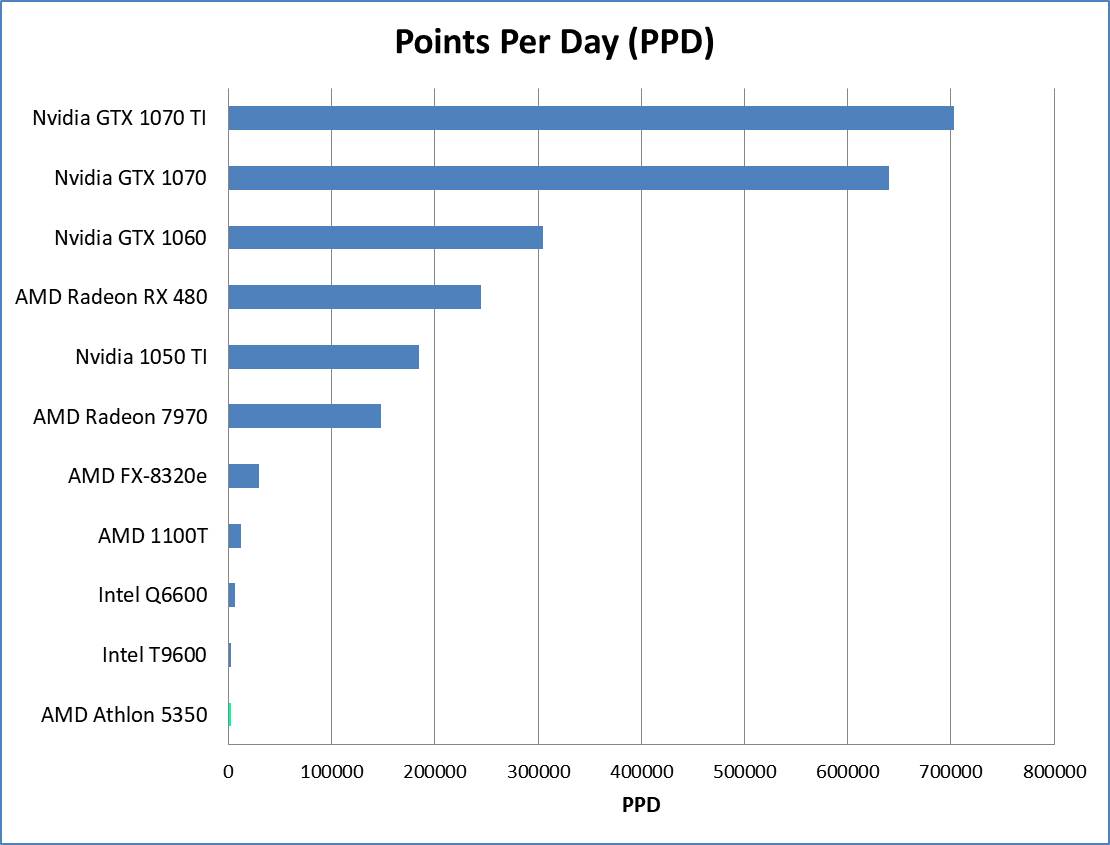
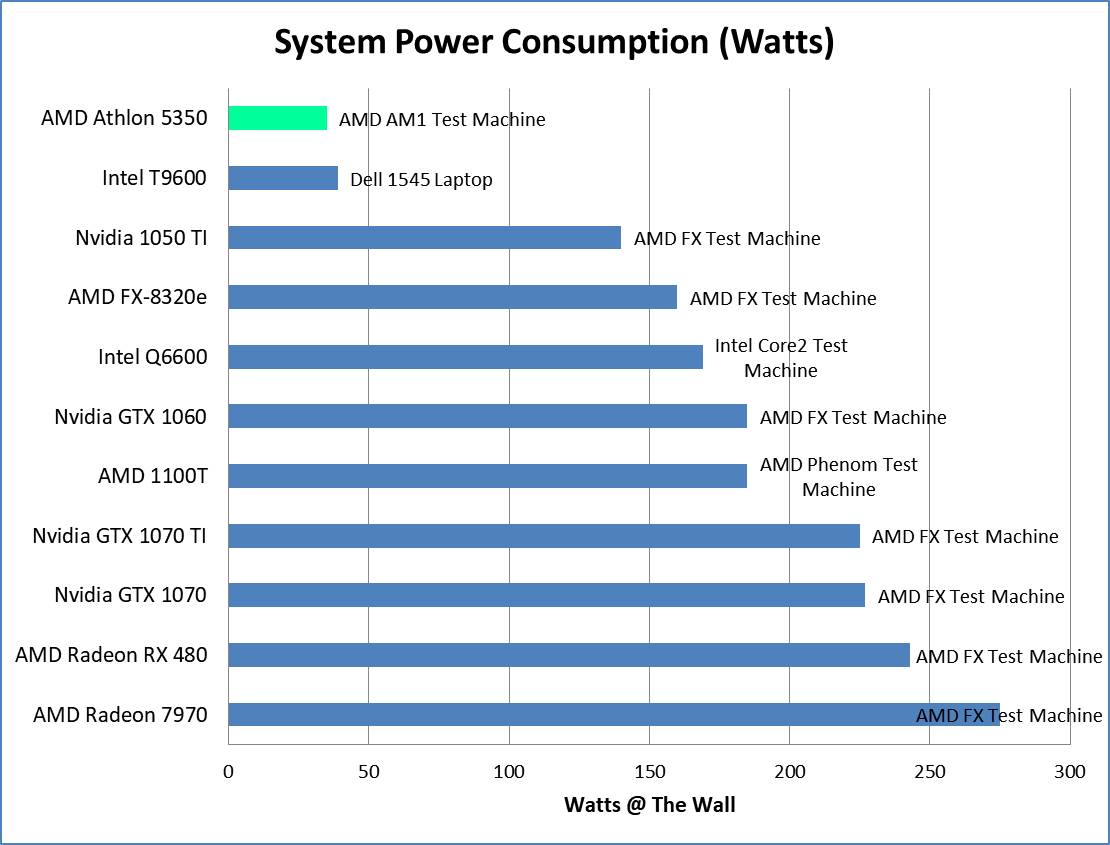
The following plots show how this stacks up to other hardware configurations. On the wattage plot, I noted which test machine was used.


AMD Athlon 5350 (25 Watt TDP Quad Core APU) Folding@Home Results

AMD Athlon 5350 PPD Comparison

The Athlon 5350 is not very fast…all the other processors do more science per day, and the graphics cards do a lot more!

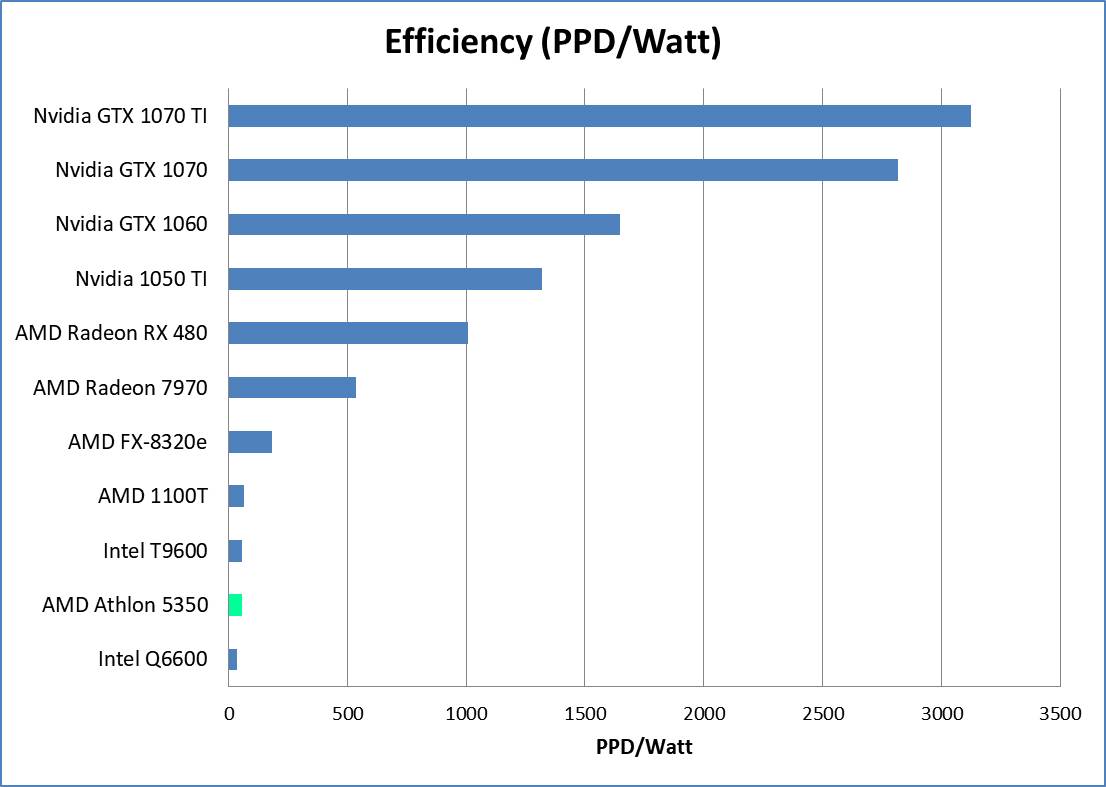
AMD APU Efficiency Comparison

The Athlon 5350 is also not very efficient. Even though its power consumption is low, it does not produce much science for the power that it draws. It is, interestingly, more efficient than an old Intel Q6600 quad core.

AMD APU Watt Comparison

The Athlon 5350 is an extremely low-power CPU. The desktop build here draws less power than anything I’ve tested, including my laptop!

Conclusion

Super low-power consumption computers, such as one based on the 25-watt quad-core Athlon 5350, are good at (you guessed it) drawing almost no power from the wall. I was able to build a desktop machine that, when running full tilt, uses the same amount of power as three LED light bulbs (or half of one standard incandescent light bulb). It even uses less power than my laptop (and my laptop is tiny!). That’s pretty cool.

Sadly, that’s where the coolness end. If your goal is to do tons of computation, low-power PC parts won’t help (dur!). In the case of supporting disease research for Stanford University’s Folding@Home distributed computing project, the Athlon 5350 test system got spanked by everything else I’ve tested, including my 10-year-old Inspiron 1545 laptop. Worse, despite its ultra low power consumption, the sheer lack of performance kills the efficiency of this machine.

As a side note, I have been overwhelmingly pleased with the computer as a HTPC. It is quiet, uses almost no electricity, and is actually pretty quick at multi-tasking in Linux Mint’s desktop environment, thanks to the 4 CPU cores. This build also offers me the chance to test something else…namely pushing the efficiency of graphics card folding. By reducing the background system power consumption to an incredibly low level, the whole-system efficiency of a folding computer can be increased. All I have to do next is give this little computer some teeth…in the form of a big graphics card! So, it sounds like I’ll have to do another article….stay tuned!
Folding@Home Efficiency vs. GPU Power Limit

Folding@Home: The Need for Efficiency

Distributed computing projects like Stanford University’s Folding@Home sometimes get a bad rap on account of all the power that is consumed in the name of science.  Critics argue that any potential gains that are made in the area of disease research are offset by the environmental damage caused by thousands of computers sucking down electricity.

This blog hopes to find a balance by optimizing the way the computational research is done. In this article, I’m going to show how a simple setting in the graphics card driver can improve Folding@Home’s Energy Efficiency.

This blog uses an Nvidia graphics card, but the general idea should also work with AMD cards. The specific card here is an EVGA GeForce GTX 1060 (6 GB).  Green F@H Review here: Folding on the NVidia GTX 1060

If you are folding on a CPU, similar efficiency improvements can be achieved by optimizing the clock frequencies and voltages in the BIOS.  For an example on how to do this, see these posts:

F@H Efficiency: AMD Phenom X6 1100T

F@H Efficiency: Overclock or Undervolt?

(at this point in time I really just recommend folding on a GPU for optimum production and efficiency)

GPU Power Limit Overview

The GPU Power limit slider is a quick way to control how much power the graphics card is allowed to draw. Typically, graphics cards are optimized for speed, with efficiency a second goal (if at all). When a graphics card is pushed harder, it will draw more power (until it runs into the power limit). Today’s graphics cards will also boost their clock rate when loaded, and reduce it when the load goes away. Sometimes, a few extra MHz can be achieved for minimal extra power, but go too far and the amount of power needed to drive the card will grow exponentially. Sure the card is doing a bit more work (or playing a game a bit faster), but the heaps of extra power needed to do this are making it very inefficient.

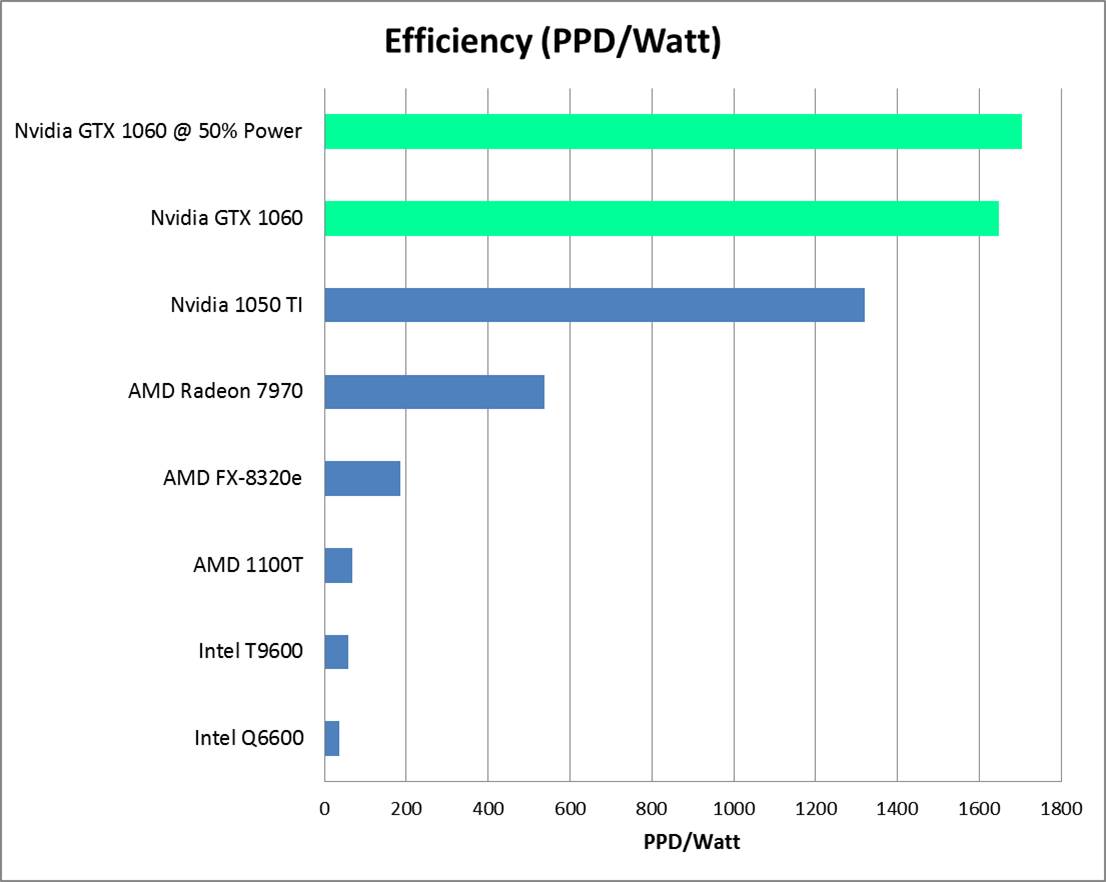
What I’m going to quickly show is that going the other way (reducing power) can actually improve efficiency, albeit at a reduction of raw output. For  this quick test, I’m just going to look a the default power limit, 100%, vs 50%. Specific tuning is going to be dependent on your actual graphics card. But, with a few days at different settings, you should be able to find a happy balance between performance and efficiency.

For these plots, I used my watt meter to obtain actual power consumption at the wall. You can read about my watt meters here.

Changing the Power Limit

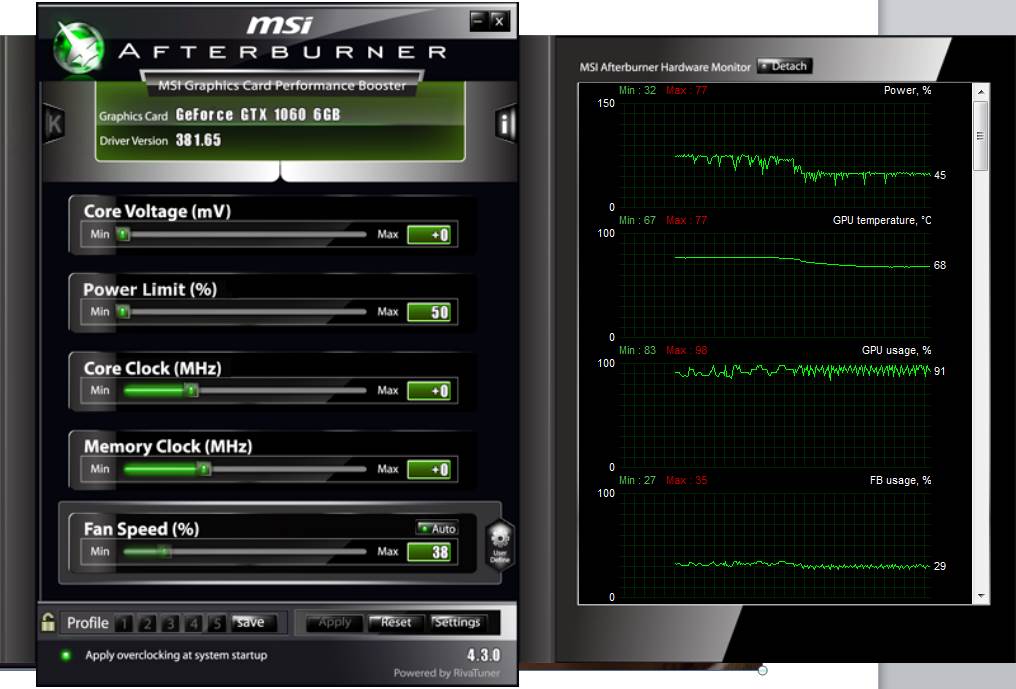
A tool such as MSI Afterburner can be used to view the graphics card’s settings, including the power limit. In the below screenshot, I reduced the card’s power limit by 50% midway through taking data. You can clearly see the power consumption and GPU temperature drop. This suggests the entire computer should be drawing less power from the wall. I confirmed this with my watt meter.

Adjust Power Limit MSI Afterburner

MSI Afterburner is used to reduce the graphics card’s power limit.

Effect on Results

I ran the card for multiple days at each power setting and used Stanford’s actual stats to generate an averaged number for PPD. Reporting an average number like this lends more confidence that the results are real, since PPD as reported in the client varies a lot with time, and PPD can bounce around by +/- 10 percent with different projects.

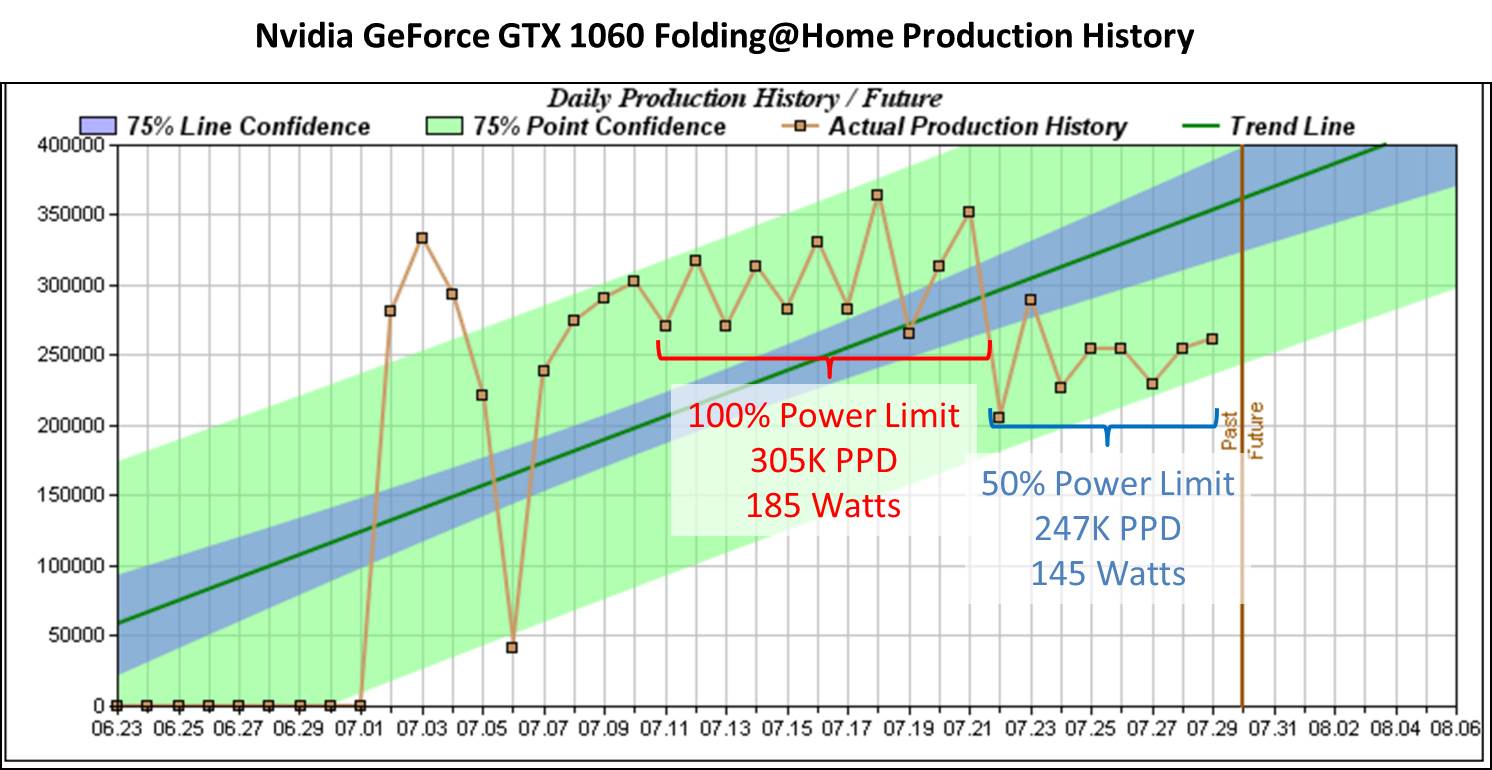
Below is the production time history plot, courtesy of https://folding.extremeoverclocking.com/. I marked on the plot the actual power consumption numbers I was seeing from my computer at the wall. As you can see, reducing the power limit on the 1060 from 100% to 50% saved about 40 watts of power at the wall.

GTX 1060 F@H Reduced Power Limit Production

GTX 1060 Folding@Home Performance at 100% and 50% Power

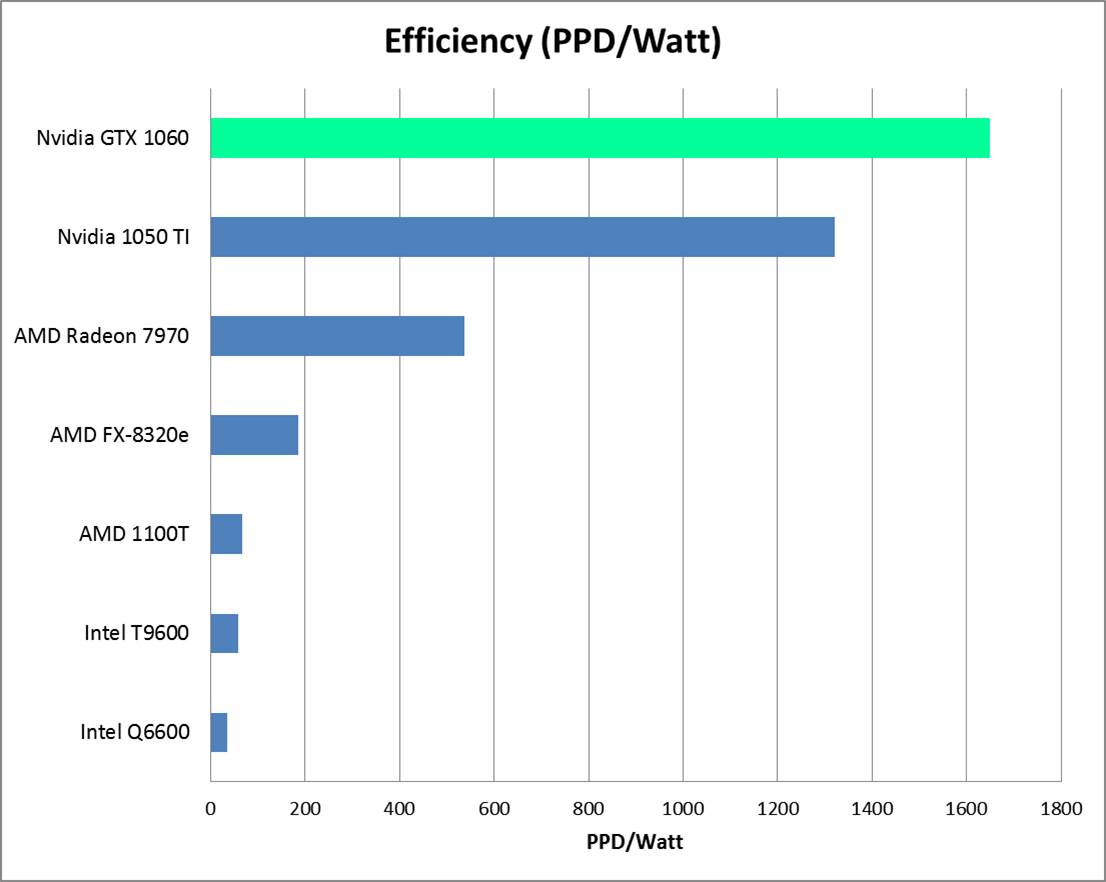
On the efficiency plot, you can see that reducing the power limit on the 1060 actually improved its efficiency slightly. This is a great way to fold more effectively.

Nvidia 1060 PPD per Watt Updated

NVidia GTX 1060 Folding@Home Efficiency Results

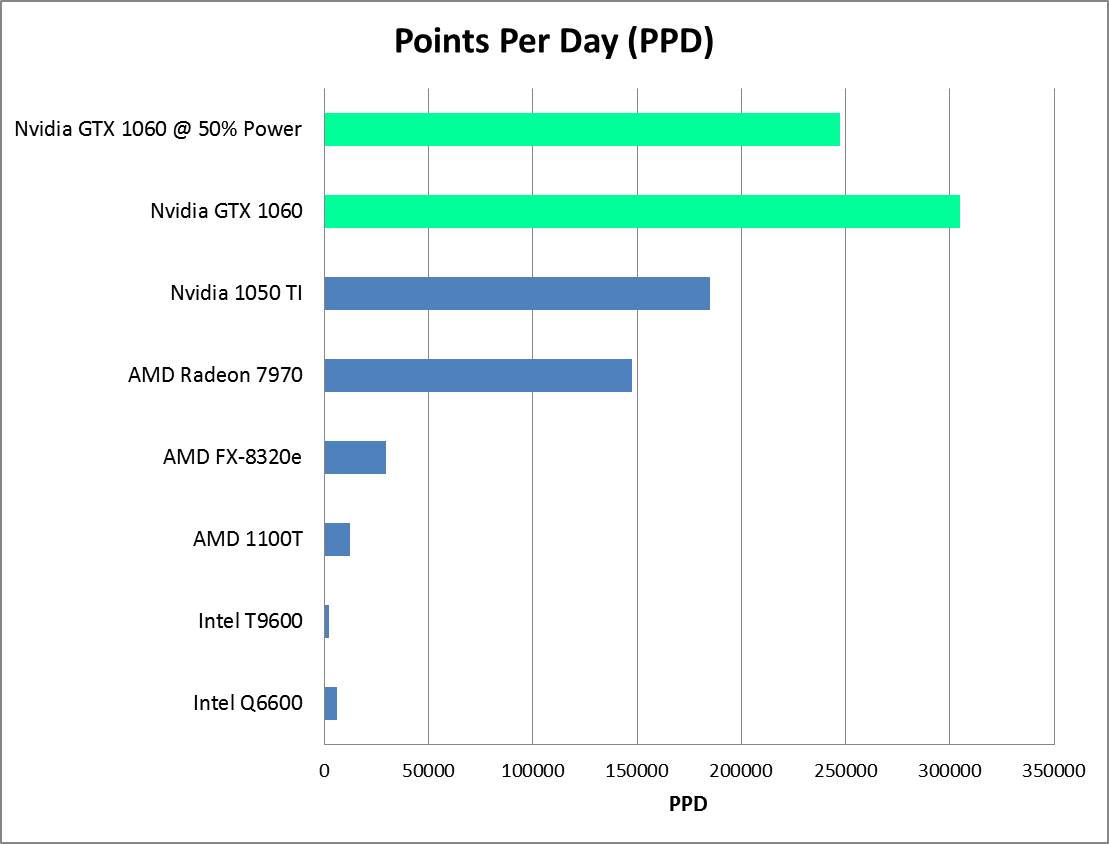
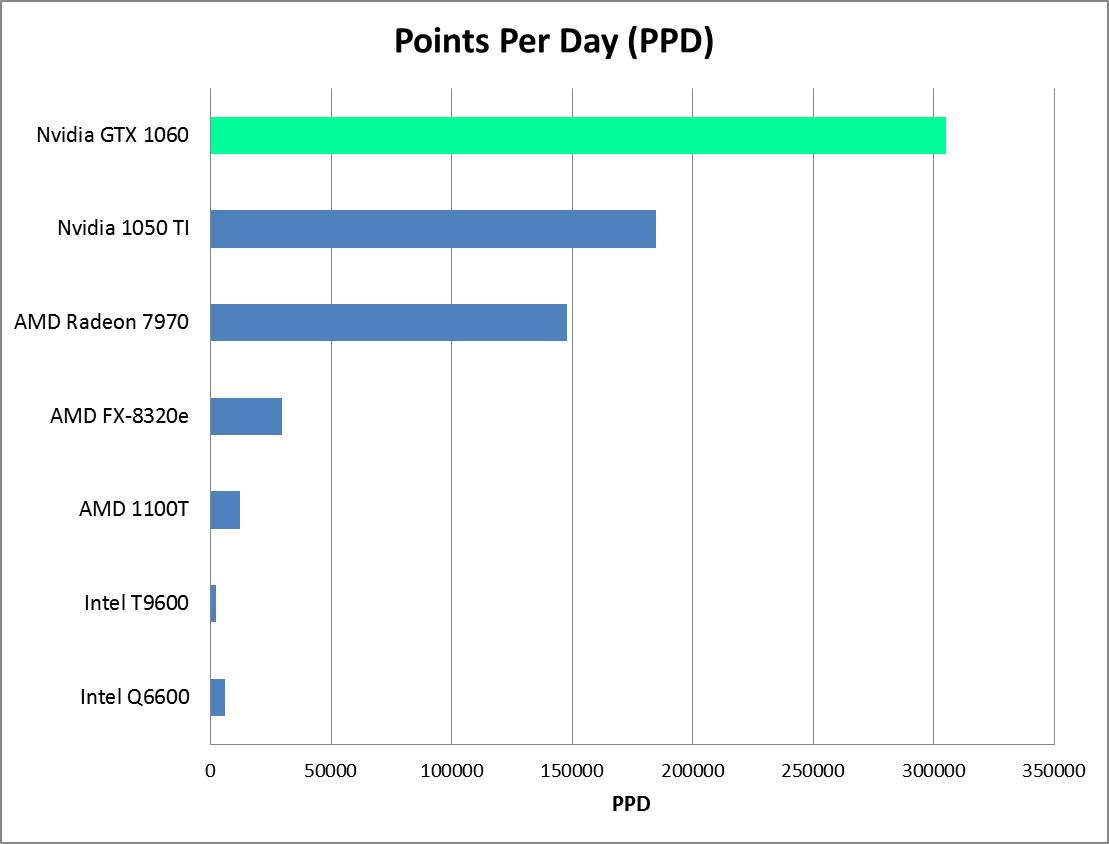
There is a downside of course, and that is in raw production. The Points Per Day plot below shows a pretty big reduction in PPD for the reduced power 1060, although it is still beating its little brother, the 1050 TI. One of the reasons PPD falls off so hard is that Stanford provides bonus points that are tied to how fast your computer can return a work unit. These points increase exponentially the faster your computer can do work. So, by slowing the card down, we not only lose on base points, but we lose on  the quick return bonus as well.

Nvidia 1060 PPD Updated

NVidia GTX 1060 Folding@Home Performance Results

Conclusion

Reducing the power limit on a graphics card can increase its computational energy efficiency in Folding@Home, although at the cost of raw PPD. There is probably a sweet spot for efficiency vs. performance at some power setting between 50% and 100%. This will likely be different for each graphics card. The process outlined above can be used for various power limit settings to find the best efficiency point.


Folding on the NVidia GTX 1060

Overview

Folding@home is Stanford University’s charitable distributed computing project. It’s charitable because you can donate electricity, as converted into work through your home computer, to fight cancer, Alzheimer, and a host of other diseases.  It’s distributed, because anyone can run it with almost any desktop PC hardware.  But, not all hardware configurations are created equally.  If you’ve been following along, you know the point of this blog is to do the most work for as little power consumption as possible.  After all, electricity isn’t free, and killing the planet to cure cancer isn’t a very good trade-off.

Today we’re testing out Folding@home on EVGA’s single-fan version of the NVIDIA GTX 1060 graphics card.  This is an impressive little card in that it offers a lot of gaming performance in a small package.  This is a very popular graphics card for gamers who don’t want to spend $400+ on GTX 1070s and 1080s.  But, how well does it fold?

Card Specifications

Manufacturer:  EVGA
Model #:  06G-P4-6163
Model Name: EVGA GeForce GTX 1060 SC GAMING (Single Fan)
Max TDP: 120 Watts
Power:  1 x PCI Express 6-pin
GPU: 1280 CUDA Cores @ 1607 MHz (Boost Clock of 1835 MHz)
Memory: 6 GB GDDR5
Bus: PCI-Express X16 3.0
MSRP: $269

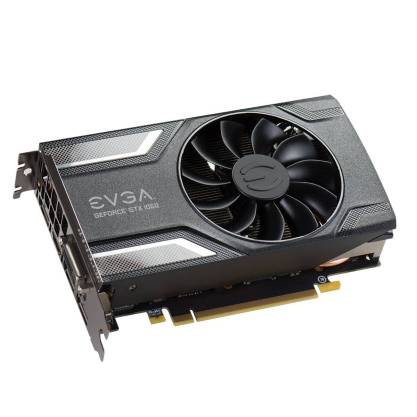
06G-P4-6163-KR_XL_4

EVGA Nvidia GeForce GTX 1060 (photo by EVGA)

Folding@Home Test Setup

For this test I used my normal desktop computer as the benchmark machine.  Testing was done using Stanford’s V7 client on Windows 7 64-bit running FAH Core 21 work units.  The video driver version used was 381.65.  All power consumption measurements were taken at the wall and are thus full system power consumption numbers.

If you’re interested in reading about the hardware configuration of my test rig, it is summarized in this post:

https://greenfoldingathome.com/2017/04/21/cpu-folding-revisited-amd-fx-8320e-8-core-cpu/

Information on my watt meter readings can be found here:

I Got a New Watt Meter!
FOLDING@HOME TEST RESULTS – 305K PPD AND 1650 PPD/WATT

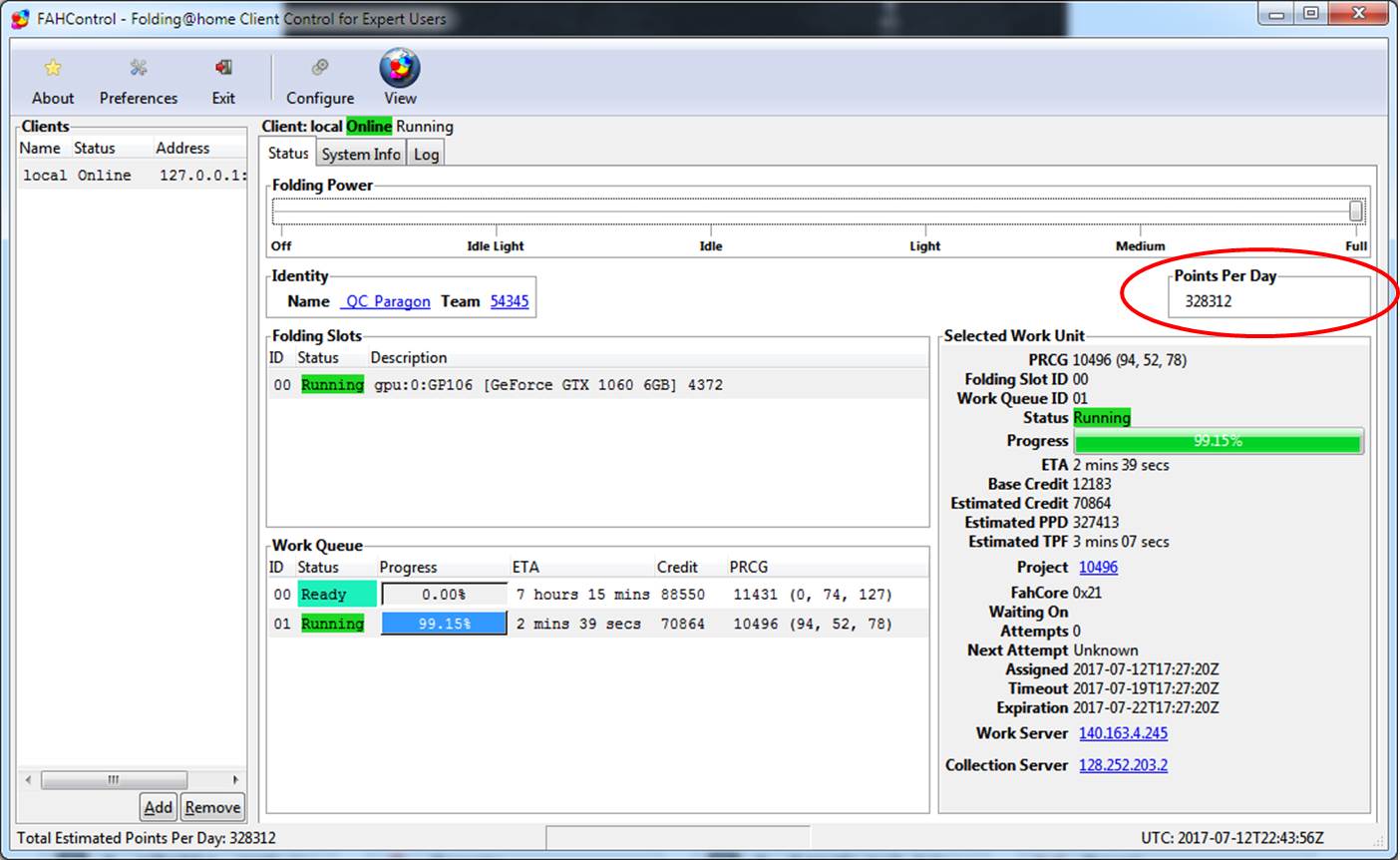
The Nvidia GTX 1060 delivers the best Folding@Home performance and efficiency of all the hardware I’ve tested so far.  As seen in the screen shot below, the native F@H client has shown up to 330K PPD.  I ran the card for over a week and averaged the results as reported to Stanford to come up with the nominal 305K Points Per Day number.  I’m going to use 305 K PPD in the charts in order to be conservative.  The power draw at the wall was 185 watts, which is very reasonable, especially considering this graphics card is in an 8-core gaming rig with 16 GB of ram.  This results in a F@H efficiency of about 1650 PPD/Watt, which is very good.

Screen Shot from F@H V7 Client showing Estimated Points per Day:

1060 TI Client

Nvidia GTX 1060 Folding @ Home Results: Windows V7 Client

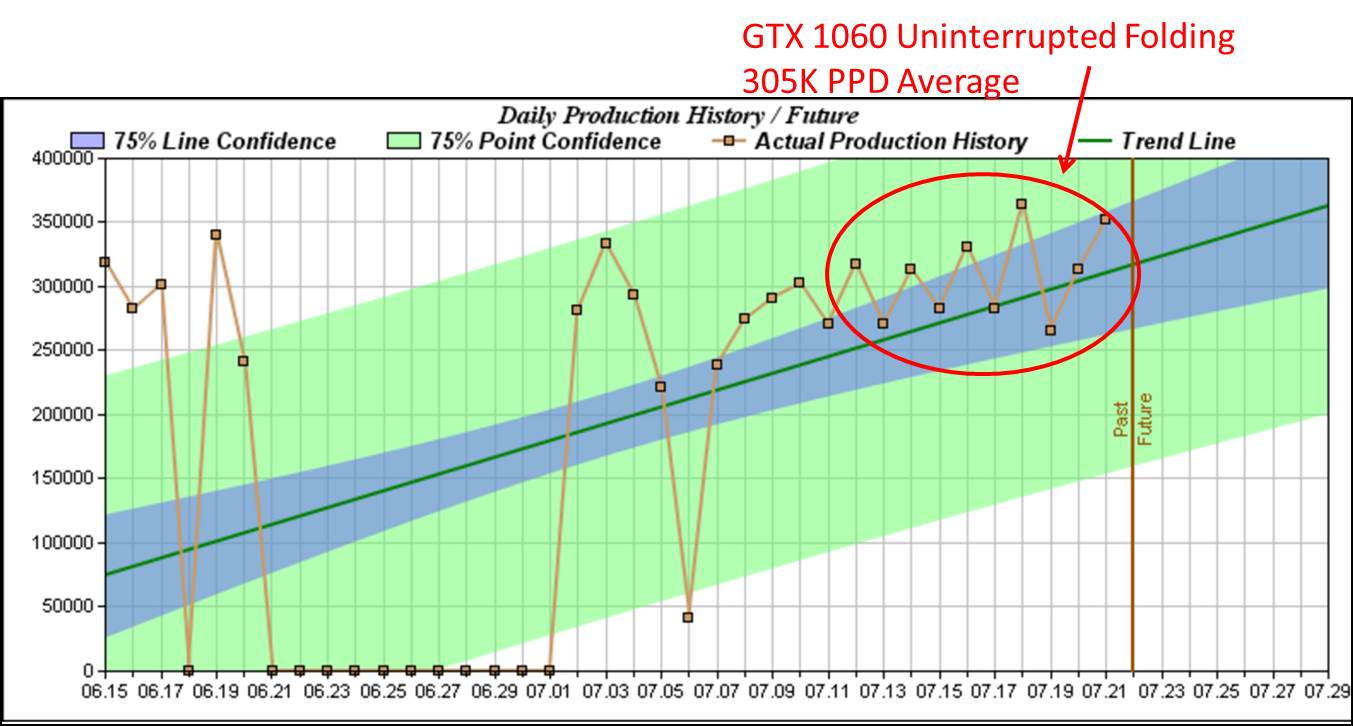
Here are the averaged results based on actual returned work units

(Graph courtesy of http://folding.extremeoverclocking.com/)

1060 GTX PPD History

NVidia 1060 GTX Folding PPD History

Note that in this plot, the reported results previous to the circled region are also from the 1060, but I didn’t have it running all the time.  The 305K PPD average is generated only from the work units returned within the time frame of the red circle (7/12 thru 7/21)

Production and Efficiency Plots

Nvidia 1060 PPD

NVidia GTX 1060 Folding@Home PPD Production Graph

Nvidia 1060 PPD per Watt

Nvidia GTX 1060 Folding@Home Efficiency Graph

Conclusion

For about $250 bucks (or $180 used if you get lucky on eBay), you can do some serious disease research by running Stanford University’s Folding@Home distributed computing project on the Nvidia GTX 1060 graphics card.  This card is a good middle ground in terms of price (it is the entry-level in NVidia’s current generation of GTX series of gaming cards).  Stepping up to a 1070 or 1080 will likely continue the trend of increased energy efficiency and performance, but these cards cost between $400 and $800.  The GTX 1060 reviewed here was still very impressive, and I’ll also point out that it runs my old video games at absolute max settings (Skyrim, Need for Speed Rivals).  Being a relatively small video card, it easily fits in a mid-tower ATX computer case, and only requires one supplemental PCI-Express power connector.  Doing over 300K PPD on only 185 watts, this Folding@home setup is both efficient and fast. For 2017, the NVidia 1060 is an excellent bang-for-the-buck Folding@home Graphics Card.

Request: Anyone want to loan me a 1070 or 1080 to test?  I’ll return it fully functional (I promise!)

Folding@Home on the Nvidia GeForce GTX 1050 TI: Extended Testing

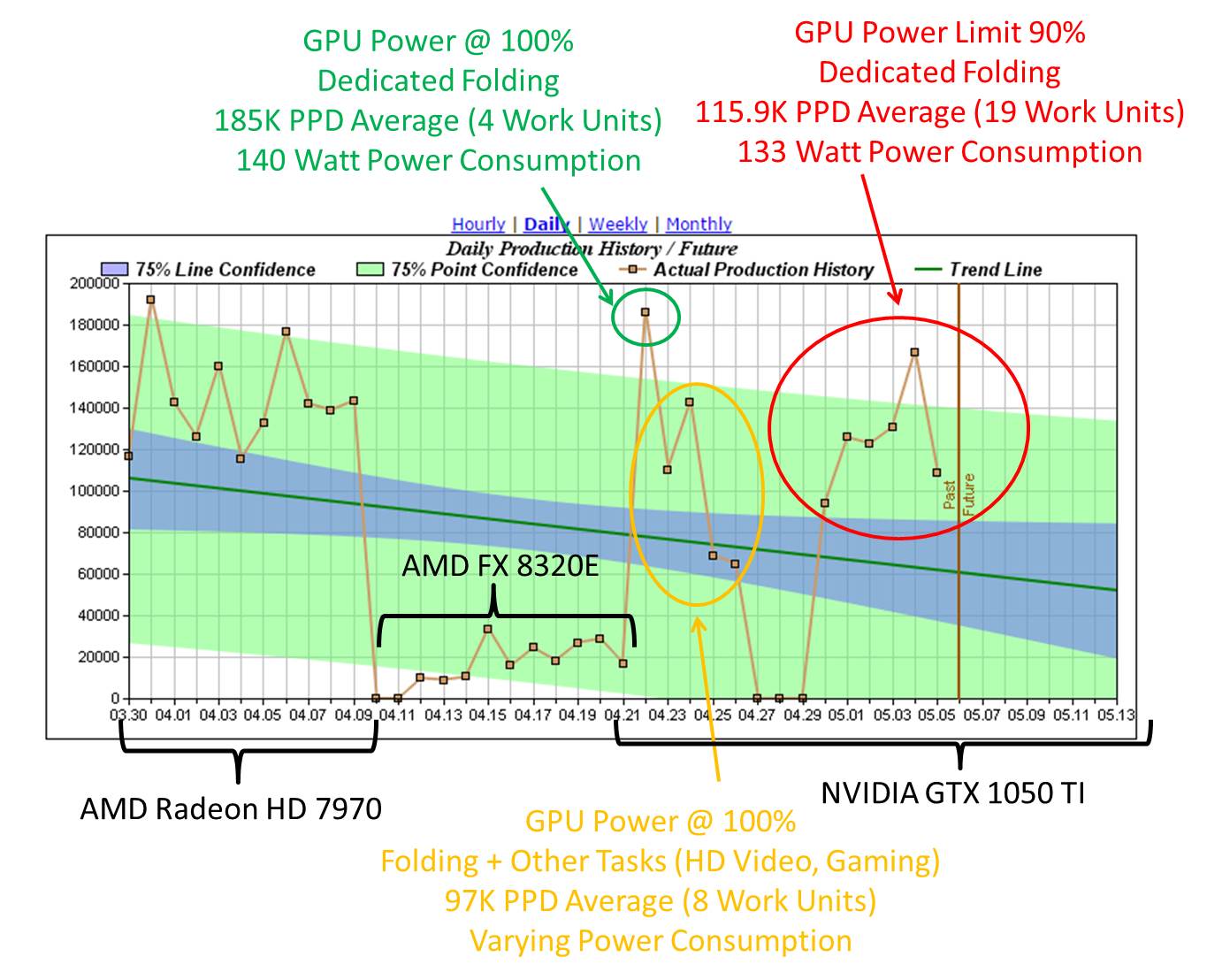
Hi again.  Last week, I looked at the performance and energy efficiency of using an Nvidia GeForce GTX 1050 TI to run Stanford’s charitable distributed computing project Folding@home.  The conclusion of that study was that the GTX 1050 TI offers very good Points Per Day (PPD) and PPD/Watt energy efficiency.  Now, after some more dedicated testing, I have a few more thoughts on this card.

Average Points Per Day

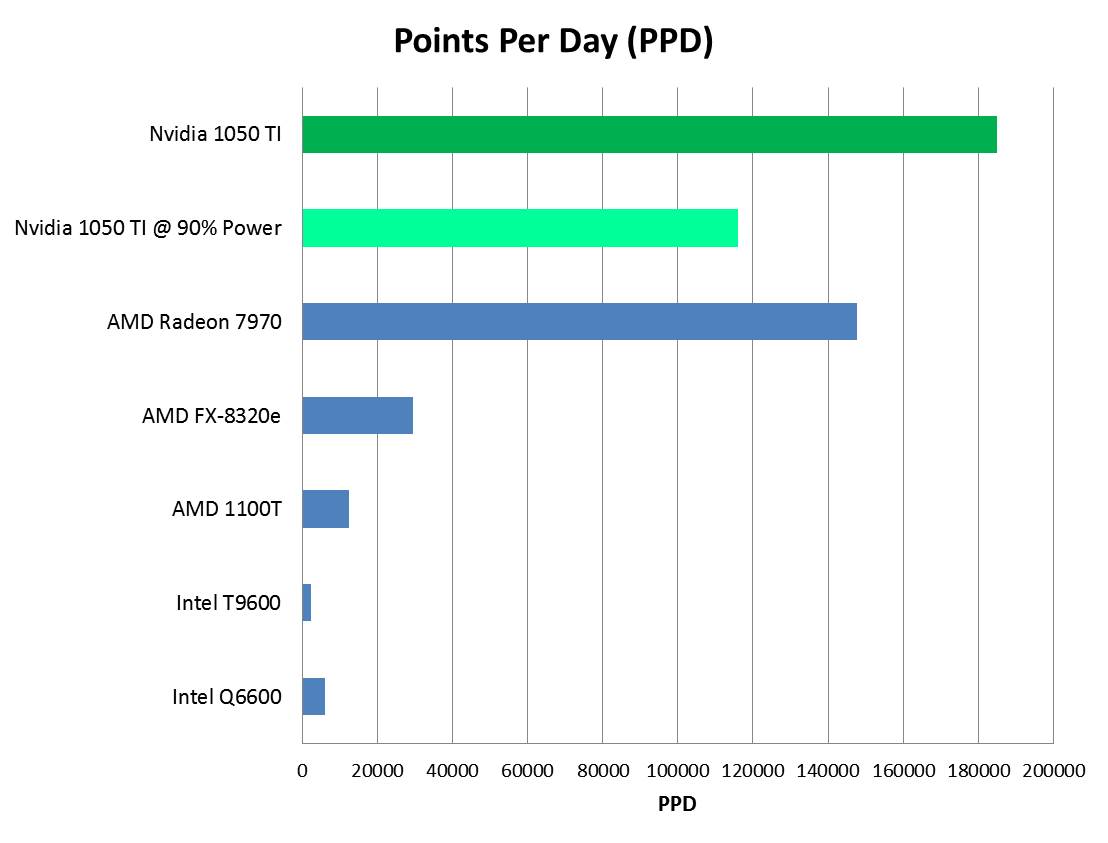
In the last article, I based the production and efficiency numbers on the estimated completion time of one work unit (Core 21), which resulted in a PPD of 192,000 and an efficiency of 1377 PPD/Watt.  To get a better number, I let the card complete four work units and report the results to Stanford’s collection server.  The end result was a real-world performance of 185K PPD and 1322 PPD/Watt (power consumption is unchanged at 140 watts @ the wall).  These are still very good numbers, and I’ve updated the charts accordingly.  It should be noted that this still only represents one day of folding, and I am suspicious that this PPD is still on the high end of what this card should produce as an average.  Thus, after this article is complete, I’ll be running some more work units to try and get a better average.

Folding While Doing Other Things

Unlike the AMD Radeon HD 7970 reviewed here, the Nvidia GTX 1050 TI doesn’t like folding while you do anything else on the machine.  To use the computer, we ended up pausing folding on multiple occasions to watch videos and browse the internet.  This results in a pretty big hit in the amount of disease-fighting science you can do, and it is evident in the PPD results.

Folding on a Reduced Power Setting

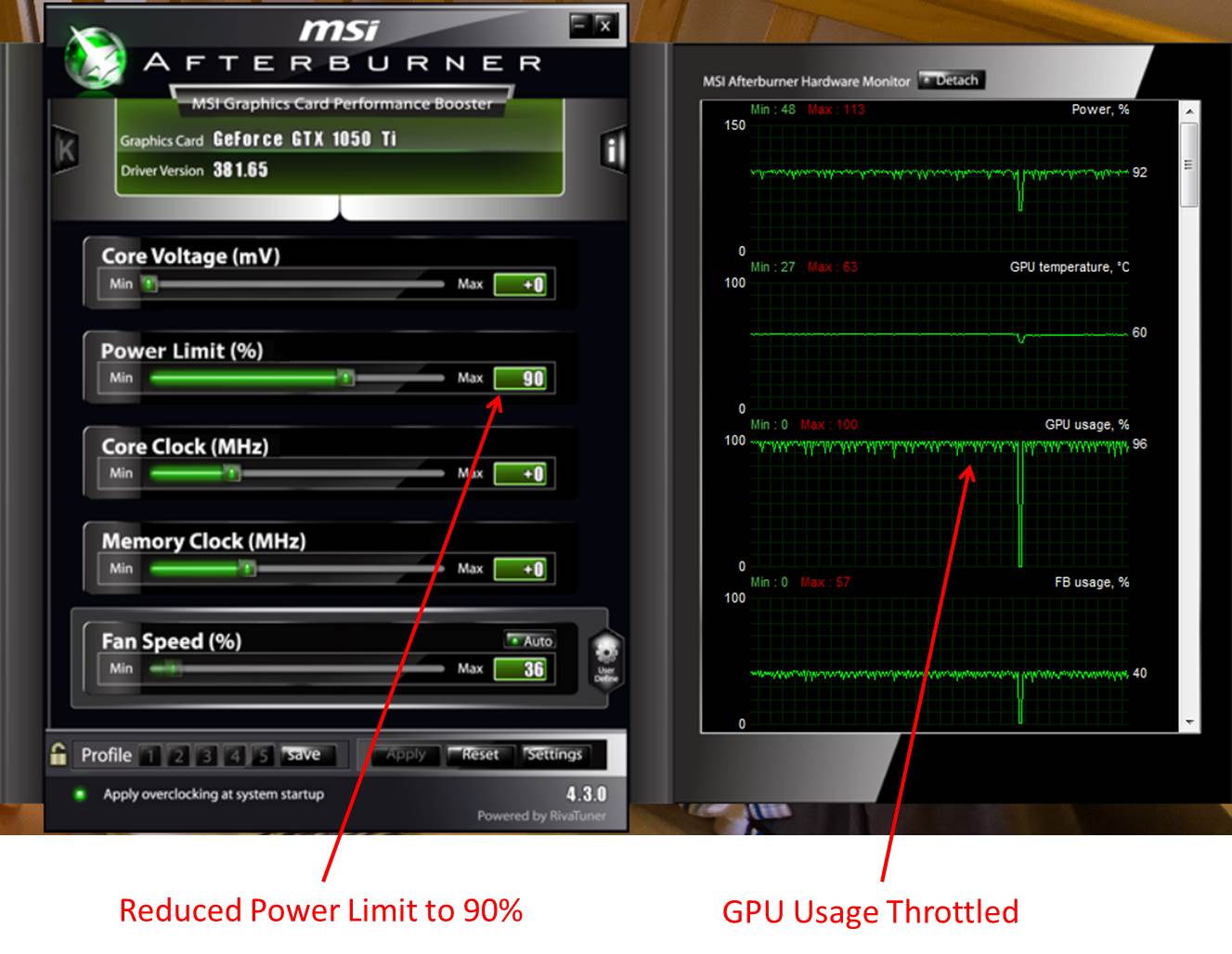
Finally, we went back to uninterrupted folding on the card, but at a reduced power setting (90%, set using MSI Afterburner).  This resulted in a 7 watt reduction of power consumption as measured at the wall (133 watts vs. 140 watts).  However, in order to produce this reduction in power, the graphics card’s clock speed is reduced, resulting in more than a performance hit.  The power settings can be seen here:

GTX 1050 Throttled

MSI Afterburner is used to reduce GPU Power Limit

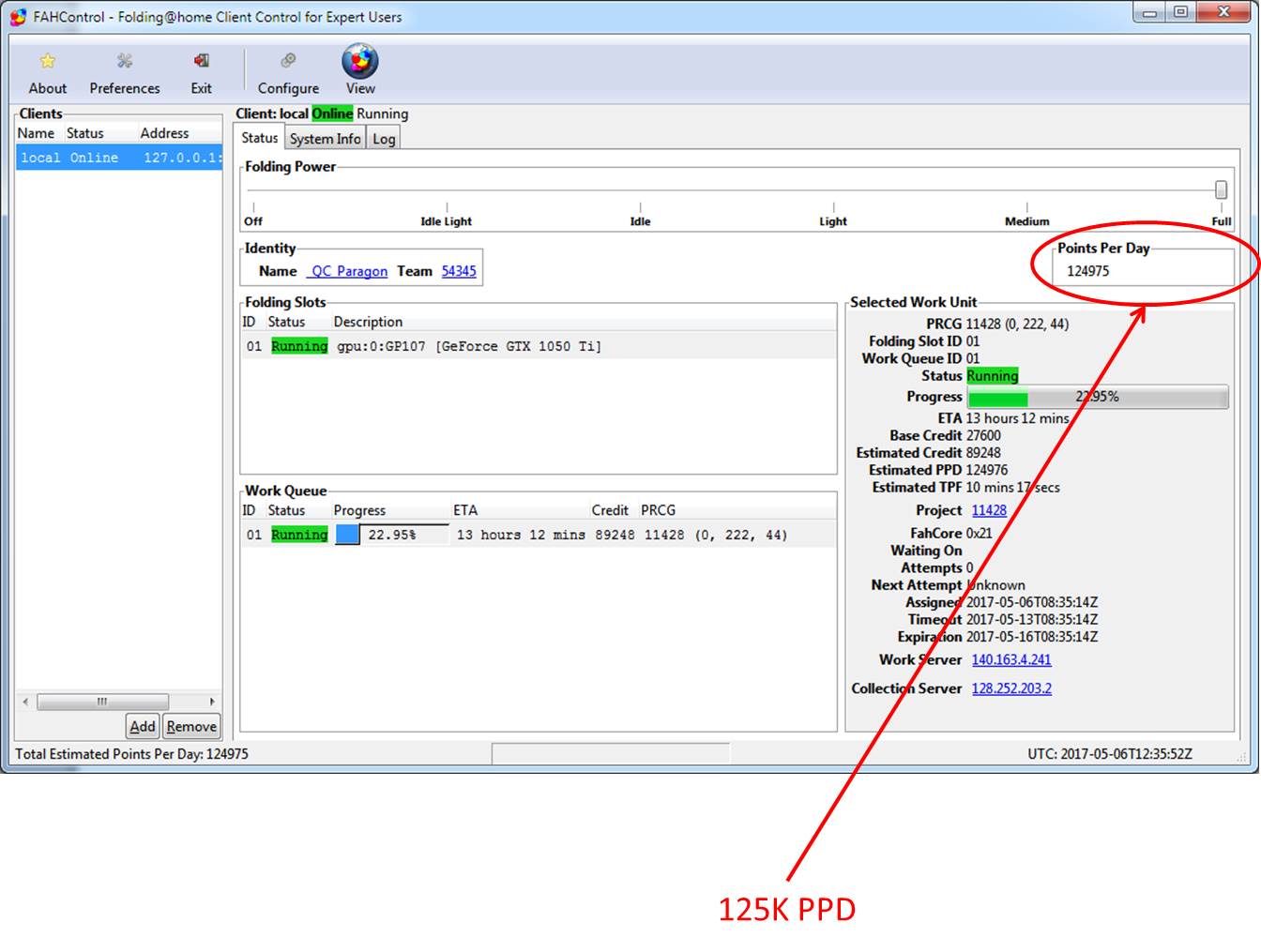
Observing the estimated Folding@home PPD in the Windows V7 client shows what appears to be a massive reduction in PPD compared to previous testing.  However, since production is highly dependent on the individual projects and work units, this reduction in PPD should be taken with a grain of salt.

GTX 1050 V7 Throttled Performance

In order to get some more accurate results at the reduced power limit, we let the machine chug along uninterrupted for a week.  Here is the PPD production graph courtesy of http://folding.extremeoverclocking.com/

GTX 1050 Extended Performance Testing

Nvidia GTX 1050 TI Folding@Home Extended Performance Testing

It appears here that the 90% power setting has caused a significant reduction in PPD. However, this is based on having only one day’s worth of results (4 work units) for the 100% power case, as opposed to 19 work units worth of data for the 90% power case. More testing at 100% power should provide a better comparison.

Updated Charts (pending further baseline testing)

GTX 1050 PPD Underpowered

Nvidia GTX 1050 PPD Chart

GTX 1050 Efficiency Underpowered

Nvidia GTX 1050 TI Efficiency

As expected, you can contribute the most to Stanford’s Folding@home scientific disease research with a dedicated computer.  Pausing F@H to do other tasks, even for short periods, significantly reduces performance and efficiency.  Initial results seem to indicate that reducing the power limit of the graphics card significantly hurts performance and efficiency.  However, there still isn’t enough data to provide a detailed comparison, since the initial PPD numbers I tested on the GTX 1050 were based on the results of only 4 completed work units.  Further testing should help characterize the difference.

Squeezing a few more PPD out of the FX-8320E

In the last post, the 8-core AMD FX-8320E was compared against the AMD Radeon 7970 in terms of both raw Folding@home computational performance and efficiency.  It lost, although it is the best processor I’ve tested so far.  It also turns out it is a very stable processor for overclocking.

Typical CPU overclocking focuses on raw performance only, and involves upping the clock frequency of the chip as well as the supplied voltage.  When tuning for efficiency, doing more work for the same (or less) power is what is desired.  In that frame of mind, I increased the clock rate of my FX-8320e without adjusting the voltage to try and find an improved efficiency point.

Overclocking Results

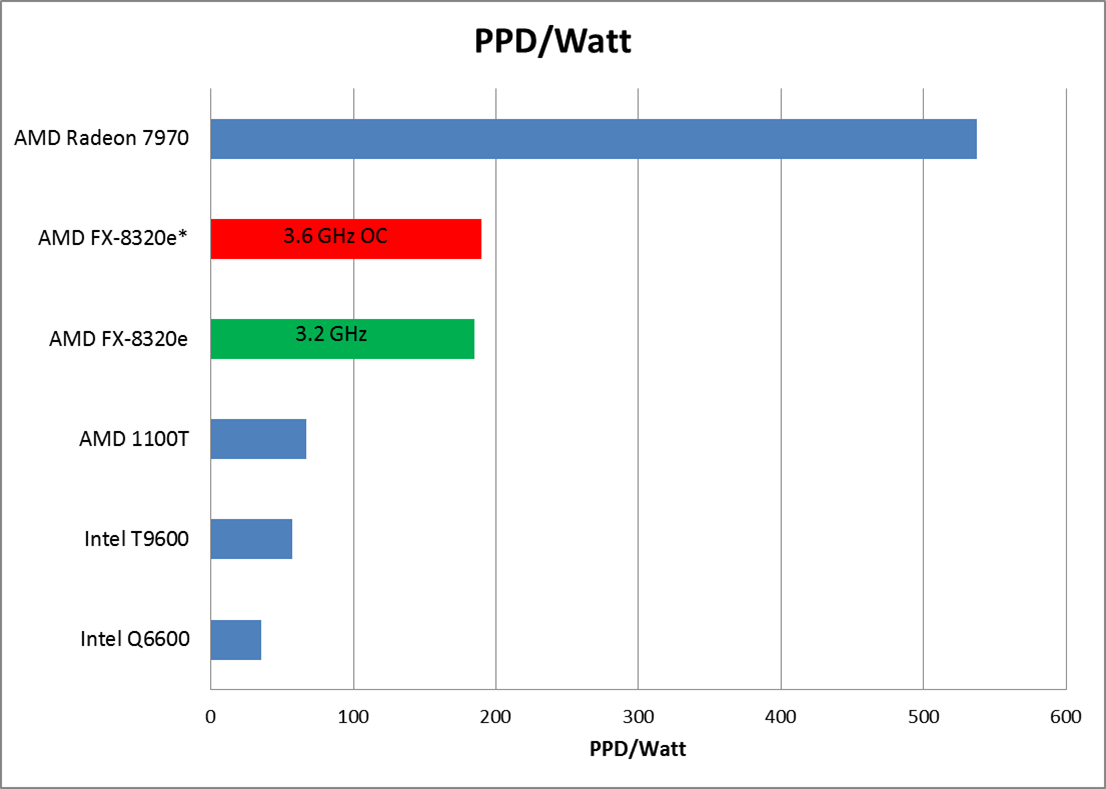
My FX-8320E proved to be very stable at stock voltage at frequencies up to 3.6 GHz.  By very stable, I mean running Folding@home at max load on all CPUs for over 24 hours with no crashes, while also using the computer for daily tasks.   This is a 400 MHz increase over the stock clock rate of 3.2 GHz.  As expected, F@H production went up a noticeable amount (over 3000 PPD).  Power consumption also increased slightly.  It turns out the efficiency was also slightly higher (190 PPD/watt vs. 185 PPD/watt).  So, overclocking was a success on all fronts.

FX 8320e overclock PPD

FX 8320e overclock efficiency

Folding Stats Table FX-8320e OC

Conclusion

As demonstrated with the AMD FX-8320e, mild overclocking can be a good way to earn more Points Per Day at a similar or greater efficiency than the stock clock rate.  Small tweaks like this to Folding@home systems, if applied everywhere, could result in more disease research being done more efficiently.

F@H Efficiency on Dell Inspiron 1545 Laptop

Laptops!  

When browsing internet forums looking for questions that people ask about F@H, I often see people asking if it is worth folding on laptops (note that I am talking about normal, battery-life optimized laptops, not Alienware gaming laptops / desktop replacements).  In general, the consensus from the community is that folding on laptops is a waste of time.  Well, that is true from a raw performance perspective.  Laptops, tablets, and other mobile devices are not the way to rise to the top of the Folding at Home leader boards.  They’re just too slow, due to the reduced clock speeds and voltages employed to maximize battery life.

But wait, didn’t you say that low voltage is good for efficiency?

I did, in the last article.  By undervolting and slightly underclocking the Phenom II X6 in a desktop computer, I was able to get close to 90 PPD/Watt while still doing an impressive twelve thousand PPD.

However, this raised the interesting question of what would happen if someone tried to fold on a computer that was optimized for low voltage, such as a laptop.  Lets find out!

Dell Inspiron 1545

Specs:

  • Intel T9600 Core 2 Duo
  • 8 GB DDR2 Ram
  • 250 GB spinning disk style HDD (5400 RPM, slow as molasses)
  • Intel Integrated HD Graphics (horrible for gaming, great for not using much extra electricity)
  • LCD Off during test  to reduce power

I did this test on my Dell Inspiron 1545, because it is what I had lying around.  It’s an older laptop that originally shipped with a slow socket P Intel Pentium dual core.  This 2.1 GHz chip was going to be so slow at folding that I decided to splurge and pick up a 2.8 GHz T9600 Core 2 Duo from Ebay for 25 bucks (can you believe this processor used to cost $400)?  This high end laptop processor has the same 35 watt TDP as the Pentium it is replacing, but has 6 times the total cache.  This is a dual core part that is roughly similar in architecture to the Q6600 I tested earlier, so one would expect the PPD and the efficiency to be close to the Q6600 when running on only 2 cores (albeit a bit higher due to the T9600’s higher clock speed).  I didn’t bother doing a test with the old laptop processor, because it would have been pretty bad (same power consumption but much slower).

After upgrading the processor (rather easy on this model of laptop, since there is a rear access panel that lets you get at everything), I ran this test in Windows 7 using the V7 client.  My computer picked up a nice A4 work unit and started munching away.  I made sure to use my passkey to ensure I get the quick return bonus.

Results:

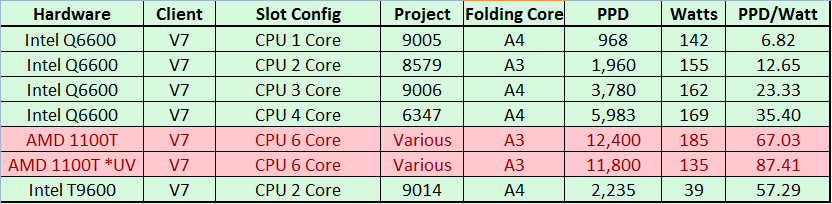
The Intel T9600 laptop processor produced slightly more PPD than the similar Q6600 desktop processor when running on 2 cores (2235 PPD vs 1960 PPD). This is a decent production rate for a dual core, but it pales in comparison to the 6000K PPD of the Q6600 running with all 4 cores, or newer processors such as the AMD 1100T (over 12K PPD).

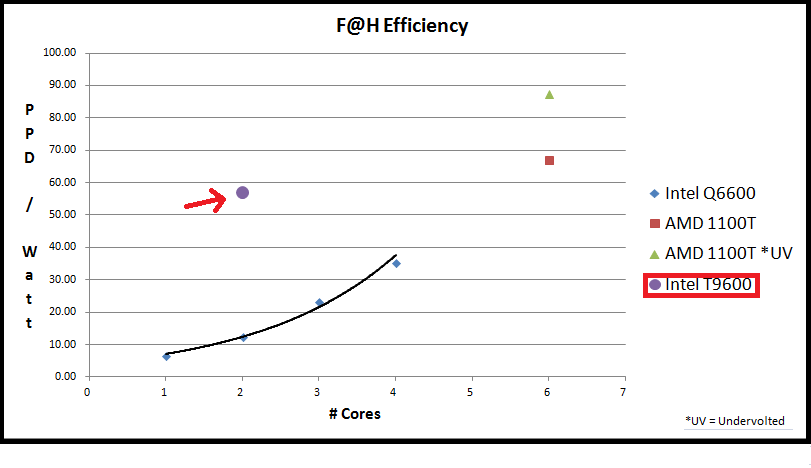
However, from an efficiency standpoint, the T9600 Core2 Duo blows away the desktop Core2 Quad by a lot, as seen in the chart and graph below.

Intel T9600 Folding@Home Efficiency

Intel T9600 Folding@Home Efficiency

Intel T9600 Folding@Home Efficiency vs. Intel Desktop Processors

Intel T9600 Folding@Home Efficiency vs. Desktop Processors

Conclusion

So, the people who say that laptops are slow are correct.  Compared to all the crazy desktop processors out there, a little dual core in a laptop isn’t going to do very many points per day.  Even modern quad cores laptops are fairly tame compared to their desktop brethren.  However, the efficiency numbers tell a different story.

Because everything from the motherboard, video card, audio circuit, hard drive, and processor are optimized for low voltage, the total system power consumption was only 39 watts (with the lid closed).  This meant that the 2235 PPD was enough to earn an efficiency score of 57.29 PPD/Watt.  This number beats all of the efficiency numbers from the most similar desktop processor tested so far (Q6600), even when the Q6600 is using all four cores.

So, laptops can be efficient F@H computers, even though they are not good at raw PPD production.  It should also be noted that during this experiment the little T9600 processor heated up to a whopping 67 degrees C. That’s really warm compared to the 40 degrees Celsius the Q6600 runs at in the desktop.  Over time, that heat load would probably break my poor laptop and give me an excuse to get that Alienware I’ve been wanting.  

F@H Efficiency: Overclock or Undervolt?

Efficiency Tweaking

After reading my last post about the AMD Phenom II X6 1100T’s performance and efficiency, you might be wondering if anything can be done to further improve this system’s energy efficiency.  The answer is yes, of course!  The 1100T is the top-end Phenom II processor, and is unlocked to allow tweaking to your heart’s content.  Normal people push these processors higher in frequency, which causes them to need more voltage and use more power.  While that is a valid tactic for gaining more raw points per day, I wondered if the extra points would be offset by a non-proportional increase in power consumption.  How is efficiency related to clock speed and voltage?  My aim here is to show you how you can improve your PPD/Watt by adjusting these settings.  By increasing the efficiency of your processor, you can reduce the guilt you feel about killing the planet with your cancer-fighting computer.  Note that the following method can be applied to any CPU/motherboard combo that allows you to adjust clock frequencies and voltages in the BIOS.  If you built your folding rig from scratch, you are in luck, because most custom PCs allow this sort of BIOS fun.  If you are using your dad’s stock Dell, you’re probably out of luck.

AMD Phenom II X6: Efficiency Improved through Undervolting

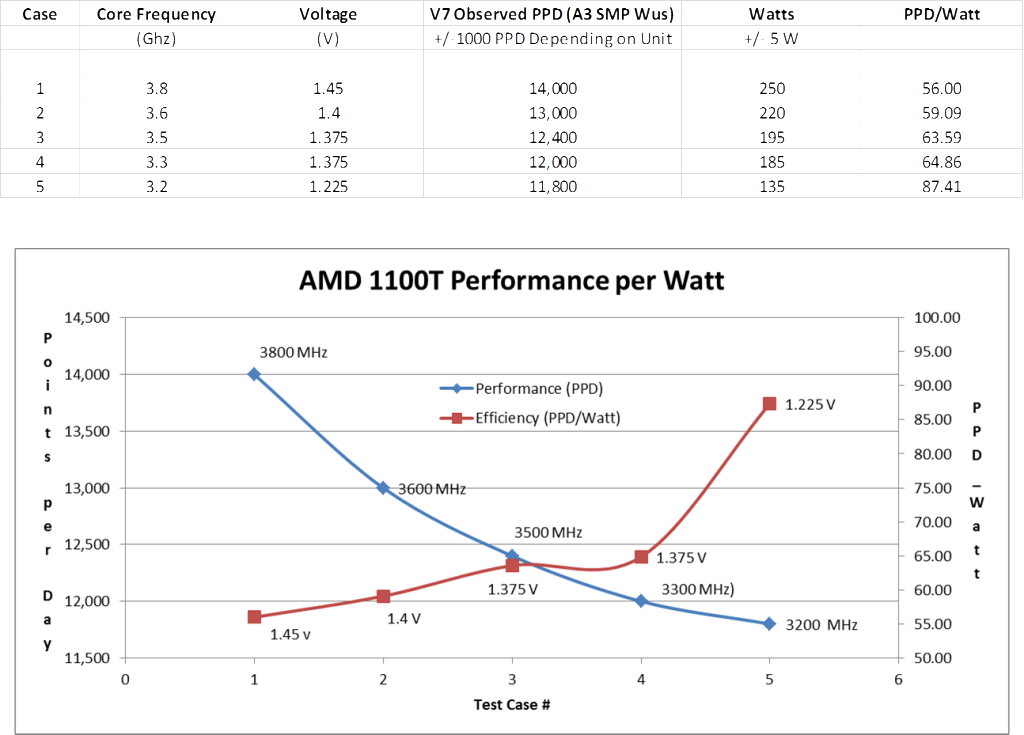
The baseline stats for the X6 Phenom 1100T are 3.3 GHz core speed with 2000 MHz HyperTransport and Northbridge clocks. This is achieved with the CPU operating at 1.375v, with a rated TDP (max power consumption) of 125 watts. Running the V7 Client in SMP-6 with my pass key, I saw roughly 12K ppd on A3 work units.  This is what was documented in my blog post from last time.

Now for the fun part.  Since this is a Black Edition processor from AMD, the voltages, base frequencies, and multipliers are all adjustable in the system BIOS (assuming your motherboard isn’t a piece of junk).  So, off I went to tweak the numbers.  I let the system “soak” at each setting in order to establish a consistent PPD baseline.  I got my PPD numbers by verifying what the client was reporting with the online statistics reporting.  Wattage numbers come from my trusty P3 Kill-A-Watt meter.

First, I tried overclocking the processor.  I upped the voltage as necessary to keep it stable (stable = folding overnight with no errors in F@H or my standard benchmark tests).  It was soon clear that from an efficiency standpoint, overclocking wasn’t really the way to go.  So, then I went the other way, and took a bit of clock speed and voltage out.

F@H Efficiency Curve: AMD Phenom II X6 1100T

F@H Efficiency Curve: AMD Phenom II X6 1100T

These results are very interesting.  Overclocking does indeed produce more points per day, but to go to higher frequencies required so much voltage that the power consumption went up even more, resulting in reduced efficiency.  However, a slight sacrifice of raw PPD performance allowed the 1100T to be stable at 1.225 volts, which caused a marked improvement in efficiency.  With a little more experimenting on the underclocking / undervolting side of things, I bet I could have got this CPU to almost 100 PPD / Watt!

Conclusion

PPD/Watt efficiency went up by about 30% for the Phenom II X6 1100T, just by tweaking some settings in the BIOS.  Optimizing core speed and voltage for efficiency should work for any CPU (or even graphics card, if your card has adjustable voltage).  If you care about the planet, try undervolting / underclocking your hardware slightly.  It will run cooler, quieter, and will likely last longer, in addition to doing more science for a given amount of electricity.

Folding at Home CPU Efficiency: Multi-Core Intel Q6600

In the last post, I showed how environmentally unfriendly it is to run just the uniprocessor client.  In this post, I’ll finish off the study about # of CPU cores vs. folding efficiency.  As it turns out, you can virtually double your folding at home efficiency when you double the amount of CPU cores you are running with. Using the same Intel Q6600 as before, I told the Folding at Home client to ramp up and use three cores.  Then, once I had some data, I switched it to four-core folding.  With the CPU fully engaged, my computer became a bit slow to use, but that’s not a problem since what we are all about here is dedicated F@H Rigs (the only way to fold efficiently is to fold 100%).   If I want to use my computer, I’ll stop the folding to do so, then start it up later.

Here are the results of the 1 through 4 core F@H PPD experiment!

Q6600_Efficiency

As you can see, both performance (PPD) and energy efficiency (technically efficacy in PPD/Watt) scale with the # of CPU cores being used.  Yes, the system does use more total electricity when more cores are engaged (169 watts vs. 142), but the amount of work being done per day has far surpassed the slight increase in power consumption.  In graph form:

Intel Q6600 Folding@Home Points Per Day / Watt Graph

Intel Q6600 Folding at Home Efficiency Graph

Intel Q6600 Folding at Home Efficiency Graph

In conclusion, it makes the most sense from a performance and efficiency standpoint to use as much of your CPU as you can.  In the next post, I’ll look at a few more powerful CPU-based folding@home systems.